You can create a WordPress staging site for free with the WPvivid Backup plugin. Install the free plugin, open WPvivid Backup, Staging, click Create A Staging Site, name the folder and click Create Now. WPvivid copies your files and database into a subdirectory such as yoursite.com/staging, tells search engines to stay away from it and paints its admin bar orange so you always know which site you are on. On my test site, 811 MB with 20 plugins and WooCommerce, the copy finished in under six minutes.
WPvivid: 20% OFF Every Plan, Lifetime Included
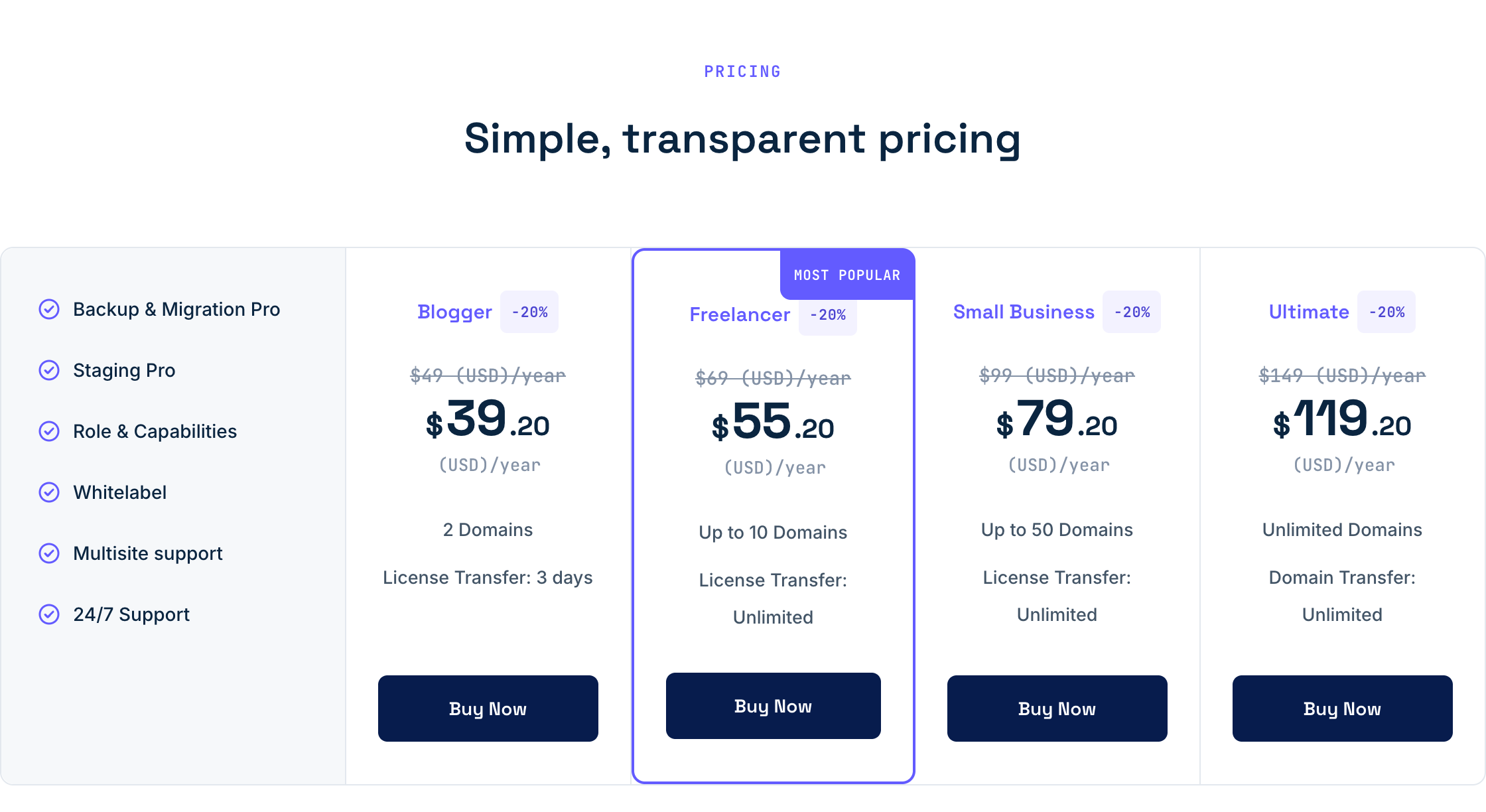
My reader code BLOGGERTUTOR20 takes 20% off every WPvivid plan, yearly and Lifetime, 365 days a year, and it works on top of any sale price WPvivid is running. Ultimate Lifetime at $239.20 once is the one I would buy: unlimited domains, for less than two years of the $149 yearly plan.
| Blogger, 2 domains, yearly | |
| Blogger, 2 domains, Lifetime | |
| Freelancer, 10 domains, Lifetime | |
| Small Business, 50 domains, Lifetime | |
| Ultimate, unlimited, Lifetime |
BLOGGERTUTOR20 is my reader code, so it has no end date. It stacks on top of WPvivid sale prices, and I will show the Black Friday price with the code here the day it opens.
A staging site is a private copy of your website where you try plugin updates, theme changes and new PHP versions before your visitors ever see them. Most guides send you to a paid host feature or a plugin that wants a licence for the basics. WPvivid is the one I use because the staging part is genuinely free, and below I walk through every screen exactly as it looks today, then explain the one or two cases where the Pro version is worth paying for.
What You Need Before You Start
| Item | What I used | Why it matters |
|---|---|---|
| WPvivid Backup, Migration and Staging | Free version 0.9.136 from WordPress.org | Staging is included free, no licence key |
| Admin access | An administrator account | Only admins see the WPvivid menu |
| Free disk space | About the size of your site again | The staging copy is a full second set of files |
| Web server | Apache, LiteSpeed or Nginx | Nginx needs one small rule, covered below |
| A fresh backup | Made with WPvivid in step 2 | Your safety net if anything goes wrong |
WPvivid Staging, Free vs Pro at a Glance
| Staging feature | WPvivid Free | WPvivid Pro |
|---|---|---|
| Create a staging site in a subdirectory | Yes | Yes |
| Install staging in /wp-content/ instead of the site root | Yes | Yes |
| Use the live database or a separate database | Yes | Yes |
| Create a fresh WordPress install for testing | Yes | Yes |
| Staging on a subdomain such as staging.yoursite.com | No | Yes |
| More than one staging site at a time | No | Yes |
| Exclude extra files and folders from the copy | No | Yes |
| Update the staging site from live | No | Yes |
| Push staging changes to the live site | No | Yes |
| Multisite staging | No | Yes |
If all you want is a safe place to test updates before you click Update on the live site, the free column covers it completely. I come back to the Pro column at the end of the guide.
Step 1: Install the Free WPvivid Plugin
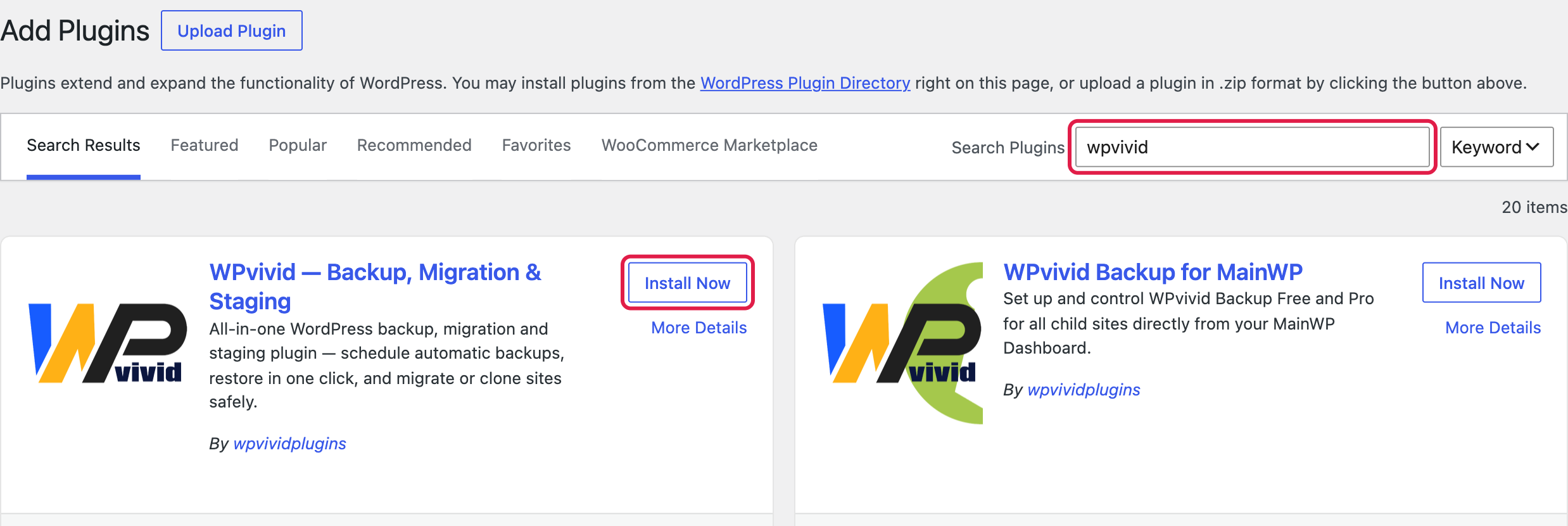
In your dashboard go to Plugins, Add Plugin and search for wpvivid. Install the one called WPvivid, Backup, Migration and Staging by wpvividplugins. The second result, WPvivid Backup for MainWP, is only for people who manage many sites from MainWP, so skip it.
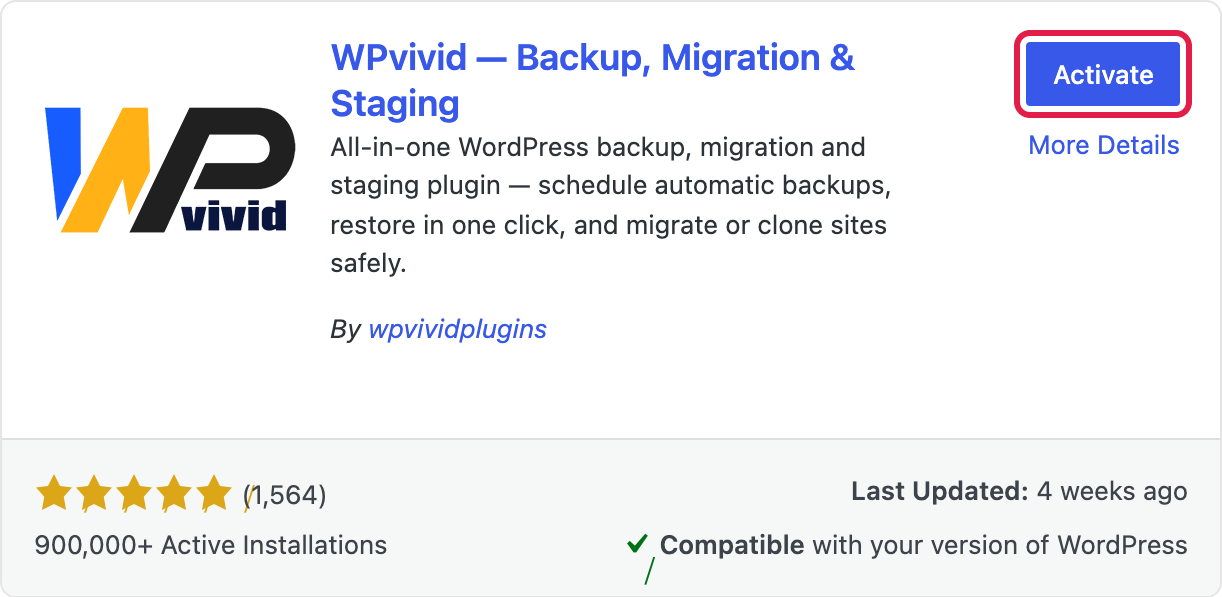
When the button changes to Activate, click it. WPvivid opens its own Backup and Restore screen and adds a WPvivid Backup menu to your sidebar. It is rated 98 out of 100 from 1,564 ratings on WordPress.org with more than 900,000 active installs, so you are not trying anything exotic here.
Step 2: Take a Backup Before You Touch Anything
Creating a staging site does not change your live site, but I never skip this step. It costs one click and it means that whatever happens next, you can roll back. On the WPvivid screen leave Database + Files and Save Backups to Local selected and click Backup Now.
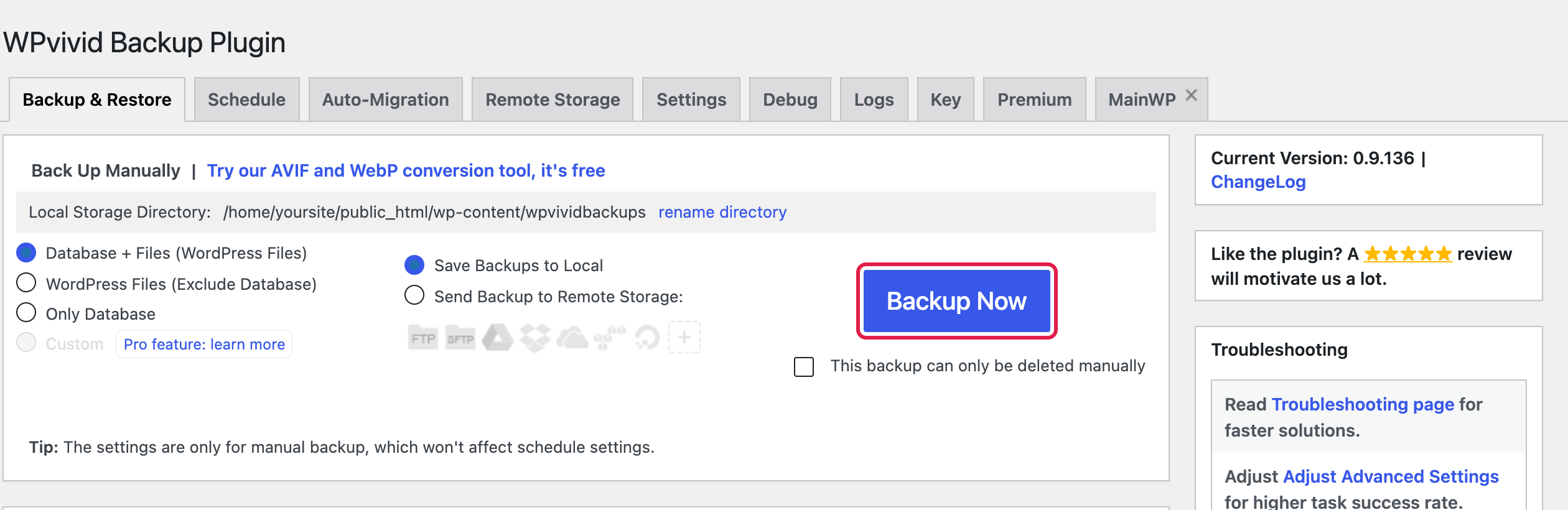
My test site produced a 189 MB backup in about 40 seconds. When it finishes it appears in the list below with Download and Restore buttons. Download a copy to your computer as well, because a backup that only lives on the same server is not much of a safety net. If you want backups that run on their own and go to Google Drive or Dropbox, my full WPvivid review covers the scheduling side.

Step 3: Open WPvivid Staging
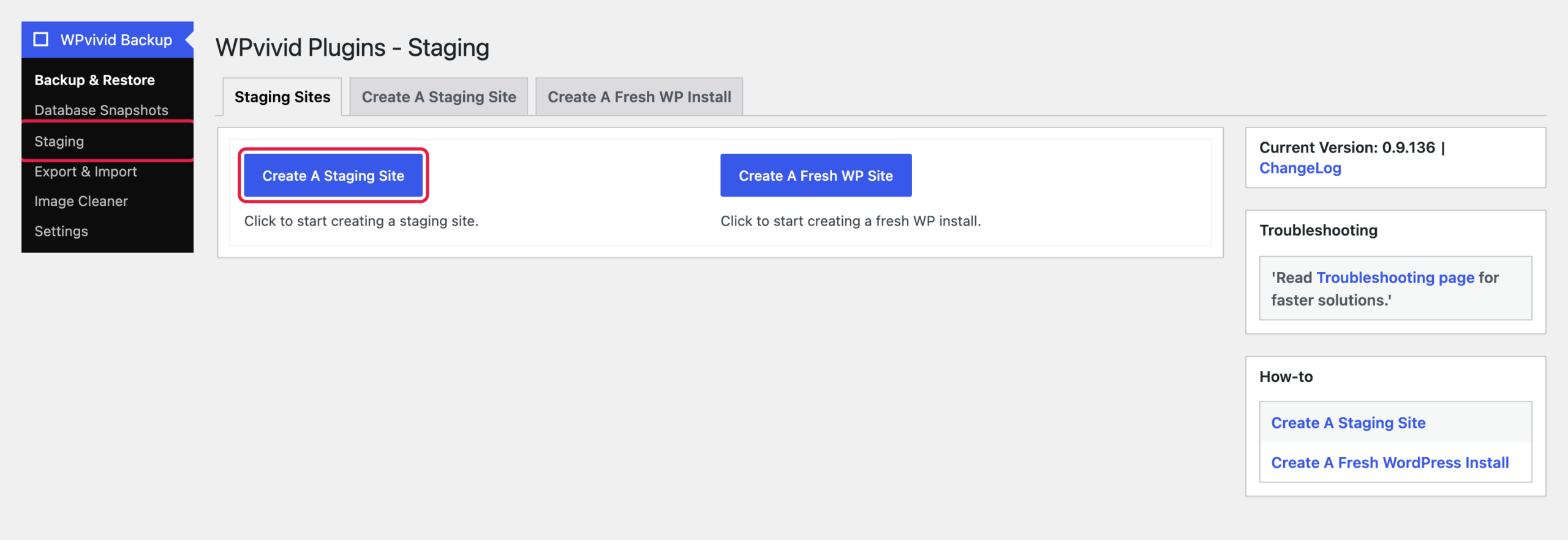
In the sidebar go to WPvivid Backup, Staging. The screen has three tabs: Staging Sites, Create A Staging Site and Create A Fresh WP Install. Click the blue Create A Staging Site button.
The fresh WP install option is handy too. It gives you an empty WordPress in a subfolder, which is useful for trying a new theme or plugin without any of your content in the way. For testing updates you want the staging site, because it is an exact copy of your real one.
Step 4: Choose the Folder and the Database
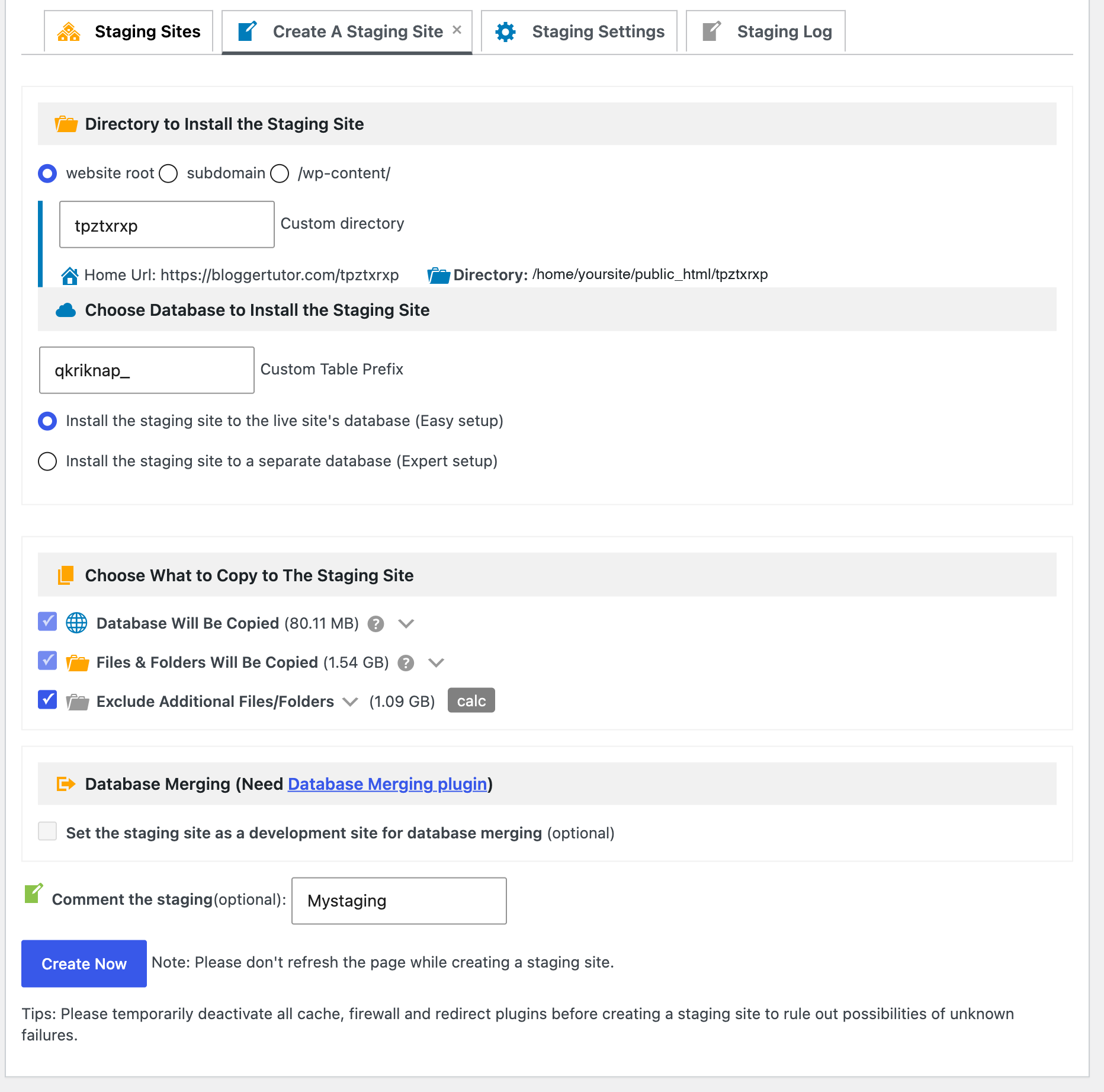
This screen decides where the copy lives. Here is what each option means and what I pick.
- Website root puts the copy at
yoursite.com/staging. This is the one I use. Type a short name in Custom directory; WPvivid suggests a random one like mystaging01, and I changed it to staging. The Home Url line underneath updates as you type, so you can see the final address. - /wp-content/ puts it inside your wp-content folder instead. Pick this only if your host does not let you create folders in the site root.
- Subdomain is greyed out with a pro feature label. More on that later.
- Install the staging site to the live site's database (Easy setup) keeps the copy in your existing database with its own table prefix,
wpvividstg01_by default. No new database to create, and it is what I recommend for almost everyone. - Install the staging site to a separate database (Expert setup) asks for the name, user and password of a second database you created in your hosting panel. Use it if your host caps database size or you simply prefer the copy to be completely apart.
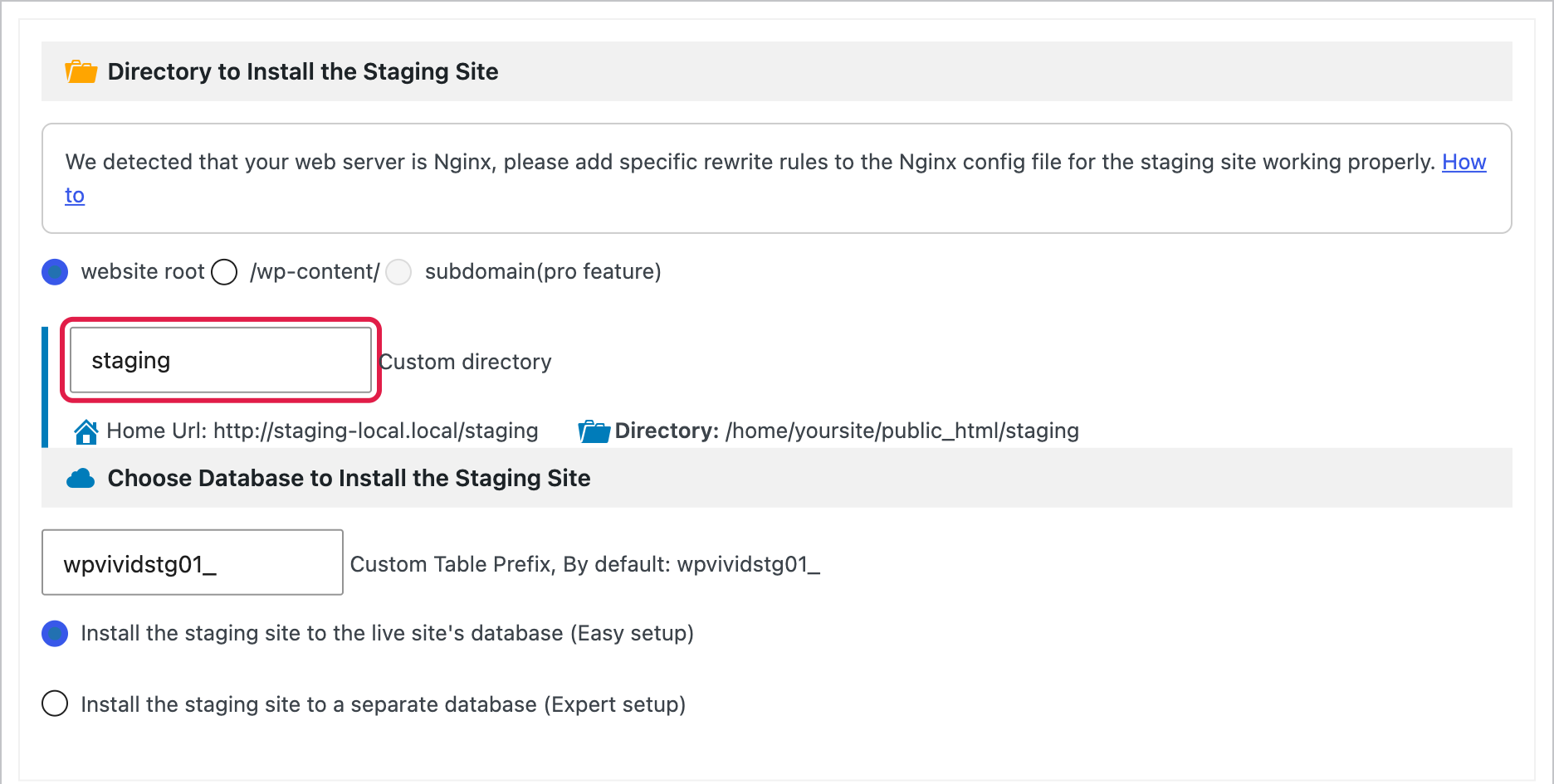
If your server runs Nginx, WPvivid shows a blue notice at the top of this screen asking you to add rewrite rules. Do not panic, it is one small block and I show it in step 7. On Apache and LiteSpeed hosting, which is most shared hosting, you will not see that notice.
Step 5: Choose What to Copy and Click Create Now
Scroll down. In the free version both Database Will Be Copied and Files and Folders Will Be Copied are ticked, and WPvivid shows how big the file copy will be, 811 MB on my site. Excluding extra folders is a Pro option, so the free version copies everything, which is exactly what you want for testing updates.
Before you click, do what the tip under the button says: temporarily deactivate cache, firewall and redirect plugins on the live site. Caching plugins are the most common reason a staging copy loads the live site's pages or fails halfway. Turn them back on as soon as the copy finishes.
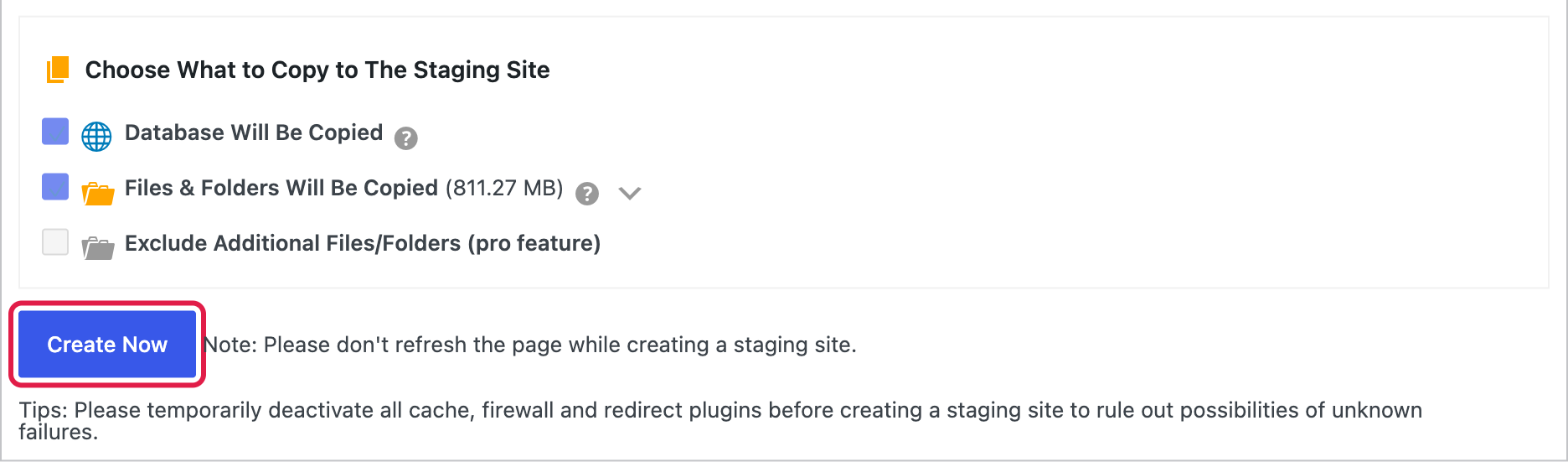
Now click Create Now. Your browser asks you to confirm with Click OK to start creating the staging site. Click OK.
Step 6: Leave the Tab Open While It Copies
WPvivid copies your site in small chunks so it does not hit your host's time limits. A log scrolls past with every batch of files and every database table, and a progress bar fills along the bottom. The copy is driven from this admin page, so keep the tab open and do not refresh it until the bar reaches 100%.
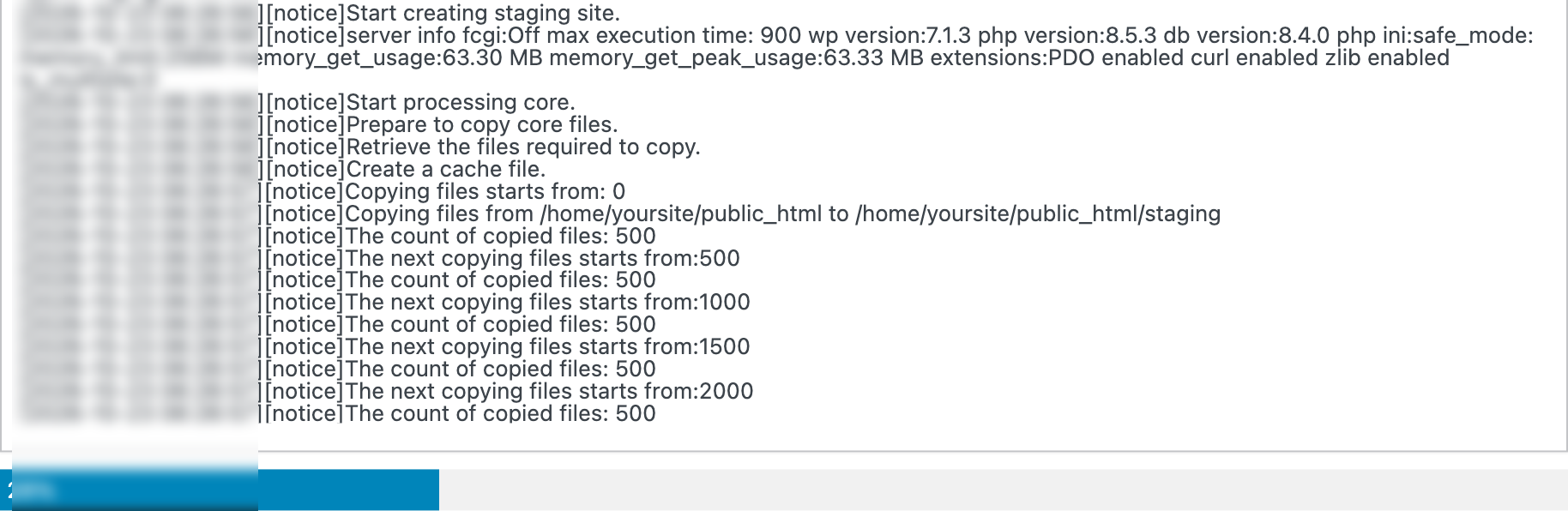
On my test site the files took under a minute and the database the rest; WooCommerce, LatePoint and Presto Player add a lot of tables, so the whole thing came in just under six minutes. A small blog with a handful of plugins is usually done in one or two. If the progress ever stalls for several minutes, reload the Staging page: WPvivid lists the half finished copy and you can delete it and start again without any harm to the live site.
Step 7: Open Your Staging Site
When the copy is done, the Staging Sites tab lists it with its Home URL, Admin URL, table prefix and folder. Click the Admin URL and log in with the same username and password you use on the live site, because the users were copied too.
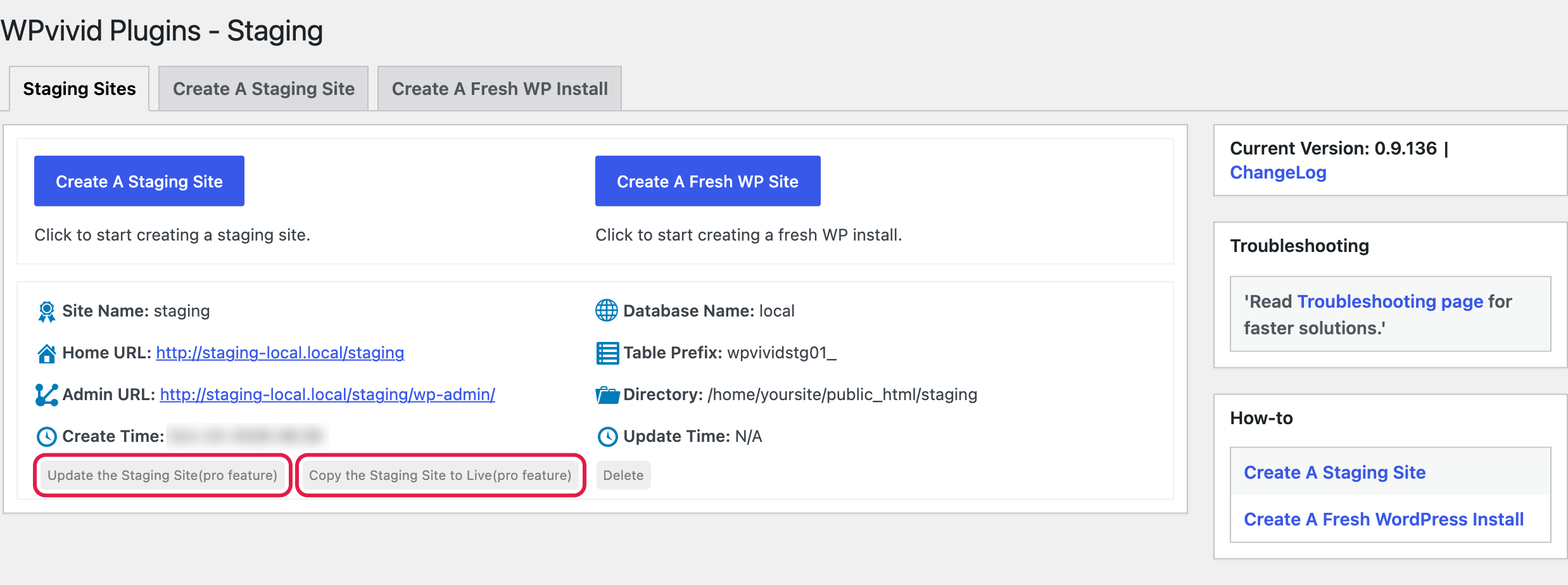
Notice the two greyed buttons, Update the Staging Site and Copy the Staging Site to Live. Both are Pro features. Delete is free, and you will use it at the end.
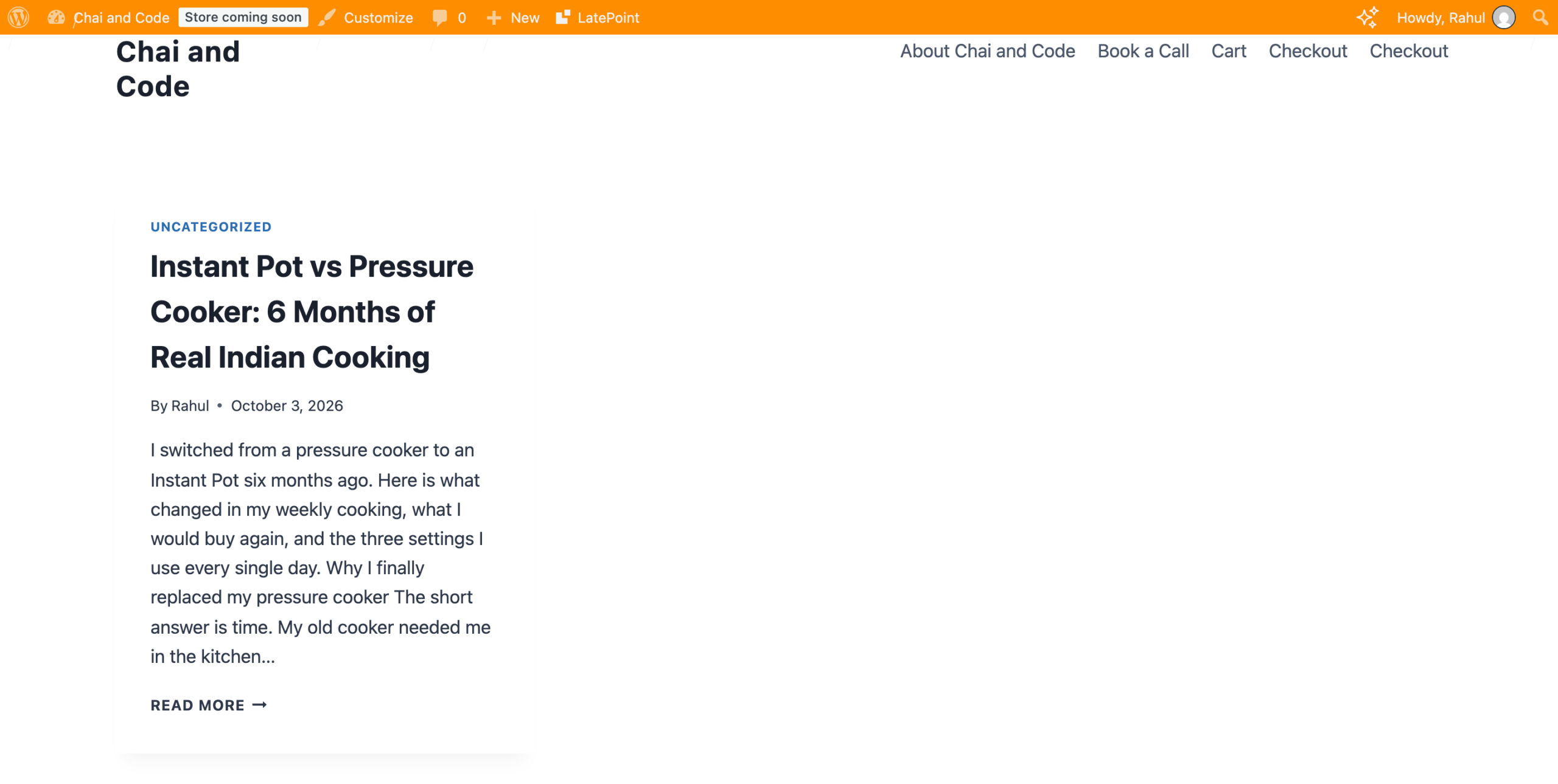
The first thing you will notice once you are in is the colour. WPvivid turns the staging admin bar orange, so a quick glance tells you whether you are about to click something on the copy or on the real site. I like this more than any other staging plugin's warning banner, because you cannot miss it.

If You Are on Nginx: Add This Rule
On Nginx the staging home page and dashboard work straight away, but individual posts and pages can return a 404 or quietly load the live site, because Nginx sends every pretty permalink to the main site's index.php. The fix from WPvivid's own documentation is one location block in your site's Nginx config. Replace staging with your folder name:
location /staging/ {
    try_files $uri $uri/ /staging/index.php?$args;
}
Reload Nginx and make sure the staging site's Settings, Permalinks match the live site. I added exactly this block on my Nginx test server and every staging permalink opened correctly afterwards. On managed hosting where you cannot edit the config, send that block to support; it is a two minute job for them.
Step 8: Test Your Change on the Staging Site
This is the whole point of the exercise. On my live site Rank Math SEO had an update waiting, and an SEO plugin is exactly the kind of update I never want to discover is broken on the live site.

So I went to Plugins on the staging site, with the orange bar at the top, and clicked update now there first. It updated cleanly to the new version. Then I clicked through the things that plugin touches: a few posts, the sitemap, the SEO settings screens and the block editor.

Do the same with whatever you are testing. The checks I run after any update on staging are:
- Open the home page, a post, a page and, on a store, the cart and checkout.
- Open the editor on one post and make sure blocks load and save.
- Submit any contact form you rely on.
- Look at Tools, Site Health for new critical issues.
- Turn on WP_DEBUG on the staging copy if something feels off; it is a copy, so nothing your visitors see changes.
The front end of the staging copy looks exactly like your real site, just at the /staging address and with the orange bar while you are logged in. Your visitors never land here, because nothing links to it and search engines are told to stay out.
Step 9: Apply the Change on Live, Then Delete the Copy
With the free version there is no push button, so the workflow is simple: once something works on staging, repeat the same click on the live site. For updates, theme switches and settings changes that takes seconds, and honestly it is the safest way, because you are not overwriting your live database with an older copy.
When you are finished, go back to WPvivid Backup, Staging and click Delete next to the staging site. I delete mine after every round of testing for three reasons. The copy uses as much disk space as your site, the Easy setup doubles the size of your database, and an old staging copy with outdated plugins is an unnecessary thing to leave lying around on a server. Next time, create a fresh one, it is only a few minutes.
How WPvivid Keeps Your Staging Site Out of Google
Duplicate content is the classic staging mistake: a copy of your site gets indexed and competes with the real one. WPvivid handles it for you. When it creates the copy it ticks Discourage search engines from indexing this site in the staging site's Reading settings, and the staging pages go out with a noindex, nofollow robots tag. I checked both on my copy. Leave that box ticked.

Common Problems and How I Fix Them
| Problem | Likely cause | Fix |
|---|---|---|
| Staging posts show a 404 or the live site | Nginx rewrite rule missing, or permalinks not saved | Add the Nginx block above, then open Settings, Permalinks on staging and click Save Changes |
| Copy stops partway | Tab closed or refreshed, or a cache or firewall plugin interfering | Delete the unfinished copy, pause cache and firewall plugins, create it again with the tab open |
| Logging in to staging sends you to the live dashboard | Hard coded URLs from a cache or redirect plugin | Clear the cache, pause redirect plugins and log in again at the staging Admin URL |
| Not enough disk space | The copy needs roughly your site's size again | Delete old backups first, or pick the /wp-content/ option on hosts with tight limits |
| Emails go out from staging | The copy includes plugins that send mail or run scheduled jobs | Pause newsletter and store email plugins on staging before testing |
When WPvivid Pro Is Worth Paying For
I will be straight with you: for testing updates on one blog, the free version is all you need, and I ran it that way for a long time. Pro earns its money in four situations.
- You build on staging and want to push it live. Redesigns, new page layouts, a theme switch with lots of customiser work. Re-doing all of that by hand on live is where mistakes happen, and Copy the Staging Site to Live does it in one go.
- You want a staging subdomain such as staging.yoursite.com, which some clients expect, and which keeps the copy completely apart from your main site's folder.
- You run more than one staging site, for example one for a redesign and one for plugin testing, or you need to refresh staging from live without rebuilding it.
- Your site is large and you want to exclude video folders or old backups from the copy so it fits your disk space.
One warning if you run a store. Pushing a staging database over a live WooCommerce site will overwrite any orders and customers that came in after you made the copy. On stores I push files only, or I repeat database changes by hand on live. Pro gives you the button; you still need to think about what it overwrites.
Pro starts at $49 a year for 2 domains, or $99 once for a lifetime licence on the Blogger plan, and both were 20% off on wpvivid.com when I checked on 23 October 2026, which brings them to $39.20 and $79.20. The lifetime licence costs about the same as two years of the yearly plan, which is why I would buy lifetime if you know you will keep using it. Pro also adds incremental backups, more cloud destinations and backup encryption, so you get more than staging for that money.
My Verdict
WPvivid is the easiest free way to get a real WordPress staging site I know of. It is a full copy of files and database, it hides itself from Google, and the orange admin bar makes it hard to make a change on the wrong site. Use the free version to test every plugin, theme and PHP update before it reaches your visitors, and only pay for WPvivid Pro when you start building on staging and need to push those changes live.
Frequently Asked Questions
Is WPvivid staging really free?
Yes. The free WPvivid Backup, Migration and Staging plugin from WordPress.org creates a full staging copy of your site in a subdirectory with no licence key. Pushing staging to live, subdomain staging and multiple staging sites need WPvivid Pro.
Will creating a staging site slow down or break my live site?
No. WPvivid only reads your live files and database while it copies, in small batches. Your live site keeps running normally. Take a backup first anyway, it is one click.
Can Google index my WordPress staging site?
WPvivid ticks Discourage search engines on the staging copy and the pages carry a noindex, nofollow tag, so search engines are told not to index it. Leave that setting on and delete the copy when you are done.
How do I move changes from staging to the live site for free?
In the free version you repeat the change on the live site after you have tested it on staging, for example clicking the same plugin update. Copying staging to live in one click is a WPvivid Pro feature.
Where is the WPvivid staging site stored?
In a folder inside your site, such as yoursite.com/staging, or inside wp-content if you choose that option. Its database tables sit in your live database with their own prefix, wpvividstg01_ by default, unless you choose a separate database.
Why do my staging pages show a 404 error?
On Nginx servers you need one rewrite rule for the staging folder, shown in WPvivid's documentation and in this guide. On Apache or LiteSpeed, open Settings, Permalinks on the staging site and click Save Changes.
How do I delete a WPvivid staging site?
Go to WPvivid Backup, Staging on the live site and click Delete next to the staging site. That removes its folder and its database tables.
Does UpdraftPlus have free staging?
No. UpdraftPlus does not include staging in its free version, which is one of the reasons I recommend WPvivid for beginners on a budget.
More Guides on Backups and Migration
- WPvivid review, every feature tested, including Pro
- Best WordPress backup plugins, the five I trust
- Move WordPress to any host, two tested methods
- WPvivid vs UpdraftPlus, which backup plugin wins
Disclosure: I earn a commission if you buy WPvivid Pro through the links on this page, at no extra cost to you. The free plugin costs nothing either way. Everything in this guide was tested on a real WordPress site with WPvivid 0.9.136 on 23 October 2026, and prices were checked on wpvivid.com the same day.