There are two sensible ways to move a WordPress site to a new host. A free plugin does the whole thing on someone else's servers while you watch, or you move the files and the database yourself and keep full control of every step. I have used both this week on a real site: 2.7 GB of uploads across 10,596 attachments, a 377 MB database dump, and a WooCommerce store with WPML running across eight languages.
This guide covers both, with the screens as they look in September 2026. Fresh screenshots are worth having right now, because MigrateGuru changed how it works and almost every guide still online describes the old flow.
The short answer
Use MigrateGuru if your new host is a normal shared, VPS or managed WordPress host and you can install a plugin on both ends. It is free, it handles serialised data correctly, and it does the transfer on its own servers so your old site never has to compress 3 GB while still serving traffic.
Go manual if you are moving into a locked down environment, you have SSH and prefer it, the site is tiny, or a plugin migration has already failed and you need to see exactly which step broke.
Before you touch anything, write down six numbers
Most failed migrations trace back to a number nobody checked. These six take two minutes, and they decide which method is even possible.
| What to check | Command or location | Why it decides things |
|---|---|---|
| Database size | wp db size --tables | Over about 50 MB and phpMyAdmin import stops being realistic |
| Uploads size | du -sh wp-content/uploads | This is almost always the bulk of the transfer |
| Table prefix | wp config get table_prefix | If it is not wp_ the new wp-config must match it exactly |
| PHP upload limit | Tools, Site Health, Info | Caps what you can push through any browser upload form |
| PHP and MySQL versions | Tools, Site Health, Info | A new host on older PHP will fatal on modern plugins |
| Where DNS is managed | Your registrar | You need this at the end, and people forget who has the login |
Here is that first check on the site I used for this guide. One table, postmeta, is 175 MB on its own.
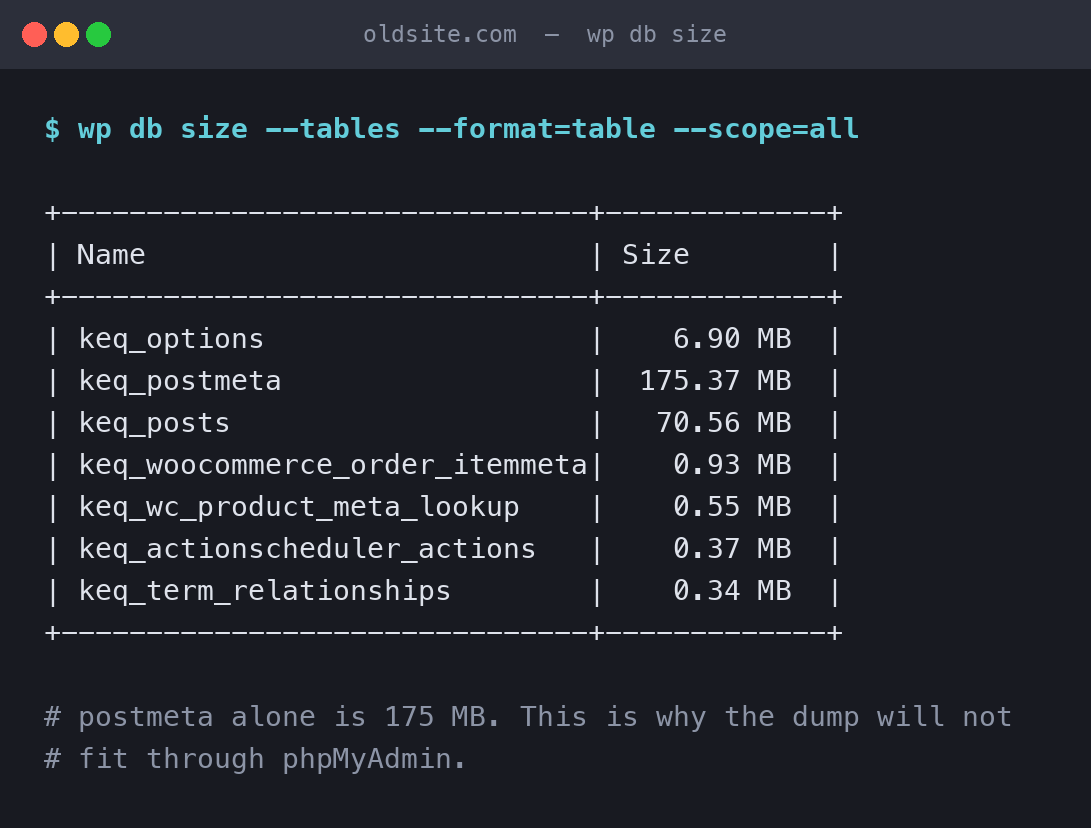
If you do not have WP CLI, the same information is in phpMyAdmin: open the database and read the Size column at the bottom of the table list.
Method 1: MigrateGuru, the free automatic route
MigrateGuru is free with no paid tier attached to the migration itself, which is unusual. It is made by BlogVault, and the money comes from their backup product. On WordPress.org today it sits on 200,000 active installs and 98 out of 100 from 1,640 ratings, with 1,582 of those at five stars and 39 at one star. Version 6.72, last updated 28 August 2026. It has been on the repository since August 2017.
I prefer it over the better known all-in-one exporters for one structural reason: the transfer runs on MigrateGuru's servers, not yours. Your old host never has to build a 3 GB archive in PHP while still answering requests, which is the step that times out and produces a half finished export. Their readme claims sites up to 200 GB.
What changed, and why other guides will mislead you
MigrateGuru used to be installed on the old site only. You picked your new host from a grid of logos and typed in its cPanel or FTP credentials, and the plugin pushed the site across.
That flow no longer exists in 6.72. You now install the plugin on both sites and pair them with a migration key. No destination credentials are typed in at all. If a tutorial tells you to enter your new host's FTP password, it is describing a version you are not running.
Step 1: install the plugin on both sites
Install and activate MigrateGuru on the old site and on the fresh WordPress install at the new host. The new host needs a working, empty WordPress already in place. Nearly every host installs one for you when you add a site.
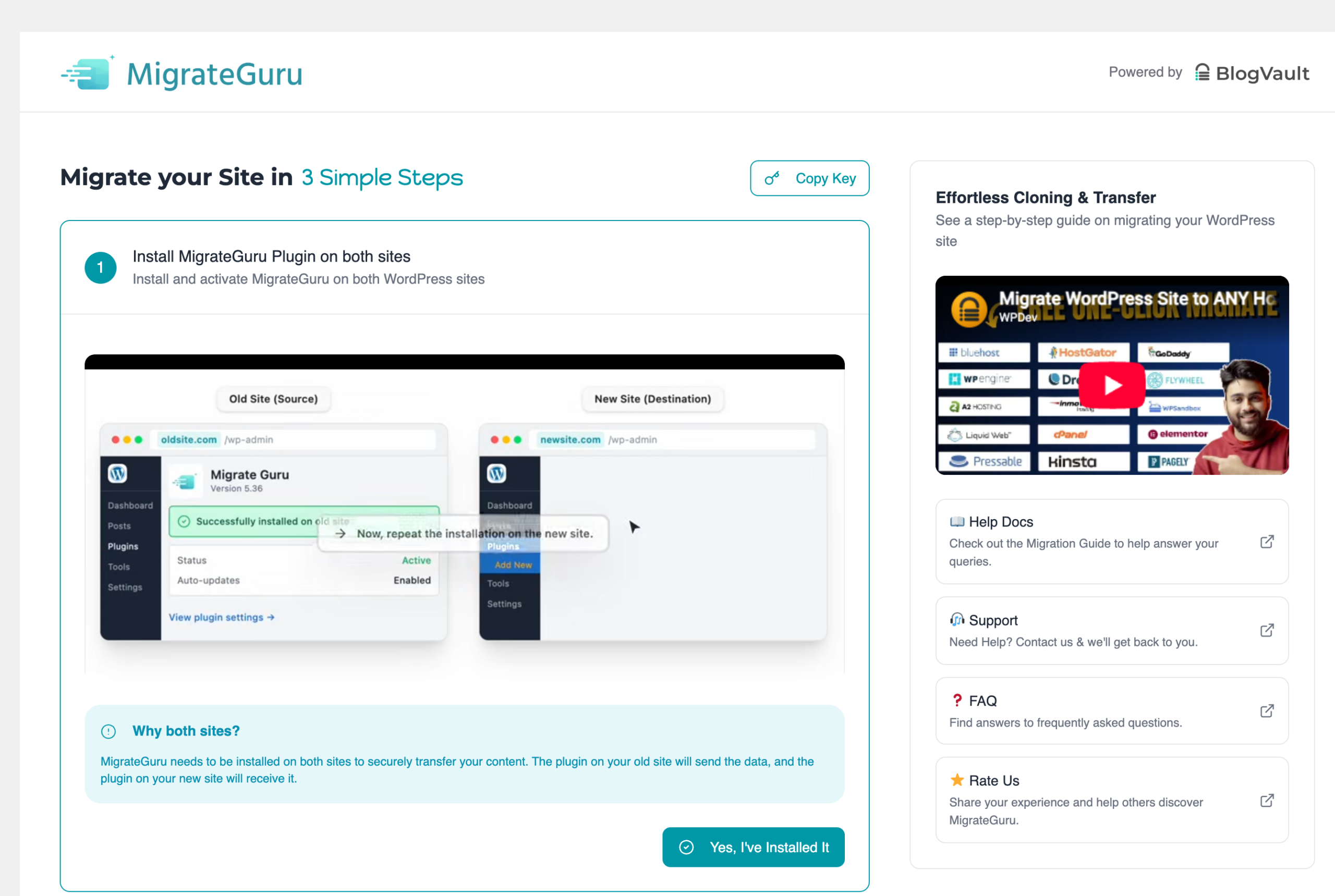
Once both are active, click Yes, I've Installed It on the old site. The panel checks the pairing and marks step 1 complete.
Step 2: copy the migration key from the NEW site
This is the step people get backwards, and MigrateGuru warns about it in the modal itself. Go to the new site, open MigrateGuru there, and press Copy Key. The key identifies the destination.
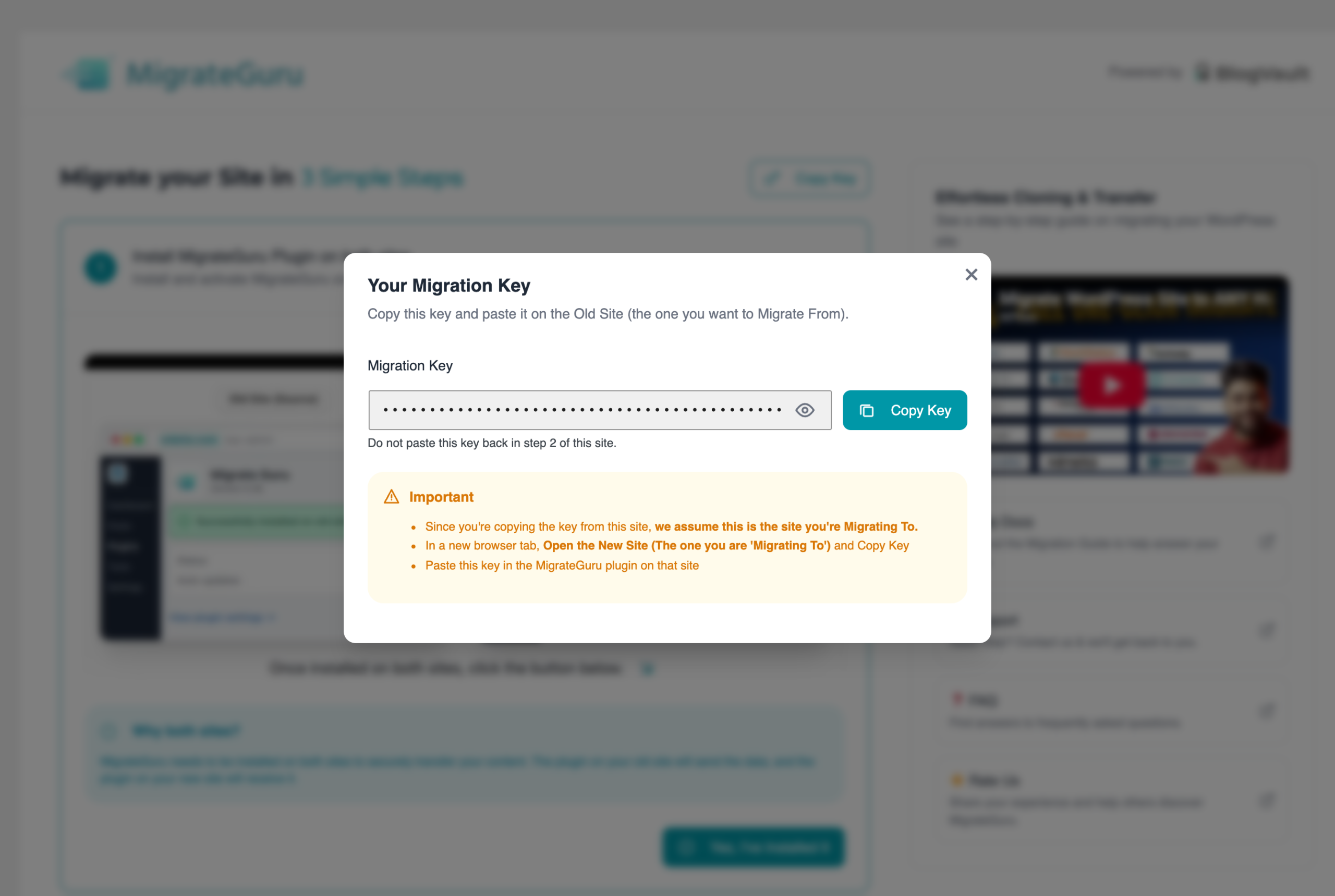
Read the yellow panel in that screenshot carefully. Because you are copying the key from this site, MigrateGuru assumes this is the site you are migrating to. Copy the key here, then paste it on the old site. Pasting a site's own key back into itself does nothing.
Step 3: validate the key and start
Back on the old site, paste the key into step 2 and press Validate Key. Step 3 then asks for an email address, which is where the status updates go.
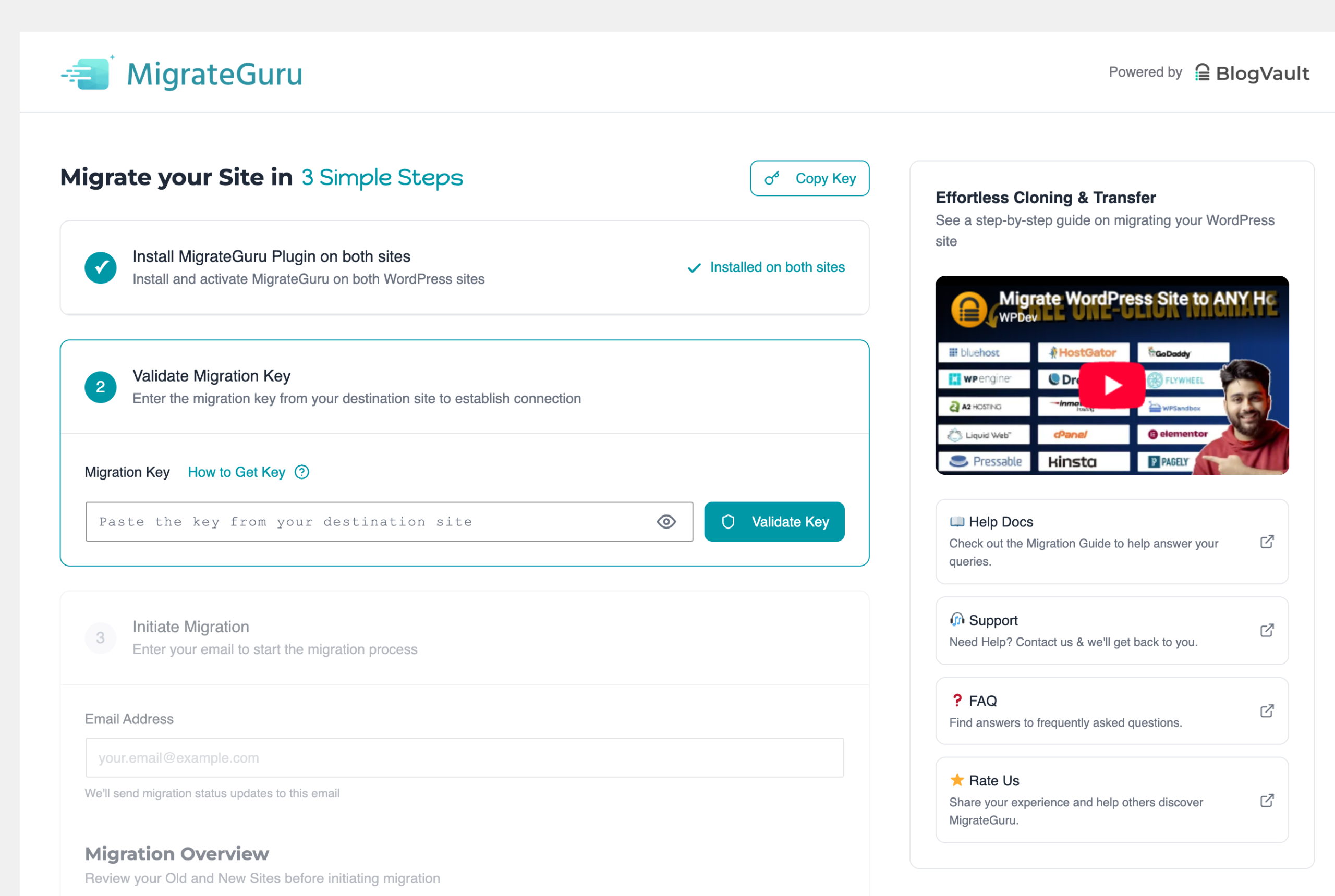
Before you press the button, the Migration Overview confirms both ends. Until the key validates, the destination panel stays greyed out and simply says so, which is a useful guard against migrating into the wrong site.
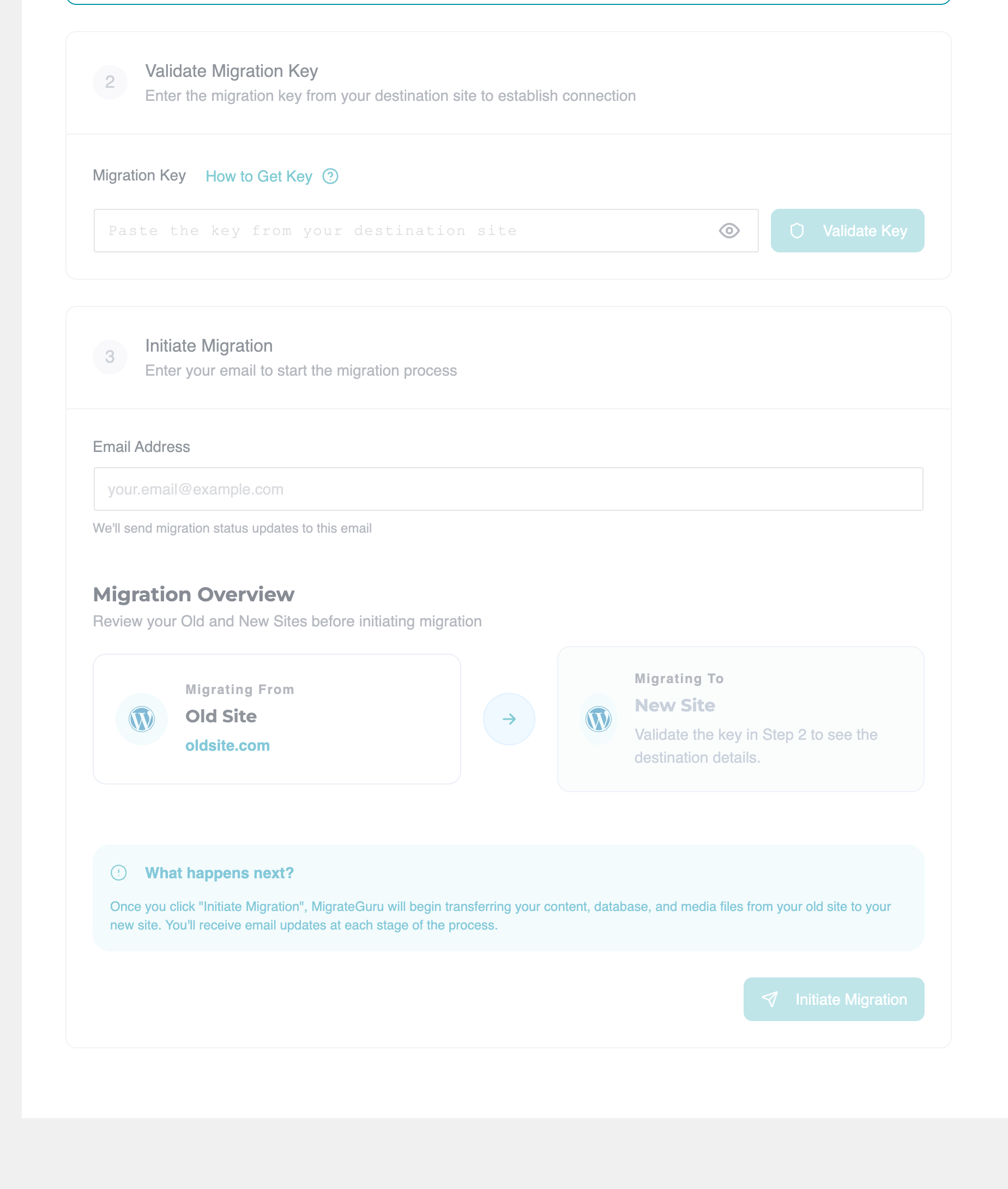
Press Initiate Migration and it runs. You can close the tab. The email updates arrive at each stage, and nothing on the old site is modified at any point, which is the part that makes this safe to try.
What MigrateGuru will not do for you
- It does not point your domain at the new host. DNS is still a manual step at your registrar.
- It does not carry over server level configuration: PHP version, cron, redirects living in nginx rather than .htaccess.
- It does not migrate a site that has no working WordPress at the destination.
- It will not help if your old site is already down. Both ends must be reachable, so migrate before you cancel the old plan.
- Email accounts on your old host are a completely separate migration that no WordPress plugin touches.
Method 2: the manual migration, files plus SQL
Manual means four things move: the files, the database, the configuration that joins them, and the URLs inside the database. Skip the fourth and you get a site that half works, which is how most failed manual migrations end.
Step 1: export the database
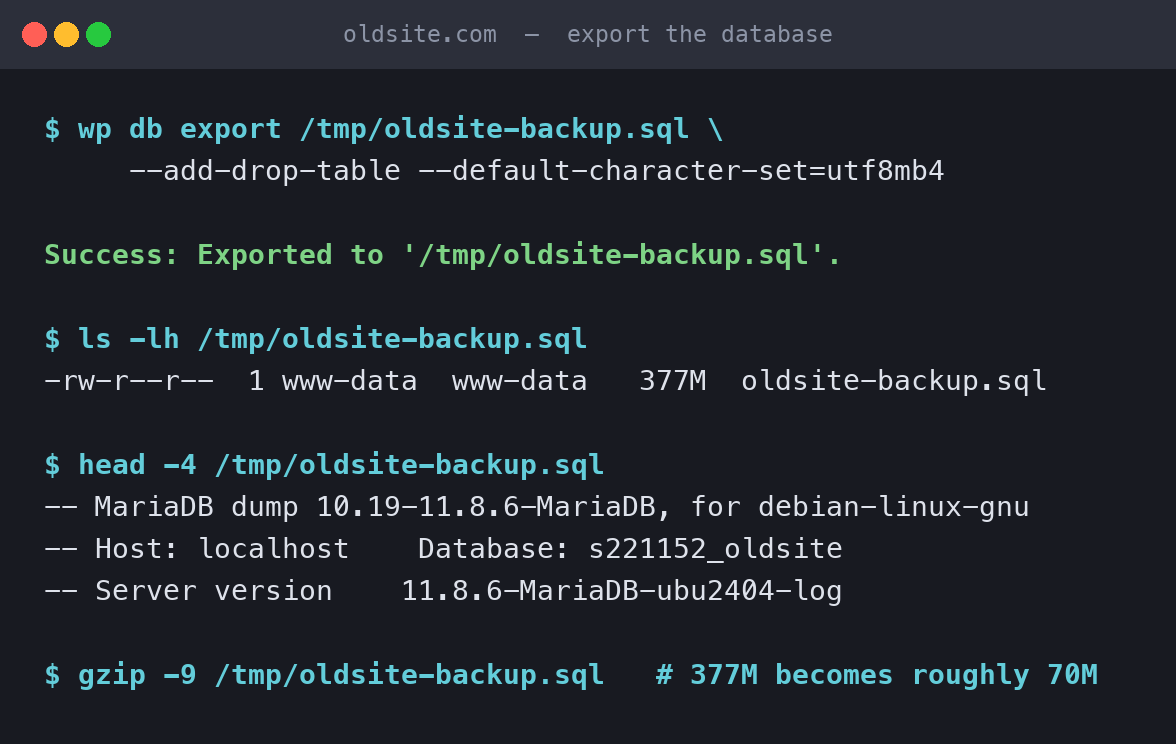
With WP CLI over SSH, which is the route I would take every time:
wp db export /tmp/oldsite-backup.sql
   --add-drop-table --default-character-set=utf8mb4

gzip -9 /tmp/oldsite-backup.sql
--add-drop-table makes the dump overwrite cleanly if you have to import twice, which you probably will. utf8mb4 keeps emoji and non Latin characters intact; get this wrong and Arabic, Hindi or accented text arrives as question marks. Here is the real output, and the file size it produced.
377 MB is the whole problem with phpMyAdmin
That dump is 377 MB uncompressed, about 70 MB gzipped. A typical shared host caps phpMyAdmin imports somewhere between 8 MB and 50 MB. The site I tested on has a generous 250 MB PHP upload limit and the raw dump still would not fit.
If you cannot use SSH, gzip the dump and import the .sql.gz directly, because phpMyAdmin accepts compressed files and measures the limit against the compressed size. If even that is too big, ask the new host's support to import the file for you. Every decent host does this free and it takes them minutes.
Without SSH, in phpMyAdmin: select the database, Export, Custom, choose Quick, select the gzipped output option, and download. Do not use the browser's Save As on a rendered SQL page, which truncates.
Step 2: get the files
tar -czf ~/oldsite-files.tar.gz
    wp-content/themes wp-content/plugins
    wp-content/uploads wp-content/mu-plugins

# then pull it down, or push it straight across
scp user@oldhost:~/oldsite-files.tar.gz .
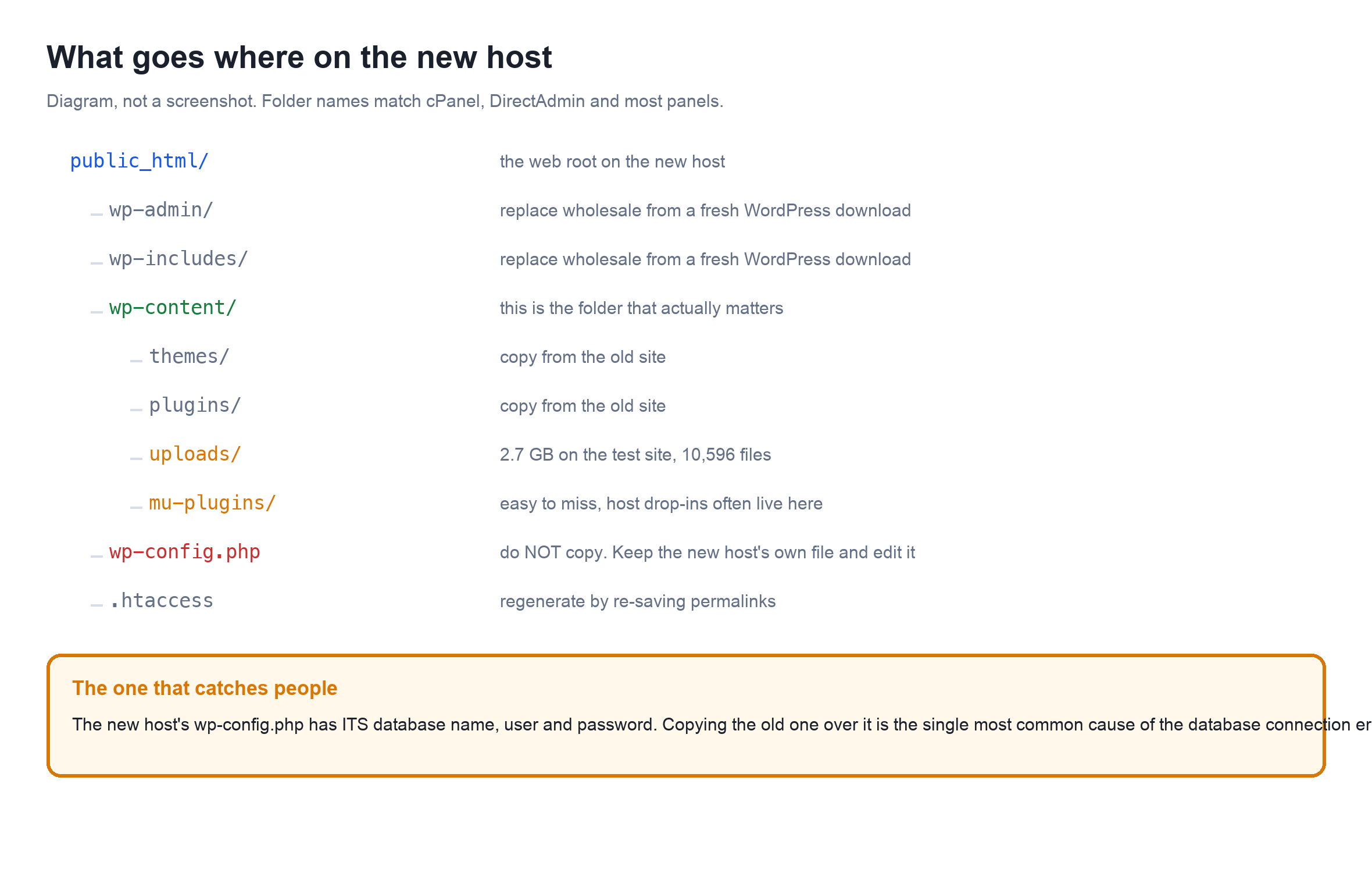
You do not need wp-admin or wp-includes. Those are identical in every WordPress of the same version, so download a clean copy at the other end instead of moving 50 MB of files you already have. What you do need is everything in wp-content, and the folder people forget is mu-plugins.
Step 3: upload into public_html
public_html is the web root on cPanel hosts. Other panels call it htdocs, www or public. Whatever the name, it is the folder whose contents answer at your domain, and wp-config.php sits at the top of it.
- Upload the archive, do not upload 10,596 files over FTP. FTP transfers one file per round trip and a large uploads folder takes hours and drops connections. Upload one tar.gz through File Manager and extract it there.
- Extract into
wp-content, not intopublic_htmldirectly, or you end up withpublic_html/wp-content/wp-content. - Check hidden files are visible in File Manager before you decide
.htaccessis missing. - File ownership matters on some hosts. If the site 403s after extracting, that is usually ownership rather than WordPress.
Step 4: create the database and import
Create a fresh empty database and a user on the new host, and give that user all privileges on it. Note the three values down: database name, user, password. Then import.
# over SSH, the only reliable way for a large dump
wp db create
gunzip < oldsite-backup.sql.gz | wp db import -

# or without WP CLI
mysql -u NEWUSER -p NEWDB < oldsite-backup.sql
Step 5: wp-config.php, where most manual migrations die
Do not copy the old wp-config.php over the new one. It contains the old host's database name, user and password, and none of those exist on the new server. This single mistake is the most common cause of Error establishing a database connection after a manual move.
Keep the new host's file and edit four things: DB_NAME, DB_USER, DB_PASSWORD and $table_prefix. The prefix is the one that catches people out. On the site I tested it is keq_, not wp_. If the new wp-config says wp_ and the imported tables say keq_, WordPress sees an empty database and offers you the install screen.
Copy the eight security salts from the old file if you want existing logins to survive. Leave them different and everyone, including you, is simply logged out once.
Step 6: rewrite the URLs, and do not use find and replace
If the domain is changing, the old URL is buried in thousands of rows. On the test site, a dry run found 44,201 replacements across 28 tables.
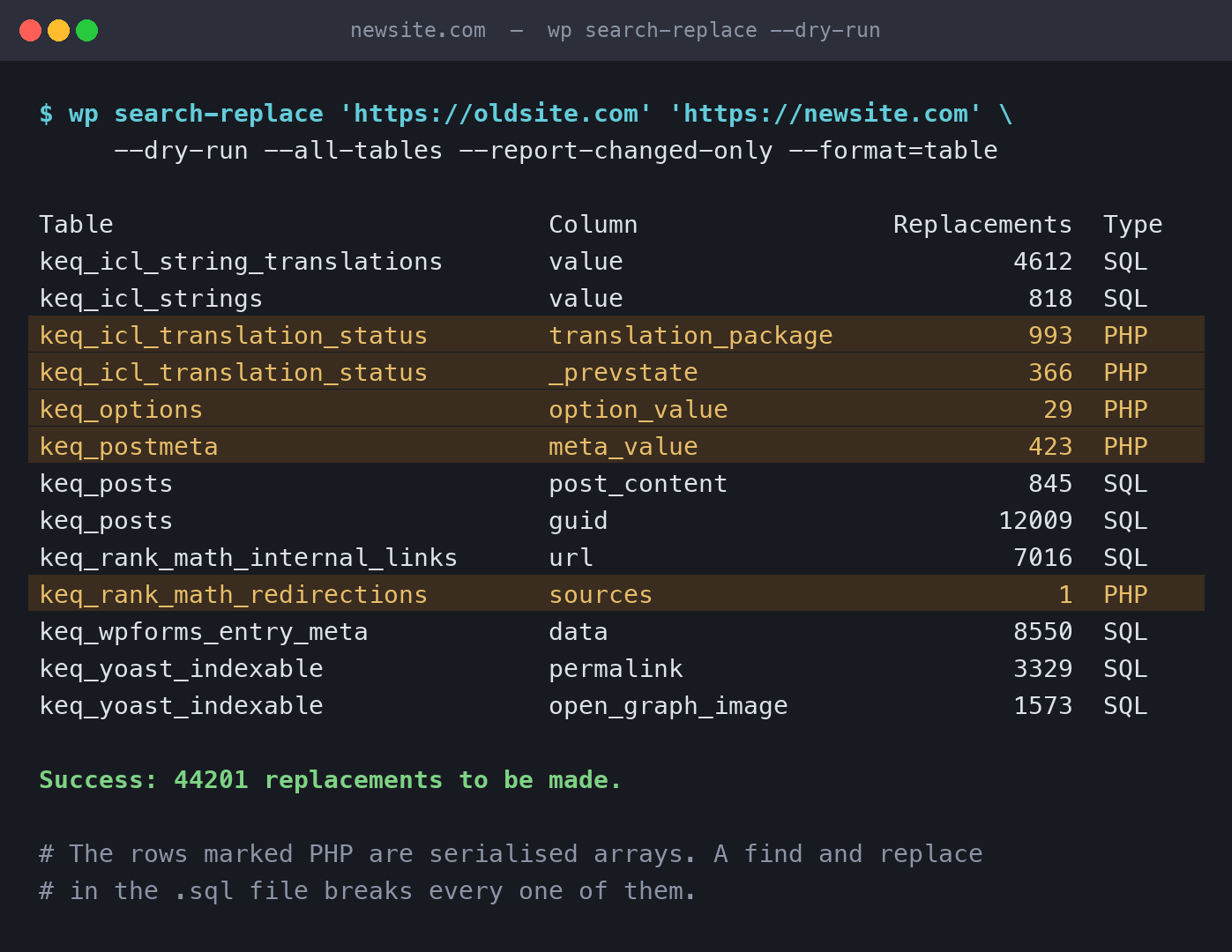
Look at the rows marked PHP in that output. Those columns hold PHP serialised arrays, and 1,812 of the replacements live inside them. A serialised string stores its own length, so editing the text without updating the number corrupts the value.
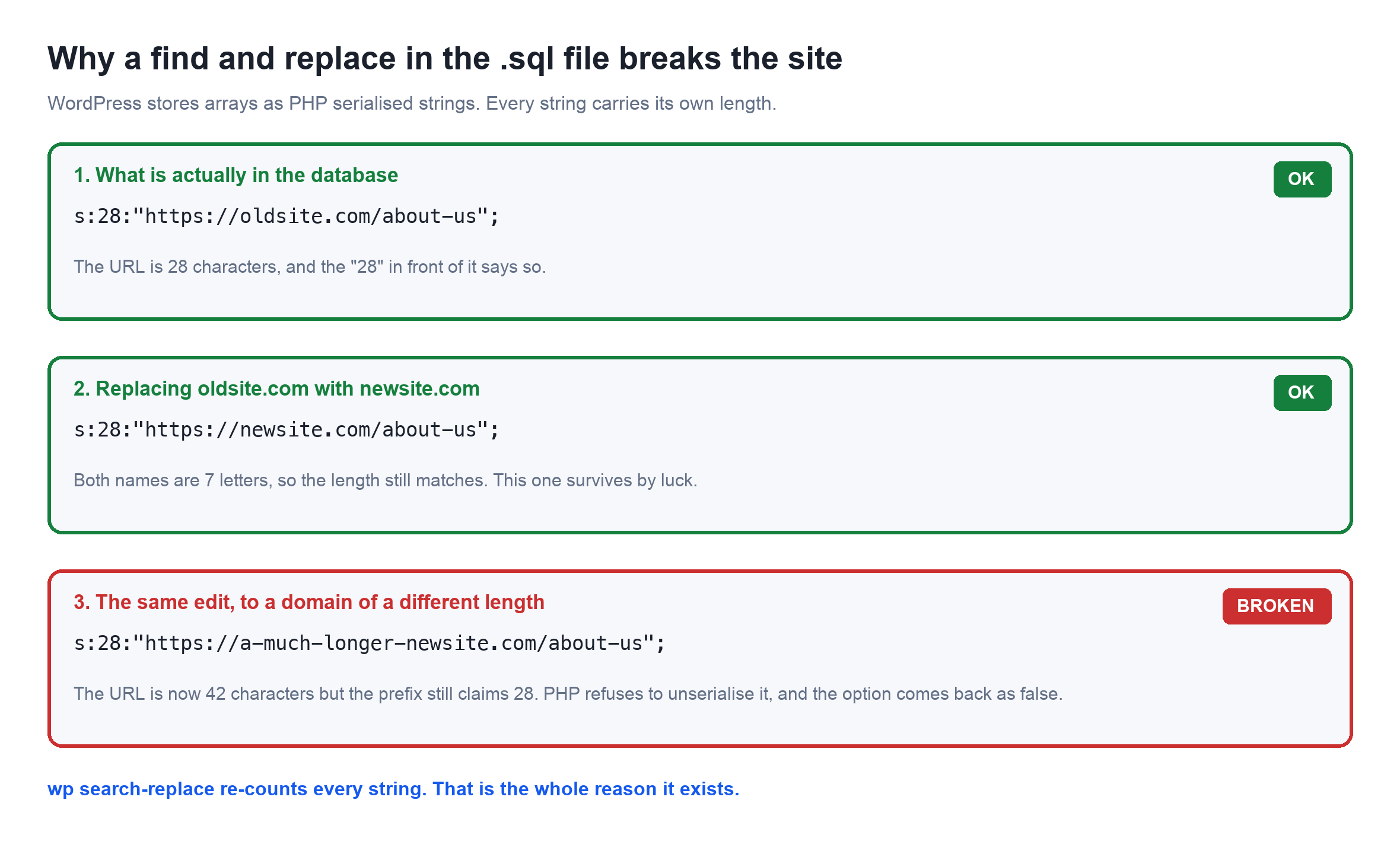
This is why sed on the .sql file, and the find and replace button in phpMyAdmin, quietly destroy widget settings, theme options and page builder layouts. The URL in the visible content changes fine. The serialised options come back as false and the setting silently reverts to default.
# always dry run first and read the table
wp search-replace 'https://oldsite.com' 'https://newsite.com'
   --dry-run --all-tables --report-changed-only

# then for real, skipping guid, which should not change
wp search-replace 'https://oldsite.com' 'https://newsite.com'
   --all-tables --skip-columns=guid
Two of those flags need explaining. --all-tables reaches tables that do not share the WordPress prefix, and on this site that is where most of the URLs were: 7,016 in Rank Math's internal links table and 8,550 in WPForms entries. --skip-columns=guid leaves the guid column alone, because guid is a permanent identifier for feed readers rather than a link, and rewriting it can republish your whole back catalogue in everyone's reader.
No SSH? Install the free Better Search Replace plugin on the new site, tick every table, and run it with dry run first. It handles serialisation correctly. Delete it afterwards.
Step 7: permalinks, then check
- Log in at
newsite.com/wp-admin. If you get the install screen, the prefix in wp-config does not match the imported tables. - Settings, Permalinks, press Save without changing anything. This regenerates the rewrite rules and fixes the 404 on every page but the home page.
- Open a post, a category, a search result and one uploaded image. The image is the one that catches a missed search-replace.
- Check Site Health for PHP version warnings before you point DNS.
Which method for which situation
| Situation | Use | Why |
|---|---|---|
| Normal shared or managed host, both ends up | MigrateGuru | Free, runs off your server, handles serialisation |
| Site over about 2 GB | MigrateGuru | Their servers do the compression, yours would time out |
| You have SSH and WP CLI | Manual | Faster than any plugin and you see every step |
| Moving into a locked environment with no plugin installs | Manual | No choice |
| Old host already suspended or offline | Manual, from a backup | MigrateGuru needs both sites reachable |
| Changing domain as well as host | Either, but dry run the replace | The URL rewrite is the risky part, not the transfer |
| Multisite network | MigrateGuru | Handles it without add-ons, manual multisite is hard work |
The part after the migration: DNS and the quiet window
Both methods leave you with a working copy at the new host and a live site at the old one. Nothing is switched until DNS changes, and that is deliberate.
- Lower your DNS TTL to 300 seconds a day before the move. Do this first or you will wait out whatever the old TTL was, often 24 or 48 hours.
- Test the new site properly before switching, using your machine's hosts file to point the domain at the new IP for you alone.
- Change the A record, then leave the old host running for at least 72 hours. Visitors resolving the old IP keep working while propagation finishes.
- Any order placed or comment posted during propagation lands on whichever server that visitor hit. For a store, put it in maintenance mode for the switch.
- Reissue SSL at the new host before the switch if you can, or immediately after.
Do not cancel the old hosting for a month
It costs one more month, and it is the cheapest insurance you will ever buy. Every migration surfaces something missing in week two: a cron job, an email forwarder, a subdomain nobody documented, a file referenced by an old campaign. Once the old account is deleted, those are gone.
The five failures I see most, and what causes each
| Symptom | Actual cause | Fix |
|---|---|---|
| Error establishing a database connection | wp-config credentials, or the old file was copied over | Edit the NEW host's wp-config with its own DB values |
| WordPress offers you the install screen | $table_prefix does not match the imported tables | Set the prefix to the one in the dump |
| Home page works, everything else 404s | Rewrite rules not regenerated | Settings, Permalinks, Save |
| Widgets and theme options reset themselves | Serialised data corrupted by a raw find and replace | Reimport the dump and redo it with wp search-replace |
| Images 404 but exist in the uploads folder | URLs still point at the old domain, or uploads did not fully transfer | Re-run the replace, then compare file counts on both ends |
Related reading
- Black Friday hosting deals, priced over four years rather than year one
- Kinsta versus Rocket.net, tested on price and performance
- Cloudways, Rocket.net and WP Engine compared
- Which hosts accept UPI and RuPay from India
- Fixing the redirect loop error, which often appears right after a move
WordPress migration FAQs
Is MigrateGuru really free?
Yes. The migration feature has no paid tier and no site count limit, and their readme states support for sites up to 200 GB. It is made by BlogVault, who sell a separate backup product, which is where the revenue comes from.
Do I need to install MigrateGuru on both sites?
In version 6.72, yes. The plugin goes on the old site and the new site, and you pair them with a migration key copied from the destination. Older guides describe a flow where you entered your new host's FTP or cPanel credentials instead. That flow has been removed.
Will migrating my WordPress site hurt my SEO?
Not if the URLs stay the same. Moving host changes the server IP, which is not a ranking factor on its own. The risk comes from downtime, from missing redirects if the domain changes, and from a slower server. Keep the old host running through DNS propagation and there is usually no measurable effect.
How long does a WordPress migration take?
The transfer itself is usually 10 to 60 minutes depending on size. MigrateGuru claim sites of 200 GB in under 30 minutes on their infrastructure. DNS propagation is the slow part, from a few minutes to 48 hours depending on the TTL you set beforehand.
What is the largest database phpMyAdmin can import?
It depends on the host's PHP limits rather than phpMyAdmin itself, commonly 8 MB to 50 MB. The dump on the site I tested for this guide was 377 MB, which is far beyond that. Gzip it first, because the limit applies to the compressed size, or use SSH.
Why did my widgets and theme settings reset after migrating?
You almost certainly did a plain find and replace on the SQL file or in phpMyAdmin. WordPress stores those settings as PHP serialised arrays that record their own string length. Changing the text without updating the length makes the value unreadable, so WordPress falls back to defaults. Use wp search-replace or Better Search Replace.
Do I need to copy wp-admin and wp-includes?
No. They are identical across every WordPress install of the same version. Download a clean copy of WordPress at the new host instead. You only need wp-content, and a wp-config.php edited with the new host's database details.
What is the table prefix and why does it matter?
It is the string in front of every table name, set when WordPress was installed. It is often wp_ but not always. On the site in this guide it is keq_. The $table_prefix line in wp-config.php has to match the tables you imported, or WordPress will act as though the database is empty and show the install screen.
Should I migrate before or after pointing my domain?
Before, always. Migrate while the old site is still live and serving, test the copy at the new host using your hosts file, and only then change DNS. Never cancel the old plan first, because MigrateGuru needs both ends reachable.
Can I migrate a WooCommerce store the same way?
Yes, and the site I tested this on is a WooCommerce store. The extra care is timing: put the store into maintenance mode for the DNS switch, because an order placed during propagation lands on whichever server that customer resolved to and will be missing from the other.
What about my email accounts?
They do not move with the site. Email hosted on your old cPanel is a separate migration, and changing your domain's A record does not move MX records. Export mailboxes before you cancel anything, or move email to a dedicated provider first.
Does MigrateGuru work if my site is already down?
No. Both the source and the destination have to be reachable for the pairing and the transfer. If the old host has suspended you, restore from a backup at the new host and do the URL rewrite manually.
How do I manually migrate my WordPress site?
Five steps. Export the database with wp db export or phpMyAdmin, archive wp-content, upload and extract it into public_html on the new host, create a database there and import the dump, then edit the new host's wp-config.php with its own database name, user, password and the matching table prefix. Finally run wp search-replace if the domain is changing, and re-save your permalinks.
How do I transfer a website from one host to another?
Either install MigrateGuru on both sites and pair them with a migration key, which is free and does the transfer on their servers, or move the files and database yourself. Whichever you pick, migrate while the old site is still live, test the copy using your hosts file, and only change DNS once the new copy works.
How do I export my entire WordPress site?
The WordPress Tools export only produces an XML file of your content, not a full site. For everything you need two exports: the database, with wp db export or phpMyAdmin, and the files, meaning wp-content compressed into a single archive. wp-admin and wp-includes do not need exporting because they are identical in every install of the same version.