xSpeed Cache Review: I Gave an AI Agent Full Control of a WordPress Cache Plugin

Tutorials & Insights
I have been testing WordPress caching plugins for years, and most reviews of a new one follow the same script. Install it, screenshot the settings, repeat the vendor's benchmark claims, publish.
xSpeed Cache: 50% OFF launch pricing
I ran xSpeed on a live store for this review. Launch pricing is half the list price on every plan, and the Lifetime licence is the one I would take: Personal at $79 once costs less than three years of the yearly plan.
| Personal, 1 site, yearly | |
| Business, 5 sites, yearly | |
| Personal, 1 site, lifetime | |
| Business, 5 sites, lifetime |
xSpeed runs this as a founding customer offer for the first 6 months after launch. I recheck the price every week.
I wanted to do the opposite with xSpeed Cache, so I put it on a real WooCommerce site, turned every single module off, measured the site cold, then switched features on one at a time and measured again after each one.
That took a while, and it turned up things no other review of this plugin mentions. One flagship feature made the site measurably worse. Every AI narrative in the plugin is truncated, and I traced exactly why in the source code. The plugin also does something new that I have not seen done this thoroughly anywhere else, which is let an AI agent run your cache layer directly.
Short version: xSpeed Cache is the most capable caching plugin I have tested at this price, and it is also the least finished. Both of those things are true at once, and which one matters more depends entirely on whether you are willing to turn two settings off.
If six thousand words is more than you signed up for, this is where I landed after a full day with it.
| Question | My answer |
|---|---|
| Does the page cache work | Yes, and it is fast. TTFB fell 59 to 63 percent on every cacheable page type, served by nginx without touching PHP |
| Is the free version usable | Yes. Page cache, object cache, browser cache, minify, lazy load, database cleanup and the MCP server are all free |
| Should you enable every feature | No. Turbo Render cost me 23 Lighthouse points on an Elementor site. Leave it off unless you test it |
| Do the AI features work | The maths works, the written explanations are broken in the current build |
| Is the MCP server the real story | Yes, and it is free. This is the most complete agent control surface on any cache plugin right now |
| Would I move a client site to it today | On a simple blog, yes. On a complex Elementor or WooCommerce build, not until I had tested each module |
It is built by WPDeveloper, the team behind Essential Addons for Elementor, which is on more than a million sites. A caching plugin sits under every page you serve, so I would rather it came from an established plugin company than from an unknown developer.
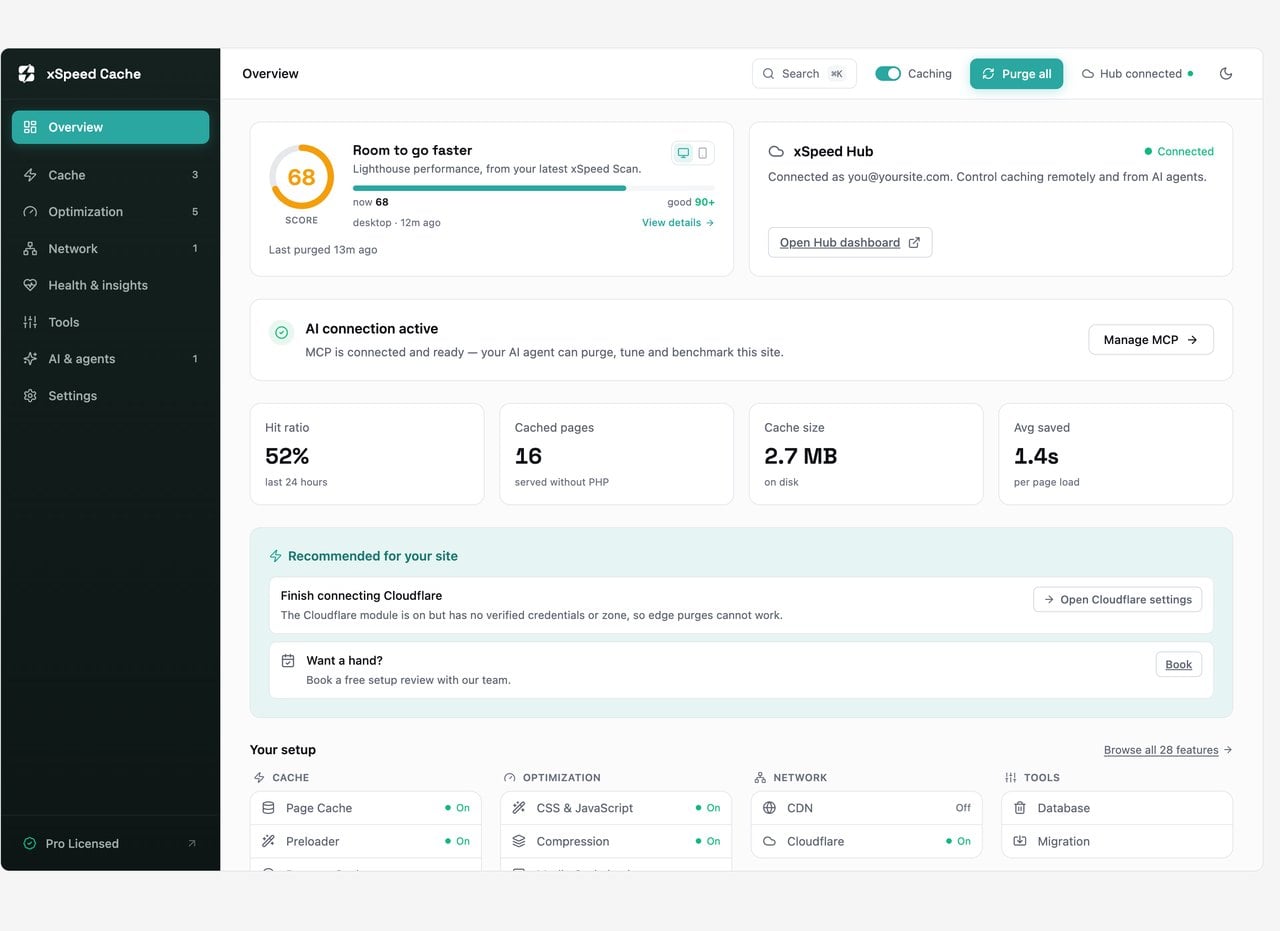
Every number in this review comes from one site, measured the same way each time. I am spelling the method out because a speed number without a method behind it is worthless.
The test site is a production grade WooCommerce build, not a clean install. That is deliberate. A caching plugin looks brilliant on a default theme with three posts, and the interesting behaviour only shows up when you give it something messy.
| Component | Version or detail |
|---|---|
| WordPress | 7.1.2 |
| PHP | 8.5.8 |
| Web server | nginx, with Cloudflare in front |
| Theme | Shoptimizer, a commercial WooCommerce theme |
| Page builder | Elementor Pro, plus Essential Addons and Ultimate Addons |
| Store | WooCommerce, 149 published products, 54 simple and 95 variable |
| Content | 404 posts, 402 pages, 8,124 media attachments |
| Other plugins | WPML across 8 languages, Rank Math Pro, WPForms |
| xSpeed version | Free 1.3.5 with Pro 1.2.5, licensed |
The measurement approach had two halves. For load metrics I ran Lighthouse locally, three runs per configuration, and took the median run rather than the best one. Running it on my own machine rather than through PageSpeed Insights means the absolute scores are not comparable to Google's, but every configuration was measured on the same machine within the same session, so the differences between them are trustworthy. That is what I care about here.
For everything else I measured the response directly: time to first byte sampled four times per URL, the cache status header the plugin returns, the transferred byte size, and a parse of the HTML to count stylesheets, scripts, deferred scripts, lazy attributes and preload hints. Those numbers are exact rather than estimated, and they are what let me attribute a change to a specific module.
I tested eleven URLs covering every page type that behaves differently under caching: the home page, the blog archive, a single post, a category archive, the shop archive, a product category archive, a simple product, a variable product, the cart, a search results page and a 404.
This is the same approach I use for hosting reviews, which I describe in more detail in how I test, verify and update everything.
Before measuring anything I disabled all 21 optimization modules and turned the page cache off entirely, which removes the drop in file and the WP_CACHE constant. This is a real zero state, not xSpeed sitting idle in the background.
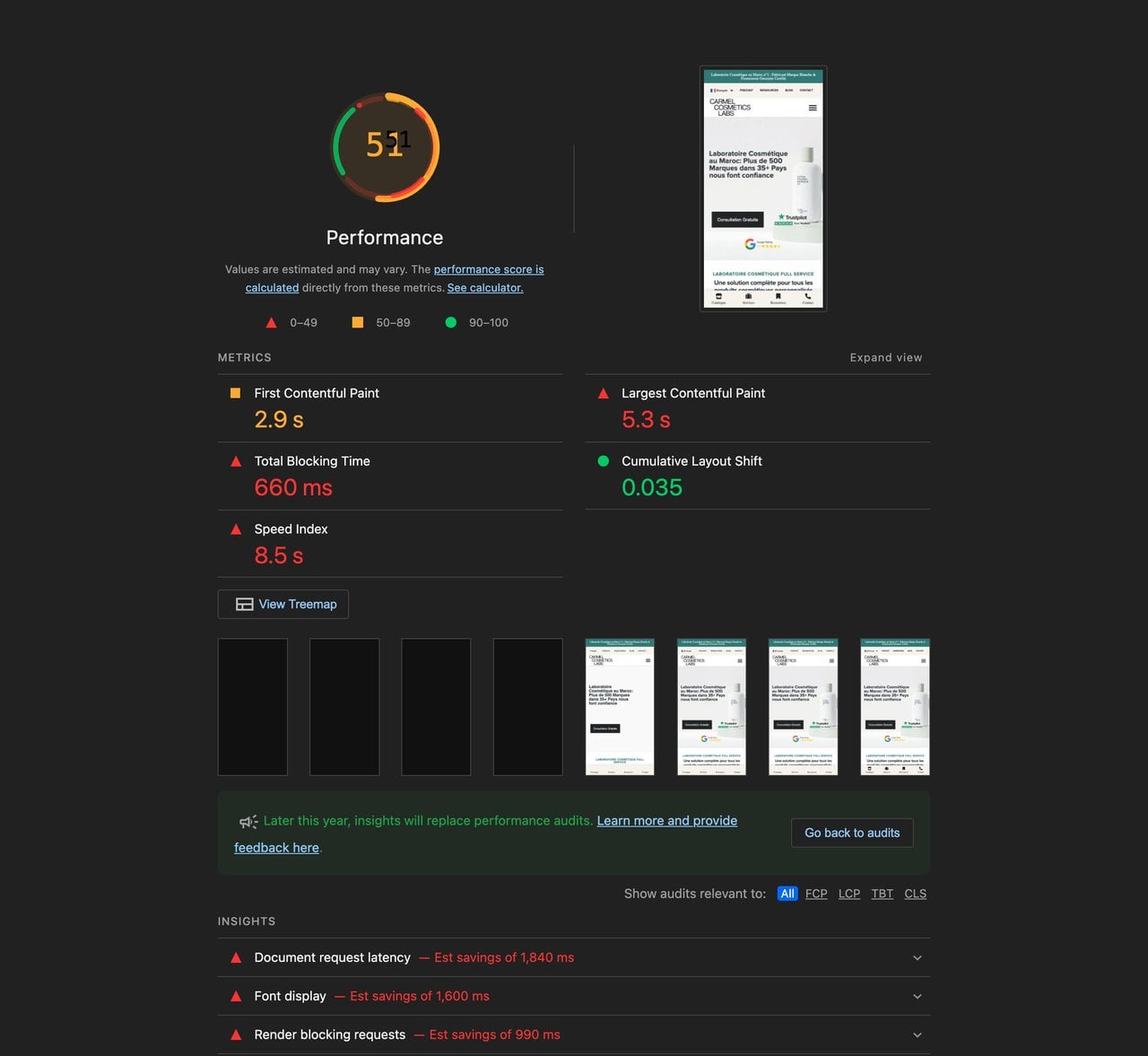
The site was slow, which is exactly what I wanted. The home page took 2.47 seconds to return its first byte and weighed almost 25 MB across 204 requests. Lighthouse gave it 51 on mobile and 80 on desktop. The variable product page was worse, with a largest contentful paint of 9.3 seconds.
Caching plugins live or die on this one feature, and xSpeed's is the strongest part of the product. Switching it on and leaving everything else off produced the single biggest improvement of the whole test.
| Page type | TTFB before | TTFB after | Change | Cache status |
|---|---|---|---|---|
| Home page | 2,471 ms | 944 ms | down 62 percent | HIT (nginx) |
| Blog archive | 1,727 ms | 702 ms | down 59 percent | HIT (nginx) |
| Single post | 1,751 ms | 668 ms | down 62 percent | HIT (nginx) |
| Shop archive | 1,653 ms | 650 ms | down 61 percent | HIT (nginx) |
| Variable product | 1,819 ms | 667 ms | down 63 percent | HIT (nginx) |
| Search results | 1,823 ms | 1,470 ms | down 19 percent | HIT (php) |
| Cart | 1,639 ms | 1,670 ms | no change | BYPASS |
Two details in that table are worth more than the headline percentages.
The first is HIT (nginx), which means no PHP is involved. xSpeed writes a static HTML file and generates an nginx rewrite rule that serves it directly from disk, so a cache hit never loads WordPress at all. Most plugins on nginx can only serve through PHP unless you hand edit your server config. xSpeed generates the config block for you and its health check verifies the rule is live.
The second is BYPASS on the cart. It got that right without being told, which is the behaviour you want and the thing that breaks stores when a cache plugin gets it wrong.
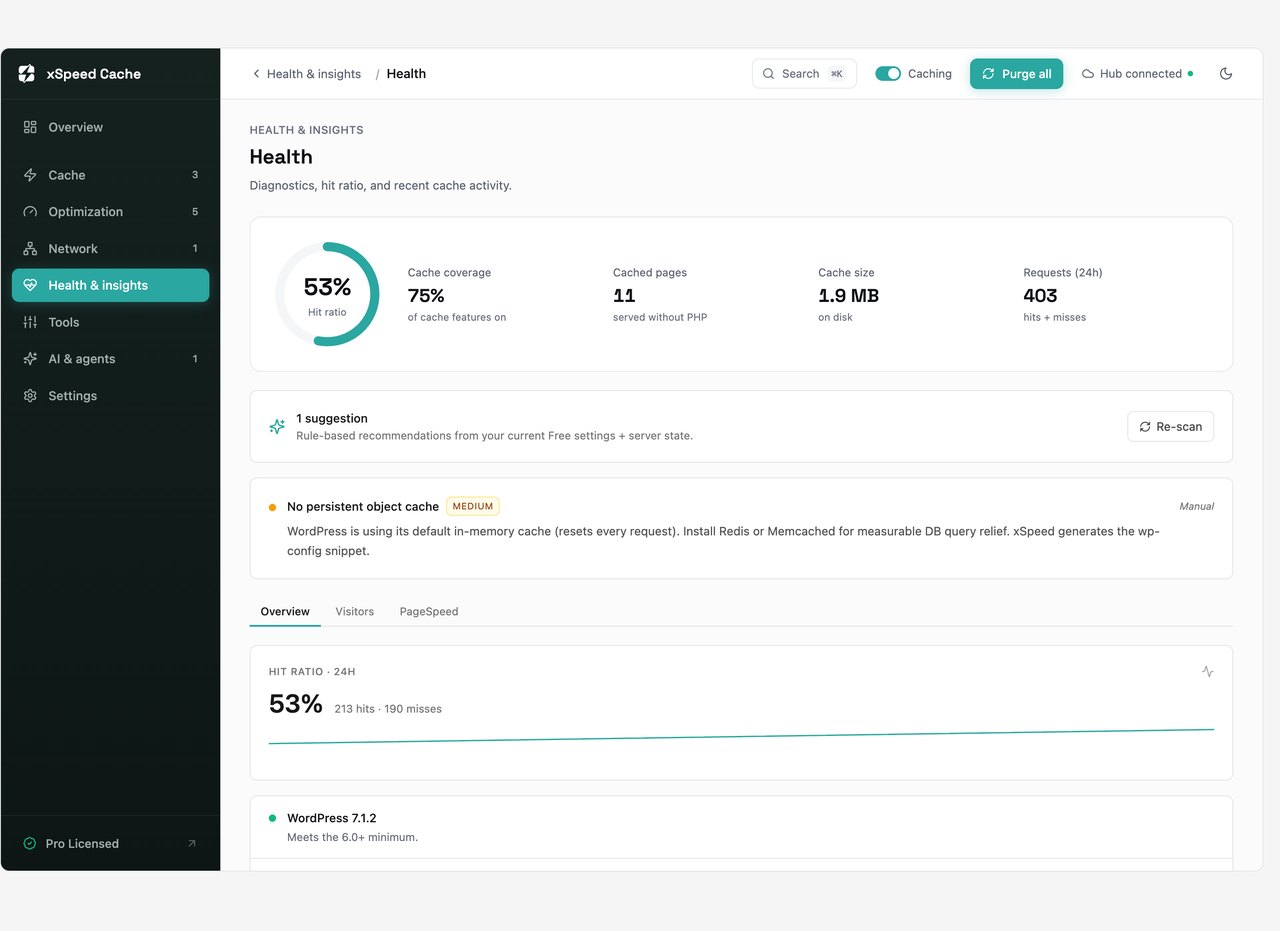
The health screen is better than it needs to be. It checks the drop in file, the WP_CACHE constant, whether the static rewrite is installed, whether your cache expiry is long enough to cover your preload schedule, whether anonymous pages are leaking Set-Cookie headers that would stop a CDN caching them, and whether another caching plugin is fighting it. Each check explains what it means rather than just showing a red or green dot.
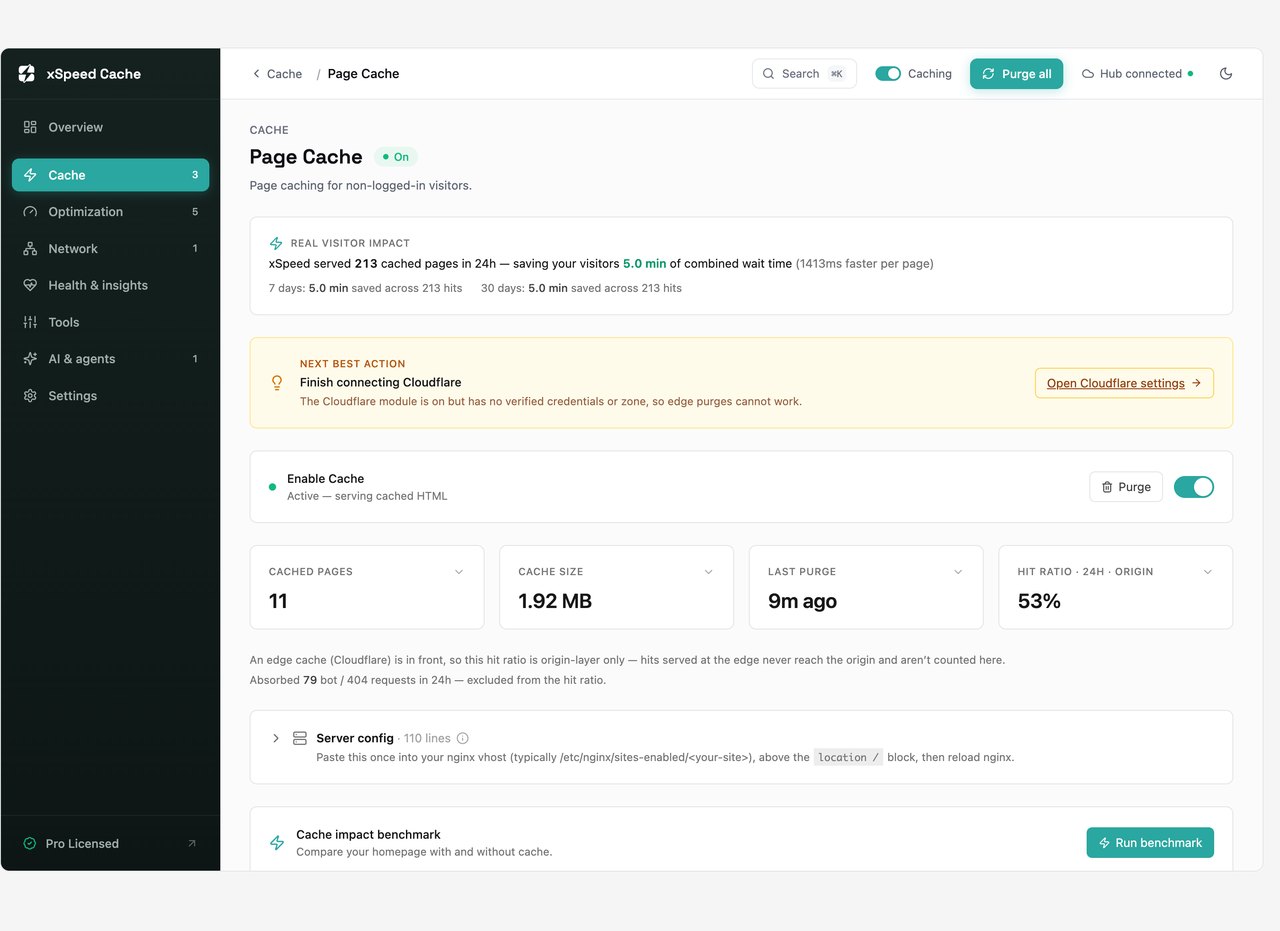
xSpeed pulls clearly ahead of its competitors here, with a feature set I rarely see. Most caching plugins cache posts and pages and stop there. xSpeed also caches 404 pages, internal search results, REST API responses and RSS feeds, each with its own time to live.
I verified each of these on the wire rather than trusting the toggle. With the modules off, a search page returned BYPASS. With them on, the same URL returned a cache hit, and the REST endpoint returned its own dedicated header.
$ curl -I "https://example.com/?s=creme"
x-xspeed-cache: HIT (php)

$ curl -I "https://example.com/wp-json/wp/v2/posts"
x-xspeed-rest-cache: HIT

$ curl -I "https://example.com/feed/"
x-xspeed-cache: HIT (php)

$ curl -I "https://example.com/cart/"
x-xspeed-cache: BYPASS
Search caching in particular is worth having. Internal search is one of the most expensive queries WordPress runs, it is trivially easy for a bot to hammer, and almost nobody caches it. WP Rocket needs a separate helper plugin for search, REST and feeds. FlyingPress does not document any of the three.
One note on the 404 test. On my test site a missing URL returned an HTTP 500 rather than a 404, so xSpeed correctly refused to cache it. I confirmed this was the site's own fault by reproducing it with xSpeed fully disabled, where the 500 persisted. That is a theme level bug on the site I borrowed, not a plugin problem, and xSpeed behaved properly by declining to store an error response.
I ran the whole test suite against a store with 149 products because WooCommerce is where caching plugins usually cause damage. The failure mode everybody fears is a cached cart being served to the wrong shopper.
xSpeed's defaults handle this correctly out of the box. The cart, checkout and account pages are excluded by URL, and the exclusion list also covers the WooCommerce session cookies, so a shopper with items in their basket is never served a cached page anywhere on the site. I checked the generated nginx rule and the cookie patterns are baked into the server config too, not just the PHP layer.
Product pages and shop archives cached normally and dropped 61 to 63 percent of their TTFB. The shop archive was the single best result in the entire test, going from 60 to 78 on mobile Lighthouse with layout shift staying at 0.001.
The variable product page was the one place I could not produce a trustworthy number. Across three runs it scored 25, 30 and 36, which is too wide a spread to publish as a single figure. A variable product on an Elementor template with variation data, gallery images and a 30 image DOM is simply noisy to measure. I am telling you that rather than picking the middle number and pretending it means something.
What I can say about product pages is specific. The main product image on this theme carries a lazy loading attribute and no fetch priority, which delays the largest contentful paint badly. I confirmed that attribute comes from WooCommerce and the theme rather than from xSpeed, because it is still there with every xSpeed image module turned off. But xSpeed has two features whose entire job is to fix exactly this, and neither of them did. Its “load the first N images eagerly” setting counted the language switcher flag and the header logo as the first images, so the actual hero never qualified, and raising the number to four did not help.
This group of settings is where expectations and reality part company, and the numbers show which toggle is doing the work.
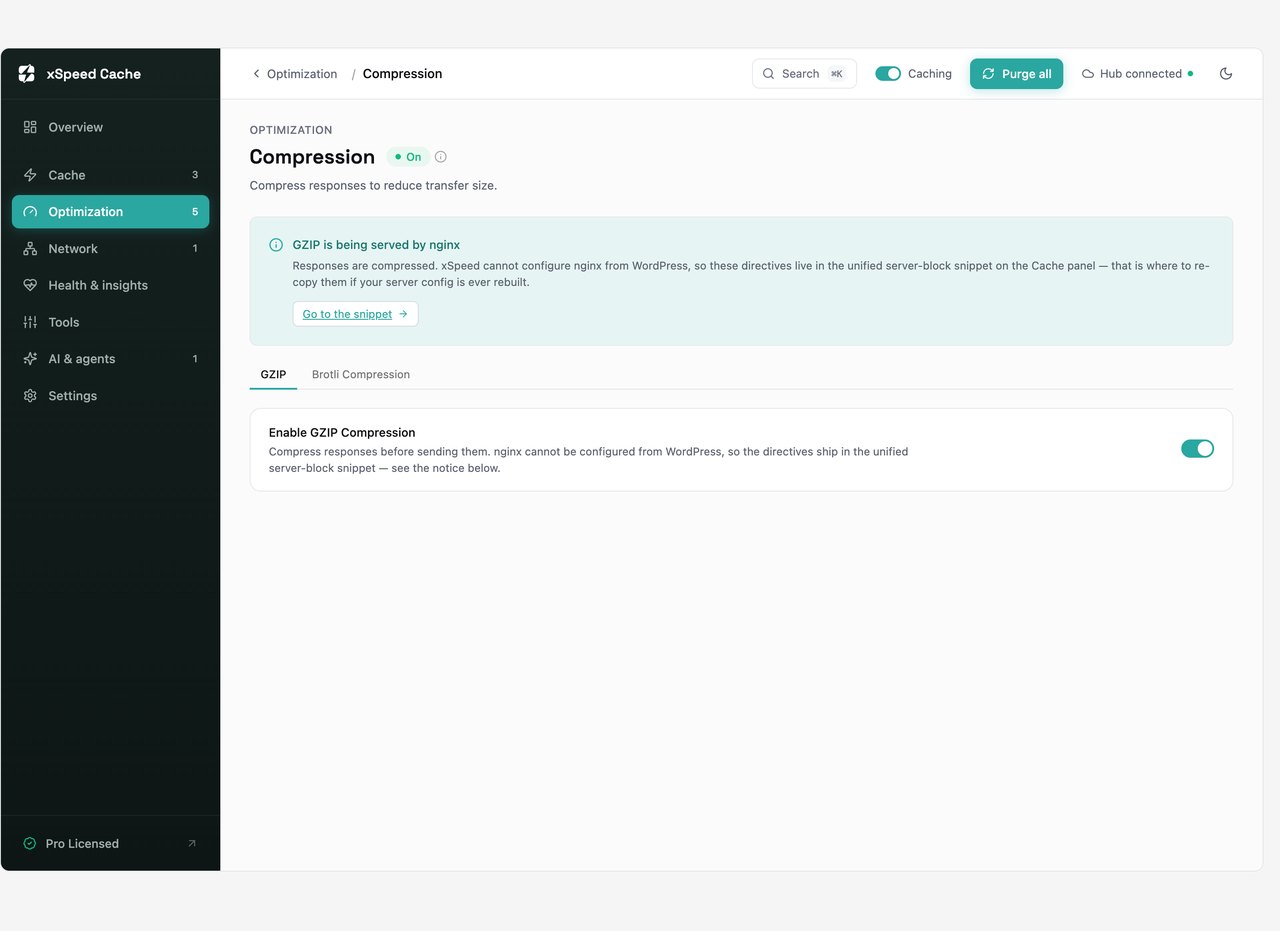
Compression is doing nearly all of it. With GZIP enabled, the home page HTML went from 512,890 bytes uncompressed to 71,822 bytes on the wire. That is a ratio better than seven to one and an 86 percent reduction, from a single toggle.
| Setting | Raw HTML | Transferred | What it actually bought |
|---|---|---|---|
| Nothing enabled | 512,890 bytes | 512,890 bytes | Baseline |
| GZIP on | 512,890 bytes | 71,822 bytes | 86 percent smaller, the big win |
| HTML minify added | 465,356 bytes | 69,180 bytes | A further 3.7 percent on the wire |
That second row is the point. Minifying HTML looks impressive when you compare raw file sizes, a 9 percent cut, but compression has already removed almost all of that whitespace by the time it reaches the browser. The real world gain from HTML minification on top of GZIP was under 4 percent. It is worth enabling because it is free and safe, but it is not the feature doing the heavy lifting, and any review that quotes you the raw number is misleading you.
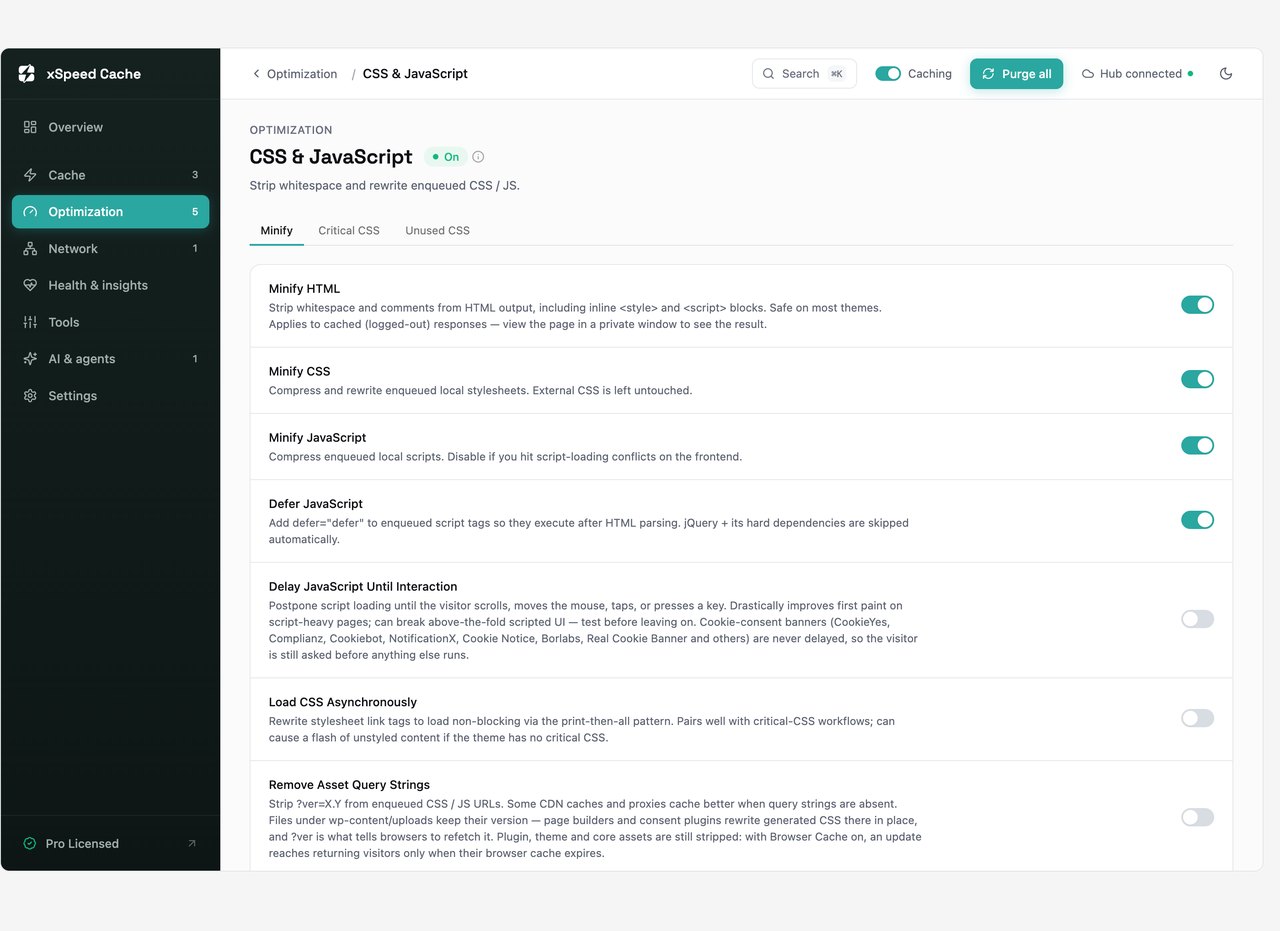
Combining CSS produced a much more visible structural change. The home page went from 58 stylesheet links to 12, and the blog archive from 45 to 10. On an HTTP/2 server the old advice was that combining no longer matters, but at 58 separate stylesheets you are well past the point where that holds, and cutting it to 12 is a real reduction in request overhead.
JavaScript deferral is equally measurable. Before, 6 scripts on the home page carried a defer attribute. After, 34 did. On the product page it went from 10 to 34.
I want to be fair about the risk here, because combining CSS and JavaScript is the setting most likely to break an Elementor site. It did not break mine. I checked the rendered pages for console errors, broken images, and whether jQuery and the Elementor frontend still initialised. Home, shop and product pages all came back clean, with no failed requests beyond some third party analytics calls that were already failing before I touched anything.
This is the most important finding in this review, and no other article about this plugin mentions it.
Turbo Render is a Pro feature that claims to paint the top of your page first and bring the rest in as the visitor scrolls. It does this by applying the CSS content-visibility property to page builder sections, which tells the browser it can skip rendering anything offscreen. On my site it applied this to 99 Elementor sections on the home page.
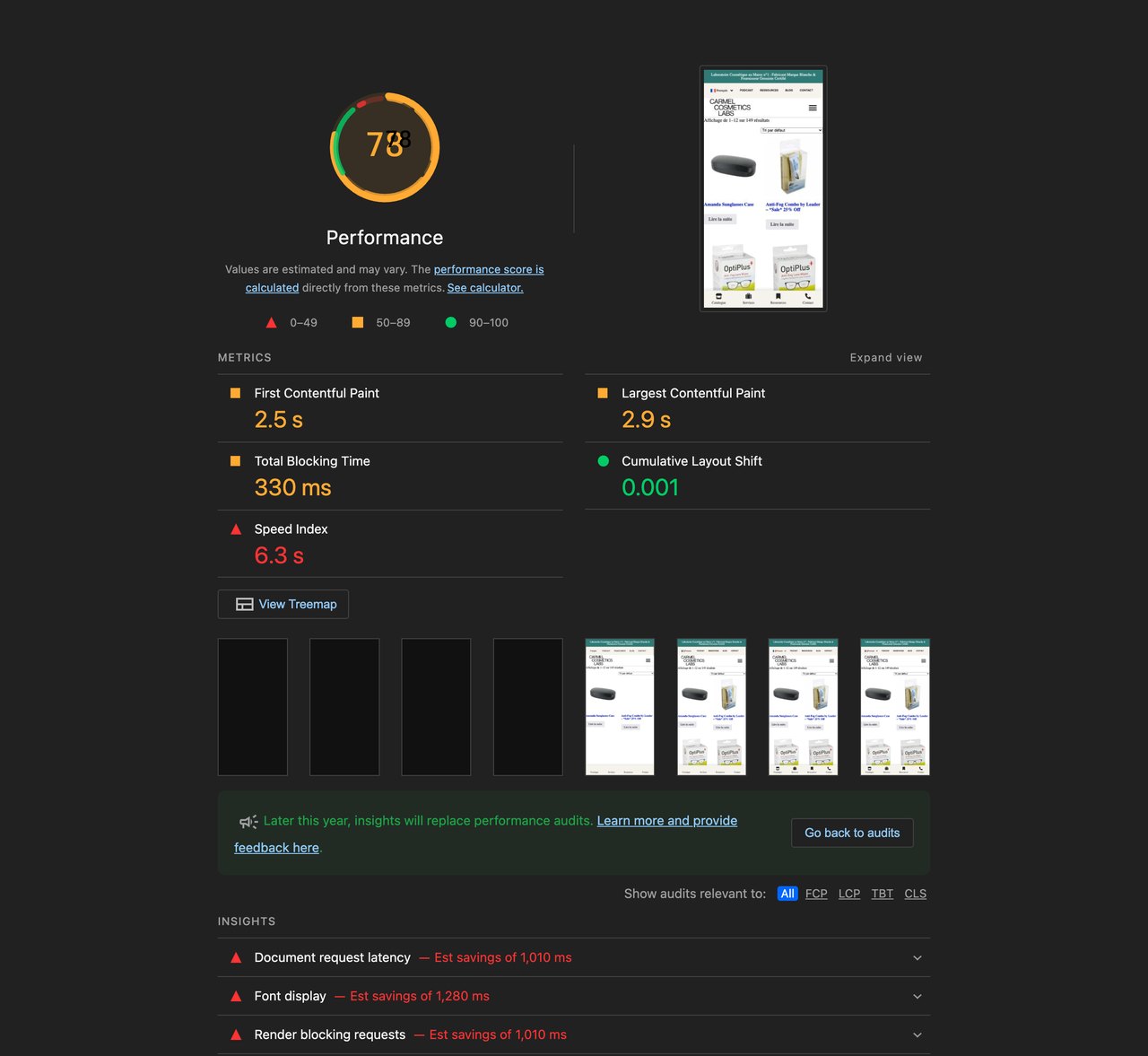
With every feature enabled including Turbo Render, the home page scored 28 on mobile. Cumulative layout shift was 0.869, which is catastrophic. Google considers anything above 0.25 a failure, so this is more than three times worse than the failing threshold.
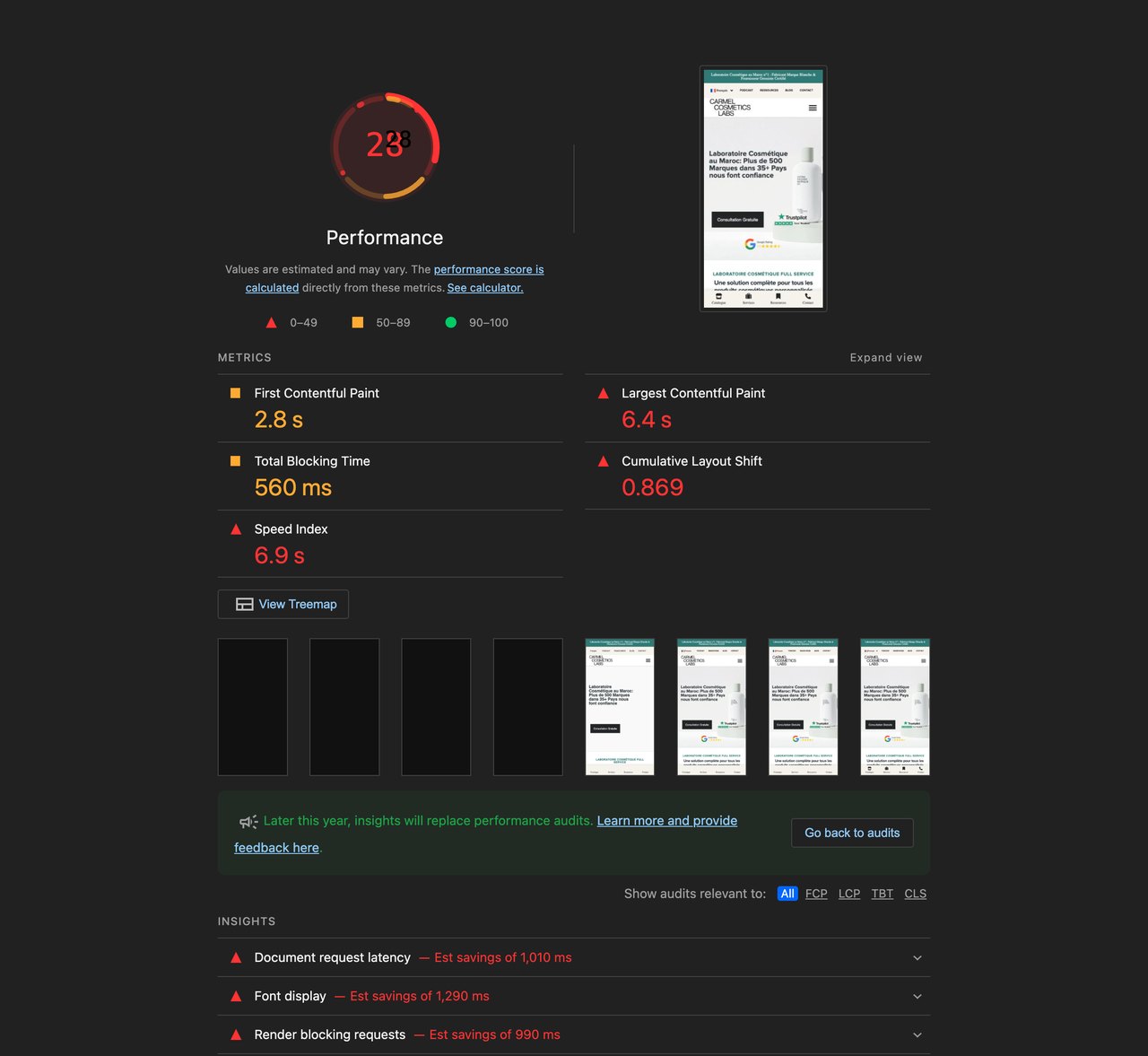
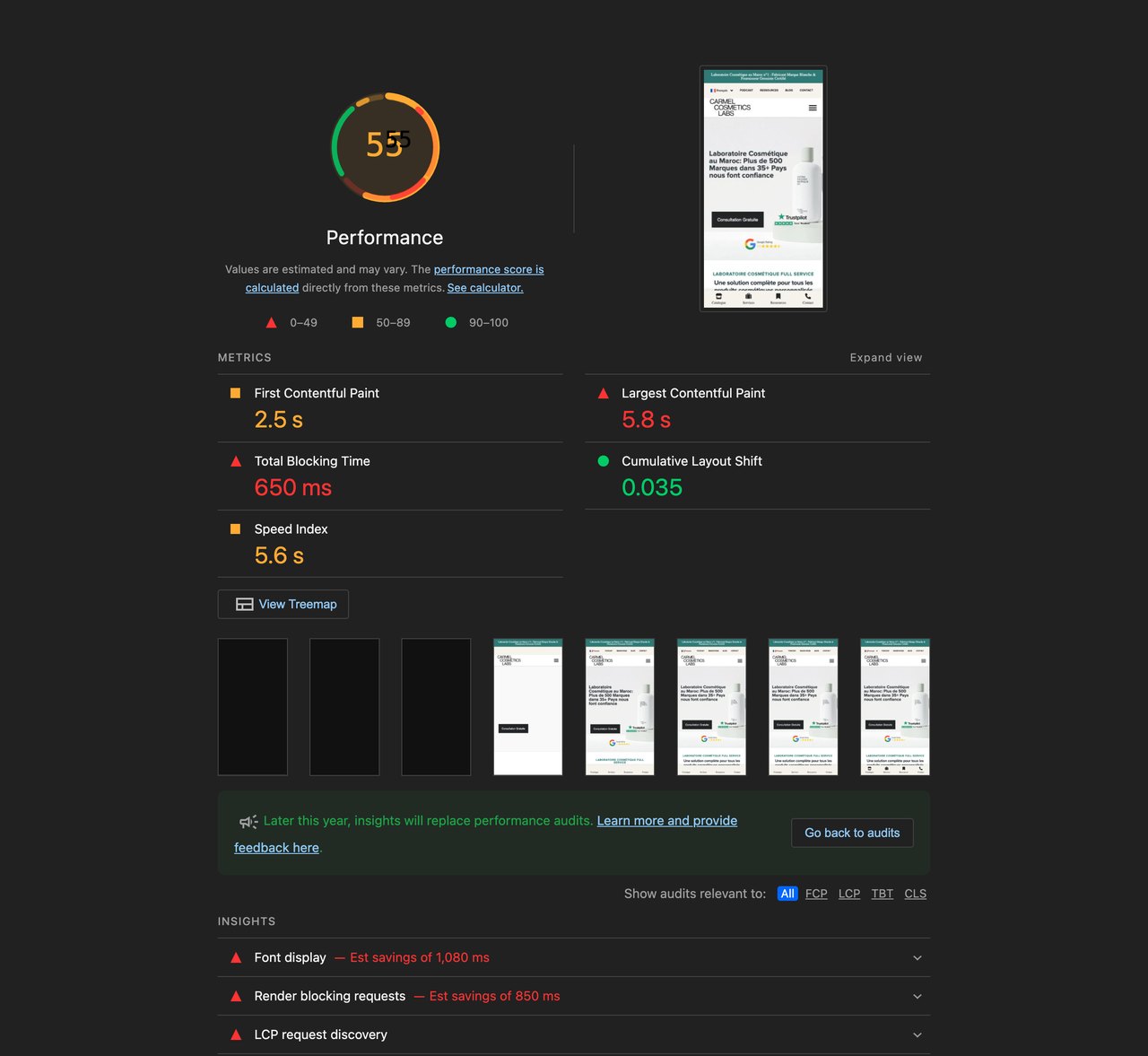
Look at the filmstrip along the bottom of that report. The first four frames are completely blank. The browser has been told not to render those sections and does not know how tall they will be, so when they finally arrive everything below them jumps.
I then changed exactly one setting. I turned Turbo Render off and changed nothing else, purged the cache and re-measured.
| Configuration | Mobile score | Layout shift | Largest contentful paint |
|---|---|---|---|
| Everything off, baseline | 51 | 0.035 | 5.26 s |
| Everything on, including Turbo Render | 28 | 0.869 | 6.45 s |
| Identical, with only Turbo Render off | 51 | 0.035 | 8.36 s |
| My tuned configuration | 55 | 0.035 | 5.76 s |
Turbo Render on its own was costing 23 Lighthouse points and making layout shift 25 times worse. The same effect showed on desktop, where the score fell from 80 to 62 and layout shift went from 0.001 to 0.650.
The shop archive, which barely uses Elementor sections, was unaffected and improved. So this is not a blanket condemnation of the feature, it is specific: on a page built from many page builder sections, Turbo Render in its current form wrecks your layout stability. Since Elementor, Bricks, Divi and Oxygen section classes are all in its default target list, that covers a very large share of the sites likely to install this plugin.
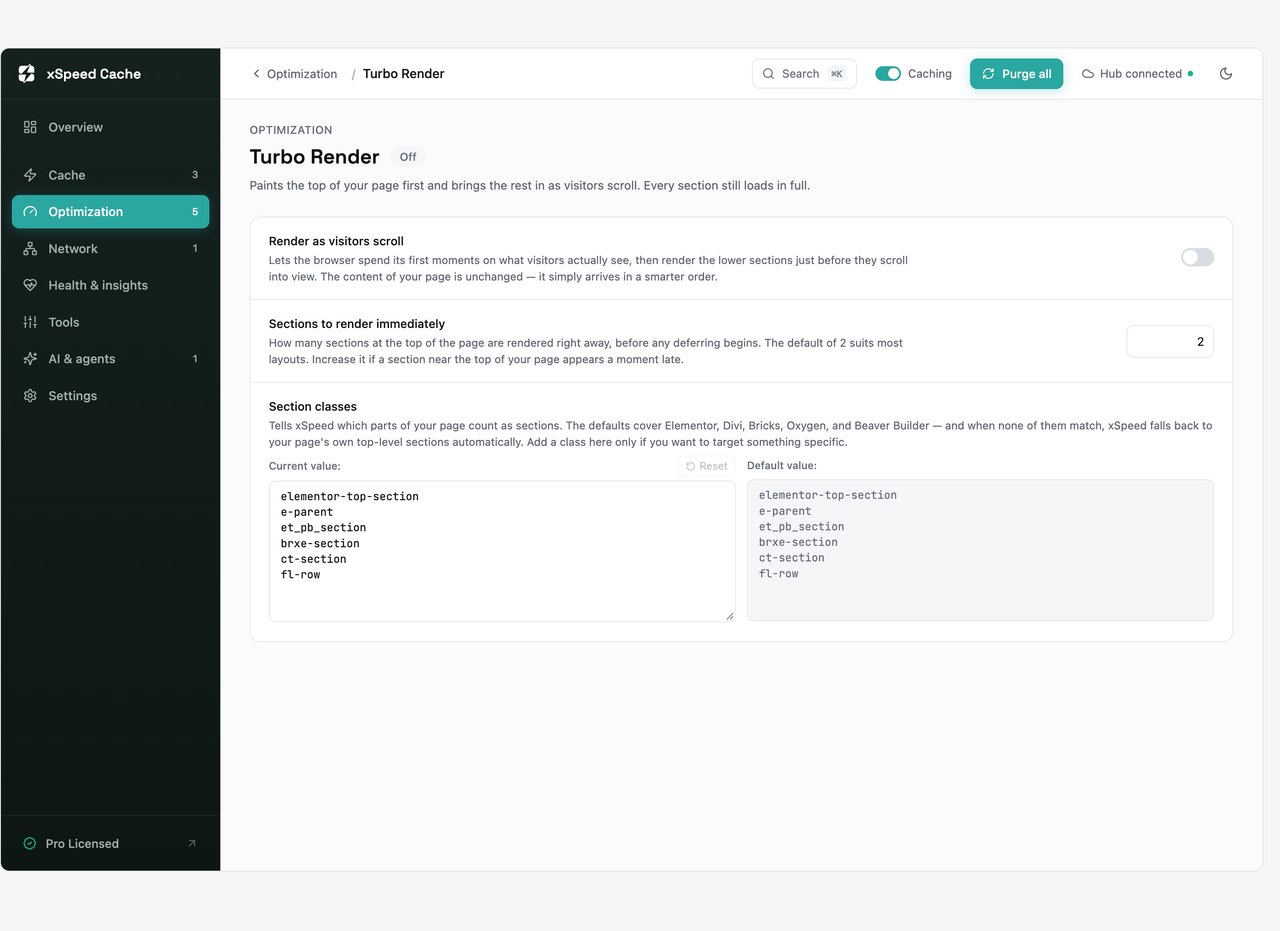
If you install xSpeed Cache on a page builder site, turn Turbo Render off before you measure anything else. It is the single highest impact setting in the plugin and it points the wrong way.
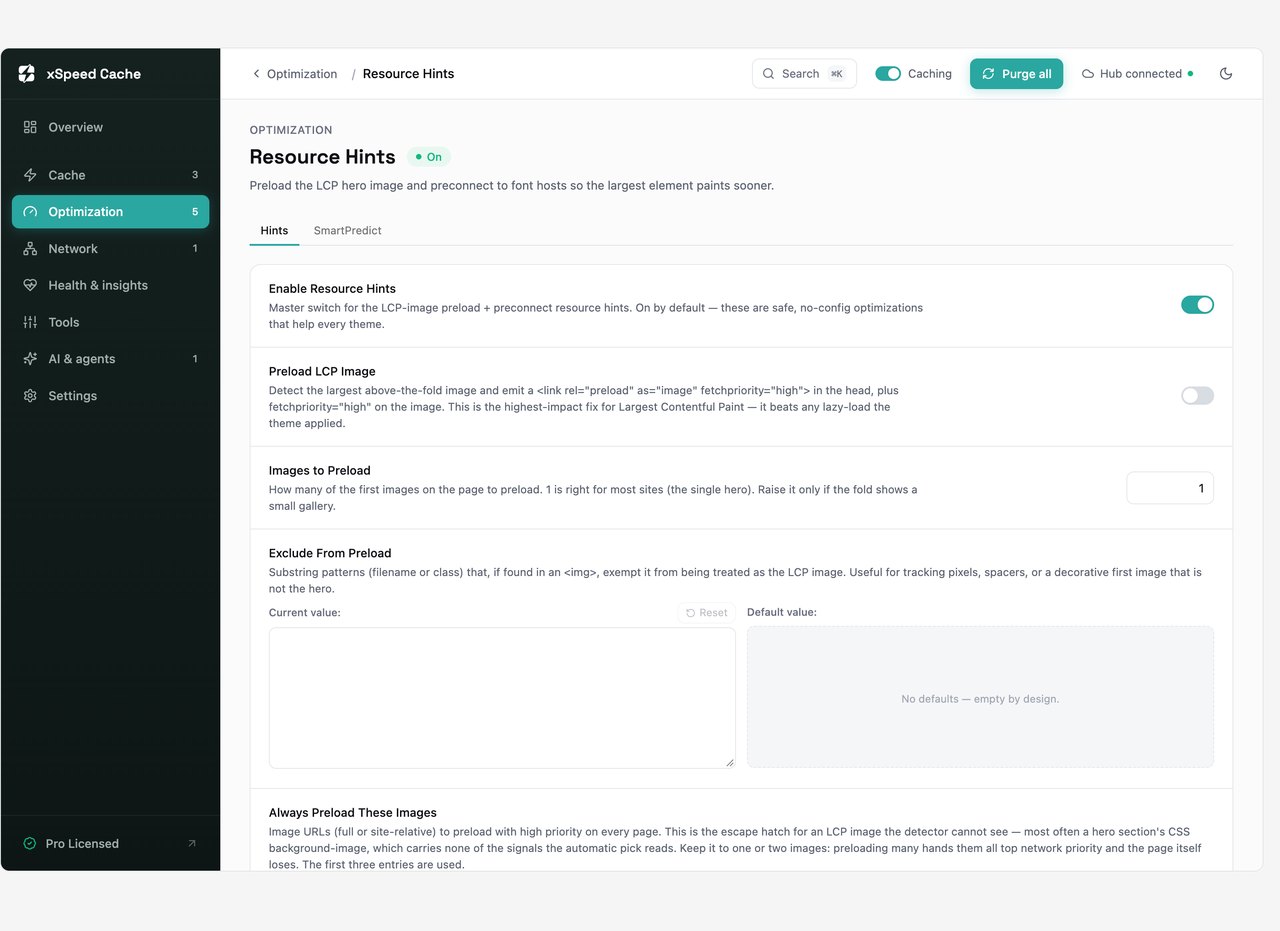
The resource hints module preloads what it believes is your largest contentful paint image and adds preconnect hints for font hosts. The idea is sound and it is a standard feature.
On my site it picked the wrong element. This is the preload tag it generated on the home page:
<link rel="preload" as="image"
      href="https://mc.yandex.ru/watch/96123880"
      fetchpriority="high">
That is a Yandex Metrica analytics tracking pixel. The module identified an invisible one pixel tracker as the most important image on the page and told the browser to fetch it at high priority, ahead of the actual hero image. Turning the LCP preload off removed the tag and improved largest contentful paint.
The detection needs to exclude known analytics and tracking domains, and probably needs a minimum dimension check. Until it does, I would leave the LCP preload switch off and set your hero image manually in the exclusion and preload fields the module provides, which do work.
xSpeed converts your media library to WebP or AVIF and serves the converted file transparently. That is a clear advantage over WP Rocket, which does not convert images at all and expects you to buy Imagify or install another plugin for it.
The server had both Imagick and GD available with WebP and AVIF support, so the capability check passed cleanly. I queued a bulk conversion of the media library and this is where it went sideways.
$ wp xspeed images bulk start --format=webp
Success: Background conversion started: 5815 images queued.

$ wp xspeed images bulk status
status=done  18 / 5815 images  82 files converted  28 failed
It reports done having processed 18 of 5,815 queued images. I ran it twice and got the same result both times. There is also no scheduled task registered to continue the job, so on this install the queue simply stopped. Twenty eight failures out of eighteen processed images is its own puzzle, since each source image produces several resized files.
One detail I did like: the converter has a prune option that deletes any WebP file that came out larger than the original, and by default it counts them rather than deleting. Converting an already optimised image often makes it bigger, and most plugins silently serve you the worse file. On my first run it correctly identified 42 images where the WebP was larger and left the originals alone.

On lazy loading, one thing worth understanding. WordPress core already lazy loads images, so the lazy counts barely moved when I enabled the module. What xSpeed adds on top is iframe and video lazy loading, a YouTube facade that replaces an embedded player with a preview image, and adding missing width and height attributes to images that lack them. That last one helps layout shift, so leave it on.
These two Pro features are cloud rendered. Your site sends the page to xSpeed's service, which loads it in a real browser, works out which CSS rules are used above the fold, and sends back the critical CSS to inline plus the unused rules to strip.
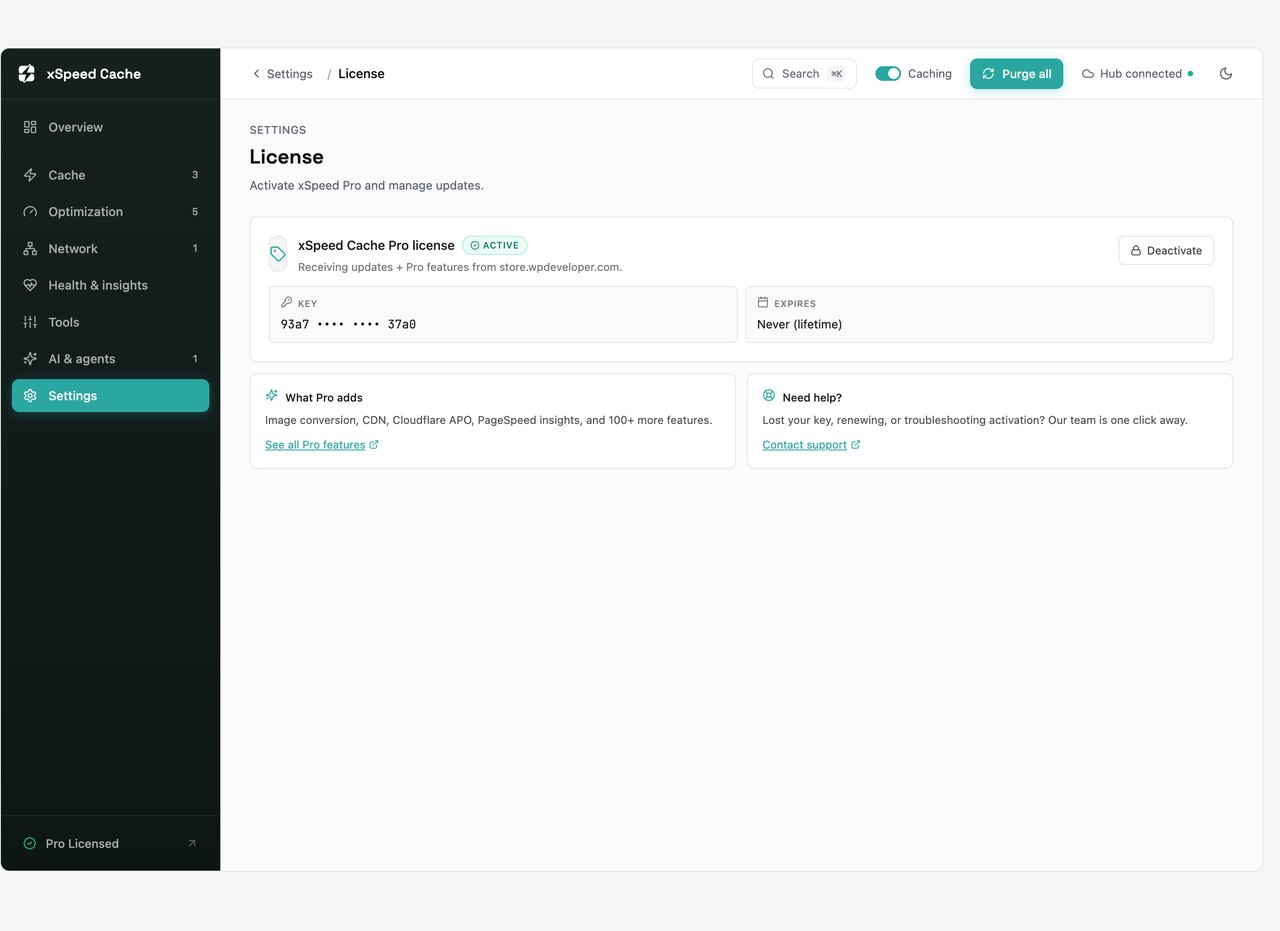
I could not get either to run. Every generation attempt returned the same licence error, even though the plugin's own licence screen showed the install as valid, lifetime and active.
$ wp xspeed ccss generate --page-url=https://example.com/
Error: Cloud render failed: Licence check failed: inactive
  the licence may not be activated for this site URL.
The cause is that the site I tested on runs at a staging subdomain, and the licence is authorised for the production domain. That is a reasonable thing for a vendor to enforce, so I am not calling it a bug. Know it before you buy, though, if your workflow involves testing on staging first, which any sensible workflow does. Two of the highest impact Pro features will not run there.
There is a related rough edge. When generation fails, the plugin queues a retry, and those retries piled up in the scheduled task list, six of them pending at once by the end of my session. A failing cloud call should back off rather than accumulate.
The good news is that this failure was safe. Because no critical CSS existed, xSpeed did not defer the stylesheets, so the page rendered normally. I checked the delivered HTML and all 12 stylesheets were loading as normal blocking links with no deferral trick applied. A worse designed plugin would have deferred the CSS anyway and left the page unstyled.
A few modules I exercised that deserve a shorter mention each.
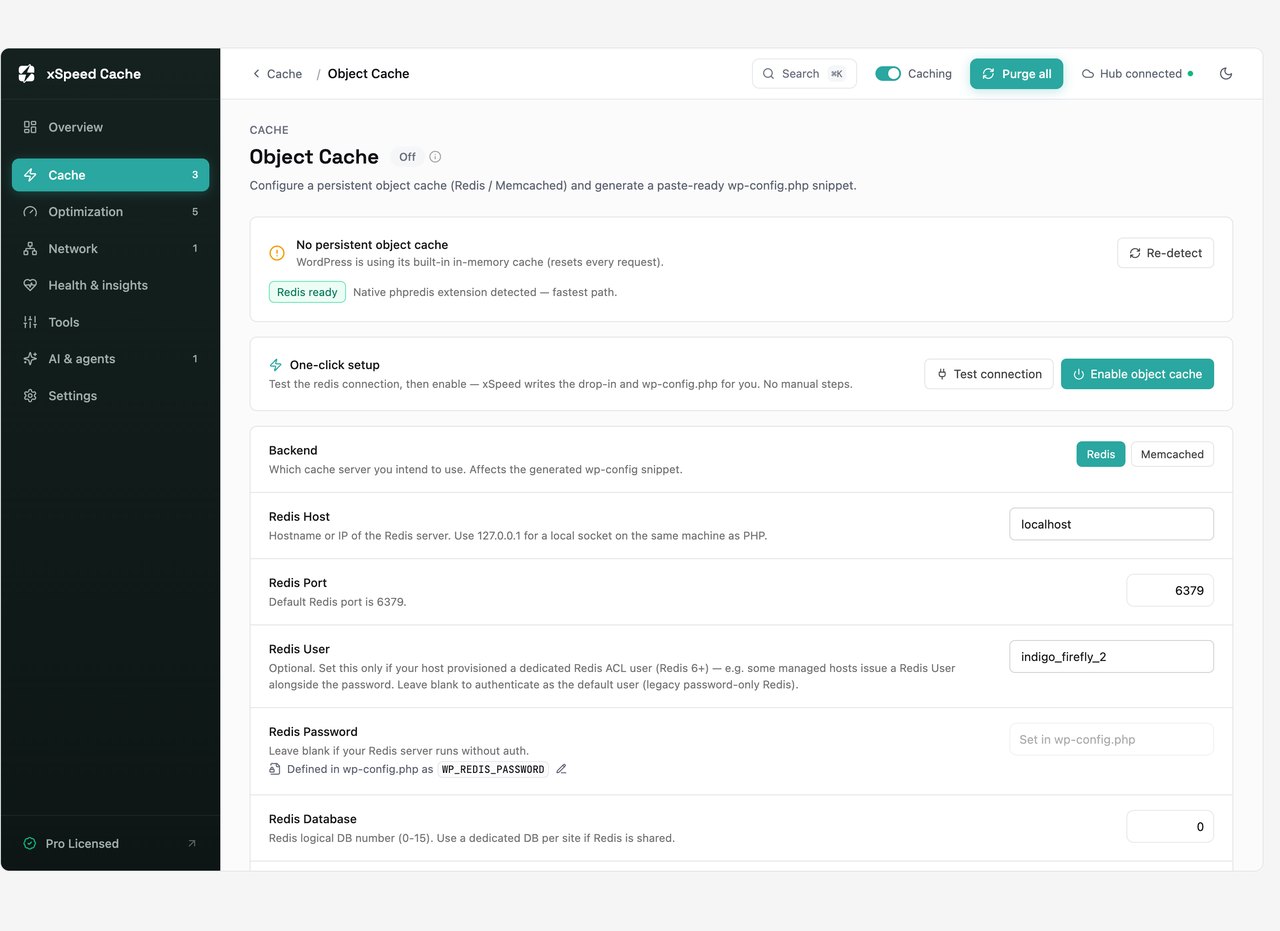
Object cache. xSpeed ships a Redis and Memcached drop in, which WP Rocket does not offer at all. The site had Redis credentials configured, and the connection test failed with a clear permissions error from Redis itself. I want to praise the failure here: the plugin ran a real connect, read and write probe rather than just saving the settings and claiming success, and it surfaced the actual server message. That is the difference between a test button and a decorative one.
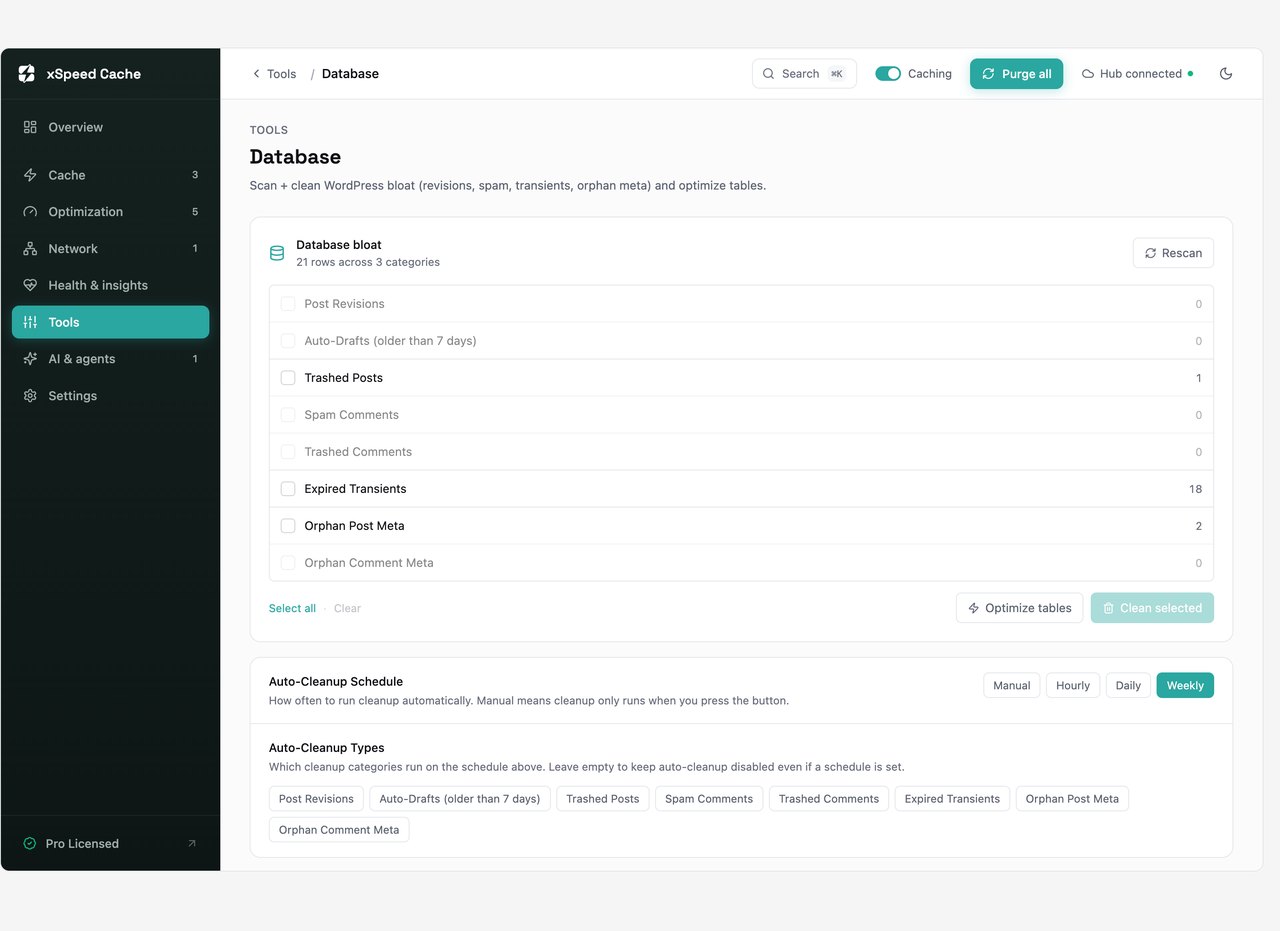
Database cleanup. Scans revisions, auto drafts, trashed posts, spam and trashed comments, expired transients and orphaned metadata, and shows you the row count for each category before you delete anything. The destructive command also refuses to run without a confirmation token generated by the scan, which is a thoughtful safety design.
Preloader. Reads your sitemap and warms the cache in the background. It queued 976 URLs on my site without complaint. It also re-warms a page when you publish or receive a comment.
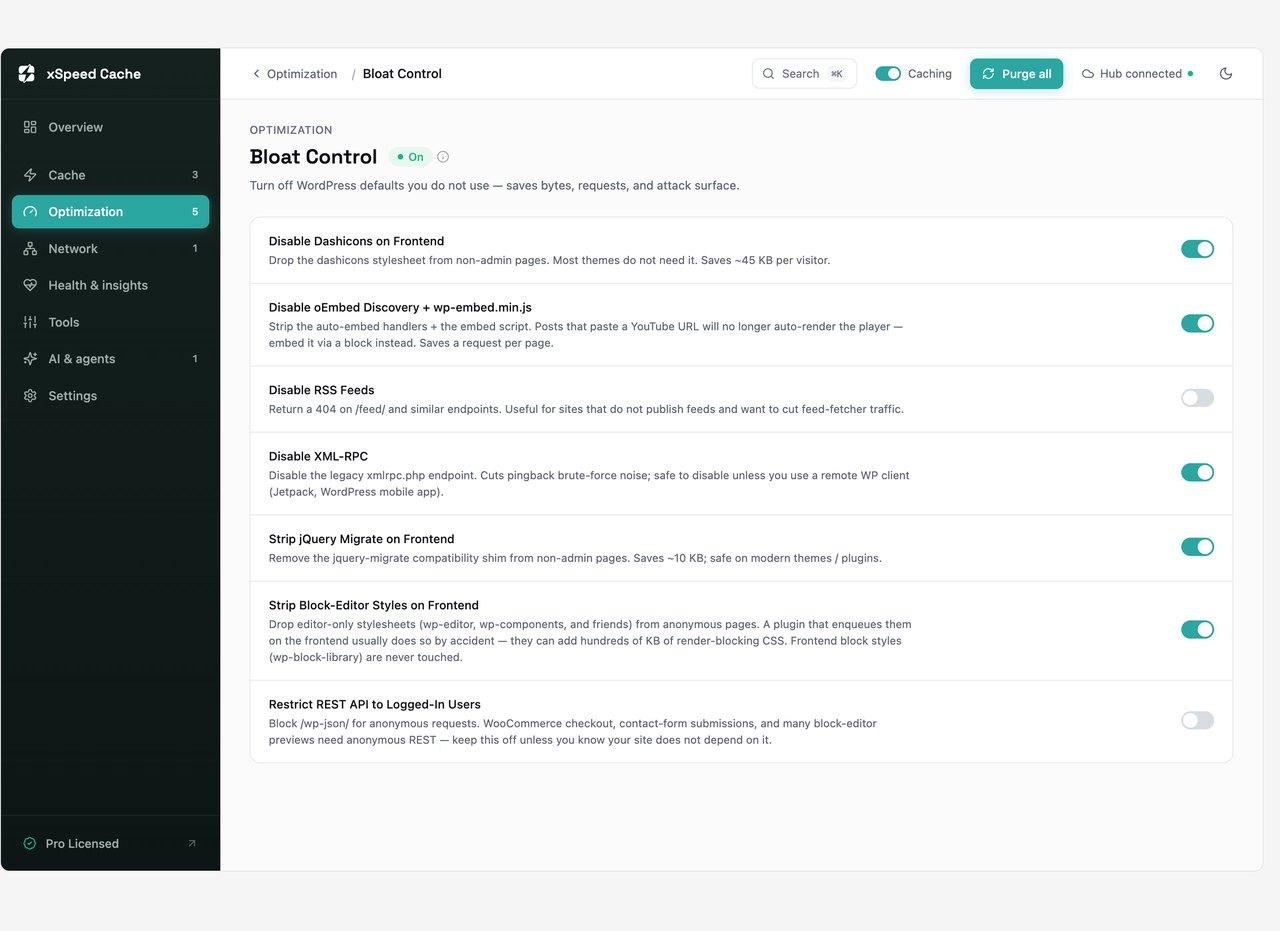
Bloat control and heartbeat. The usual switches for dashicons, oEmbed, XML-RPC, jQuery Migrate and the WordPress Heartbeat API, with per context control over the heartbeat rather than one global setting. Nothing novel, all correctly implemented.
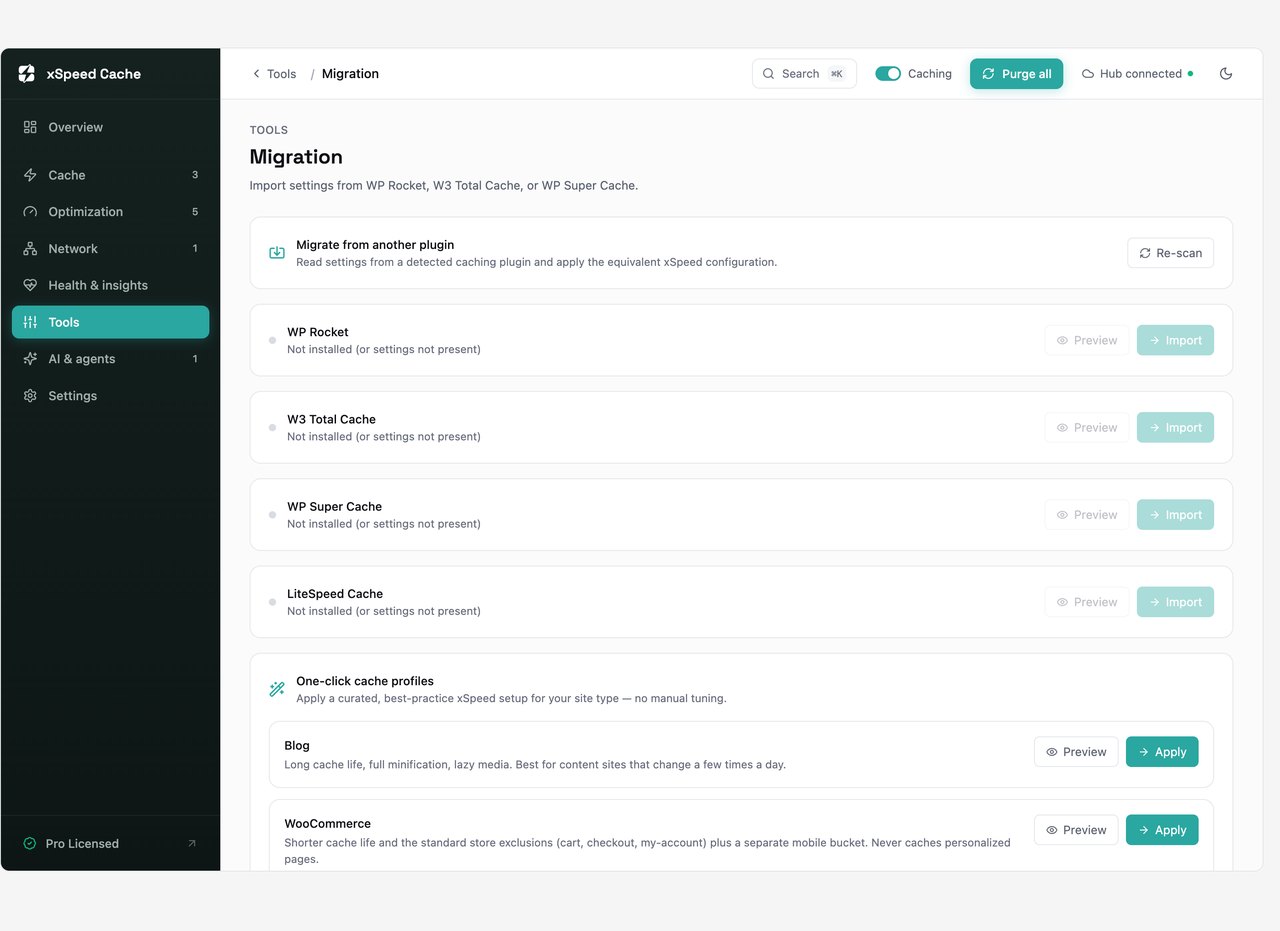
Migration. It reads existing settings from WP Rocket, W3 Total Cache, WP Super Cache and LiteSpeed Cache and imports them. FlyingPress is a notable omission from that list given it is one of the main plugins people would be switching from.
This is marketed as the plugin's headline capability, so I spent a long time on it. The short version is that the underlying logic works and the writing layer on top of it does not.
The AI modules do two separate things. First they compute something with ordinary code: a performance score from your real user data, a recommended cache lifetime from your traffic pattern, an image format recommendation from your media library. Then they ask a language model to write a short paragraph explaining the result. You supply your own API key for OpenAI, Anthropic, Gemini or OpenRouter.
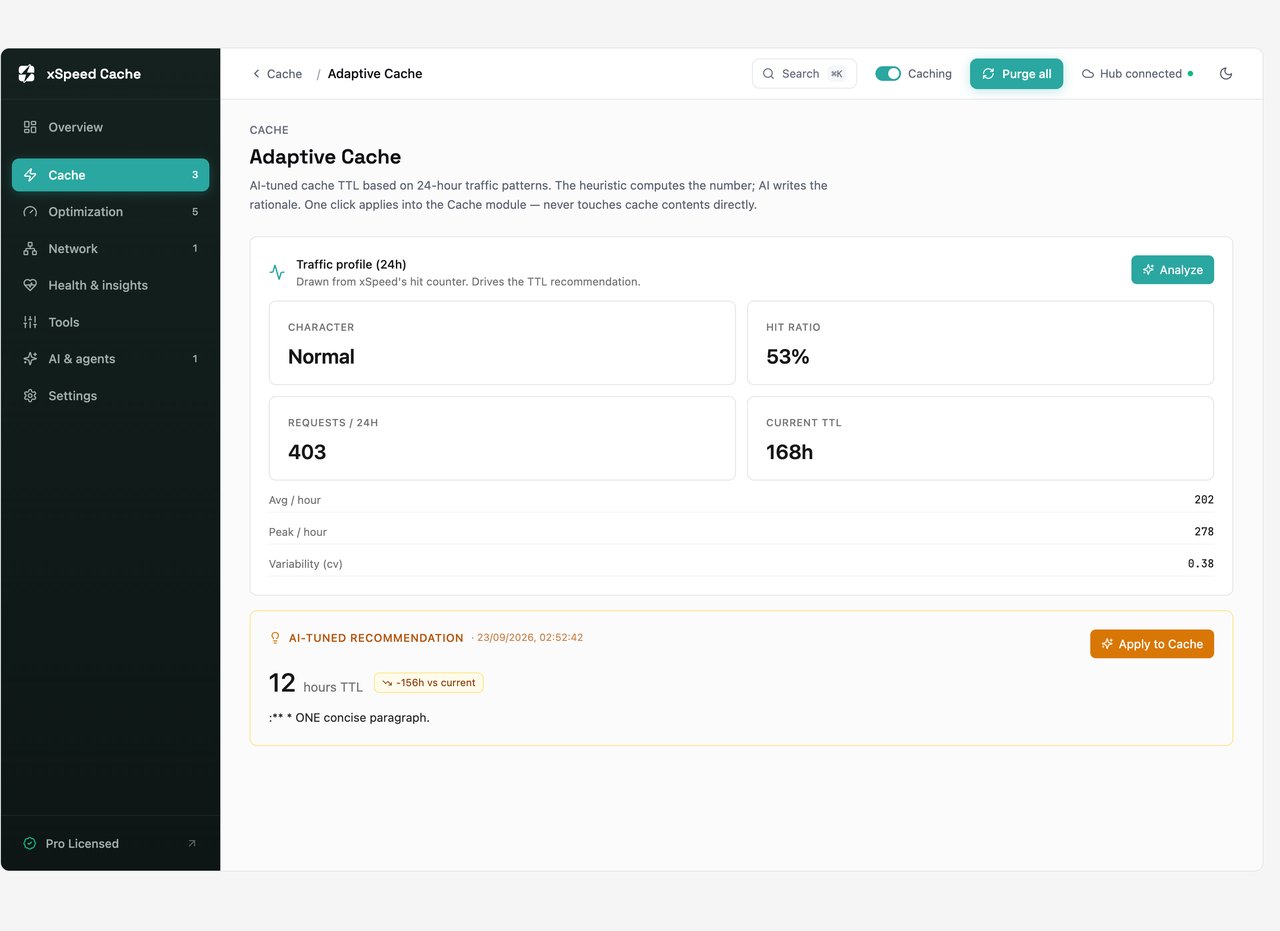
The computed half is fine. Adaptive Cache correctly analysed the traffic as low volume and very stable, with a coefficient of variation of 0.04, and recommended a cache lifetime to match. Performance Health correctly scored the site 50 out of 100 and classified each Core Web Vital. That is all real, useful work.
The written half fails every time. This is what the plugin stored and displayed as its performance narrative:
$ wp xspeed performance-health status
Score: 50 / 100
  LCP    poor      p75=4463
  TTFB   poor      p75=2068

The user wants a single concise paragraph (max 3 sentences)
describing the current performance picture...
Requirements:
- Lead with overall score
- Avoid superlatives
Since there are no anomalies, I need to mention that. The main
issues are LCP, FCP, and
That is the prompt itself, followed by the model thinking out loud, cut off mid sentence. And it does not show up as an error. It is stored in the database and rendered in the dashboard as though it were the answer.
I assumed this was a bad model choice, so I worked through it properly. I switched providers from OpenRouter to Google Gemini with a fresh key. The connection test passed and reported the active model. The narrative was still broken, just differently, returning a fragment of the prompt formatting instead.
So I read the source. The function that generates the performance narrative calls the AI client with a hard limit of 220 tokens, and the image module and cache modules use similarly small ceilings. The connection test uses eight.
That limit was reasonable when every model replied immediately with its answer. It is not reasonable now. Current default models, including Gemini 3 Flash and most of what is available on OpenRouter's free tier, spend part of their output budget on internal reasoning before they write anything visible. At a 220 token ceiling the budget is gone before the answer starts.
I proved this directly by calling the plugin's own AI client at different limits with an identical prompt.
| Output token limit | What came back |
|---|---|
| 8, the connection test default | Empty response, reported as a provider error |
| 64 | Empty text, all tokens consumed by hidden reasoning |
| 220, the narrative default | A sentence cut off at “landing right at the midpoint of the” |
| 512 and above | The correct, complete answer |
So this is not a model problem and it is not a configuration problem you can solve from the settings screen. The token ceilings are hard coded, and the client stores whatever came back without checking whether it is a complete sentence. The fix is small and entirely on the vendor's side: raise the ceilings, request no reasoning tokens where the provider supports it, and validate the text before saving it.
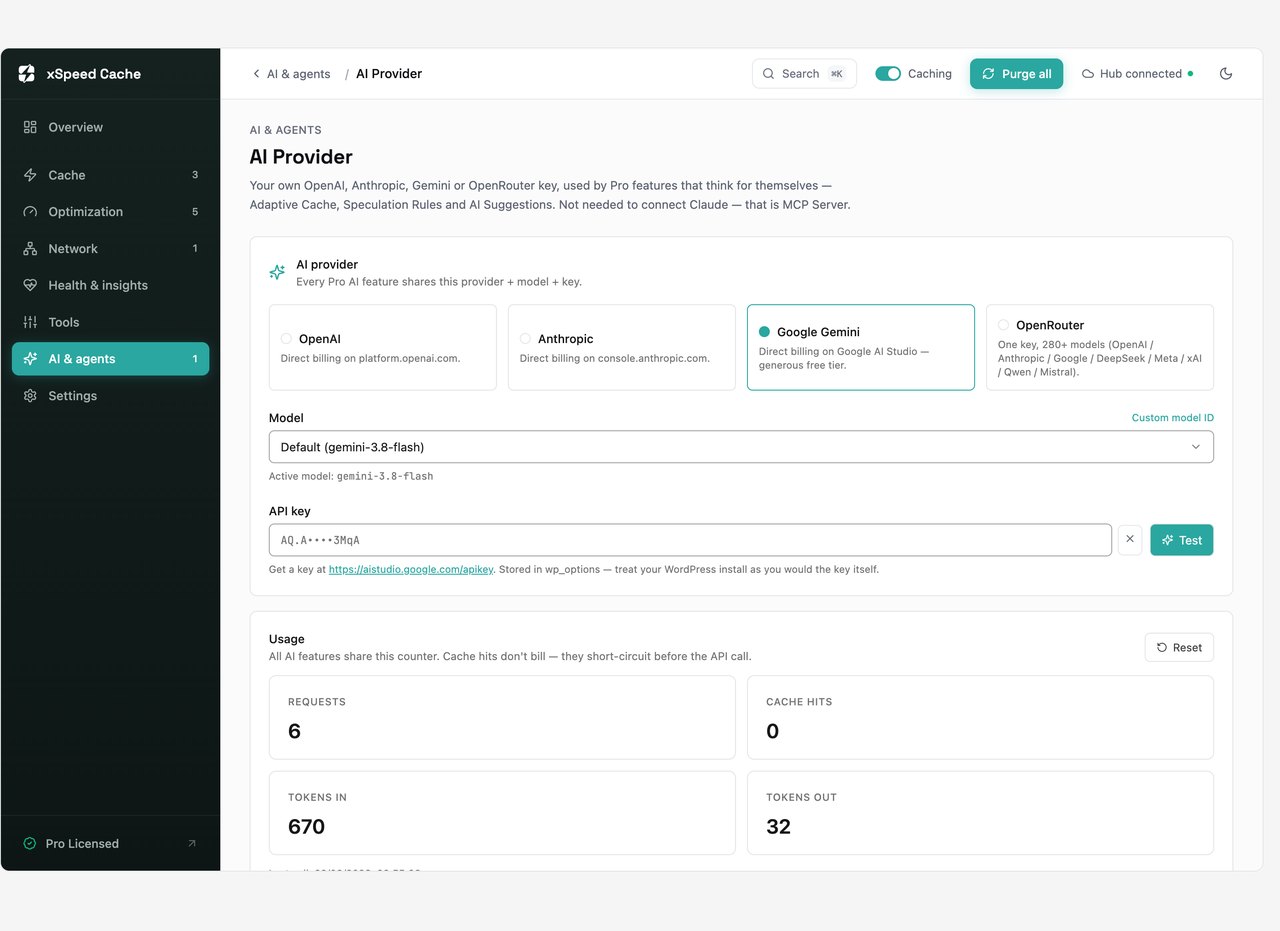
There is a design decision here I do like. The AI features are strictly additive. Every recommendation is computed by ordinary code first, and the language model only writes the explanation. It is never allowed to change the number. The adaptive cache prompt even tells the model explicitly that it must not contradict the calculated recommendation. That means this bug produces gibberish text next to correct numbers, rather than wrong settings on your site, which is the right way round for it to fail.
Everything above is a caching plugin doing caching plugin things. This part is different, and it is the reason I think this plugin is worth paying attention to even in its current state.
xSpeed ships a built in MCP server. MCP is the protocol AI assistants use to talk to external tools, and what it means in practice is that you can connect Claude, or any MCP capable assistant, directly to your WordPress cache layer and then just ask it to do things.
Setup is one command, which the plugin generates for you with the token already filled in.
claude mcp add xspeed-mysite https://example.com/xspeed/mcp
  --transport http
  --header "Authorization: Bearer YOUR_TOKEN_HERE"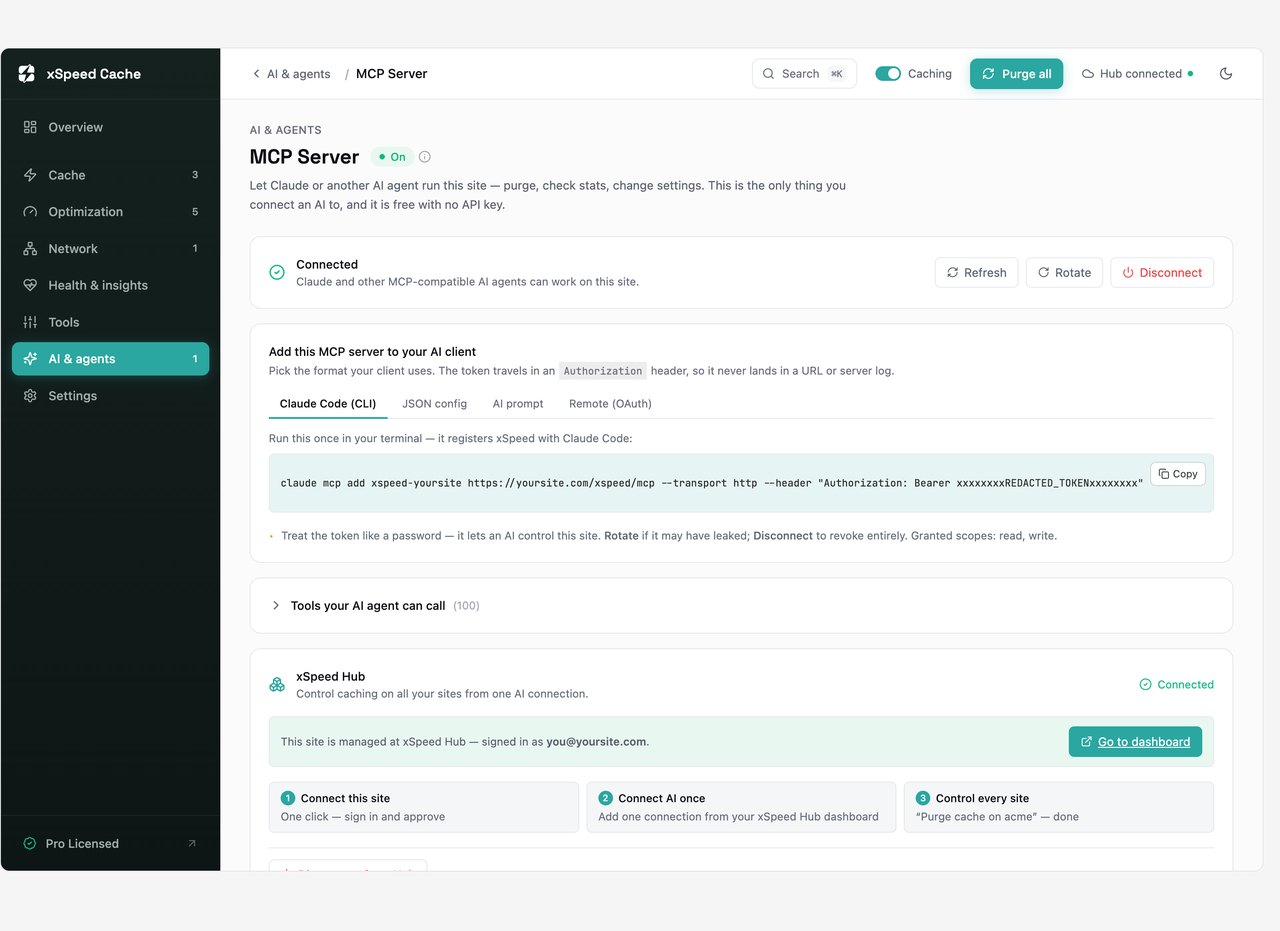
I connected it and drove the entire test in this review through that connection. Not as a demo, as the actual working method. I read the cache status, toggled modules, purged caches, ran the preloader, started image conversions and pulled diagnostics, all through the agent interface. By the end the plugin had logged 200 tool calls from me.
The tool surface is large. The panel lists 100 callable tools, covering essentially the whole plugin rather than a curated handful.
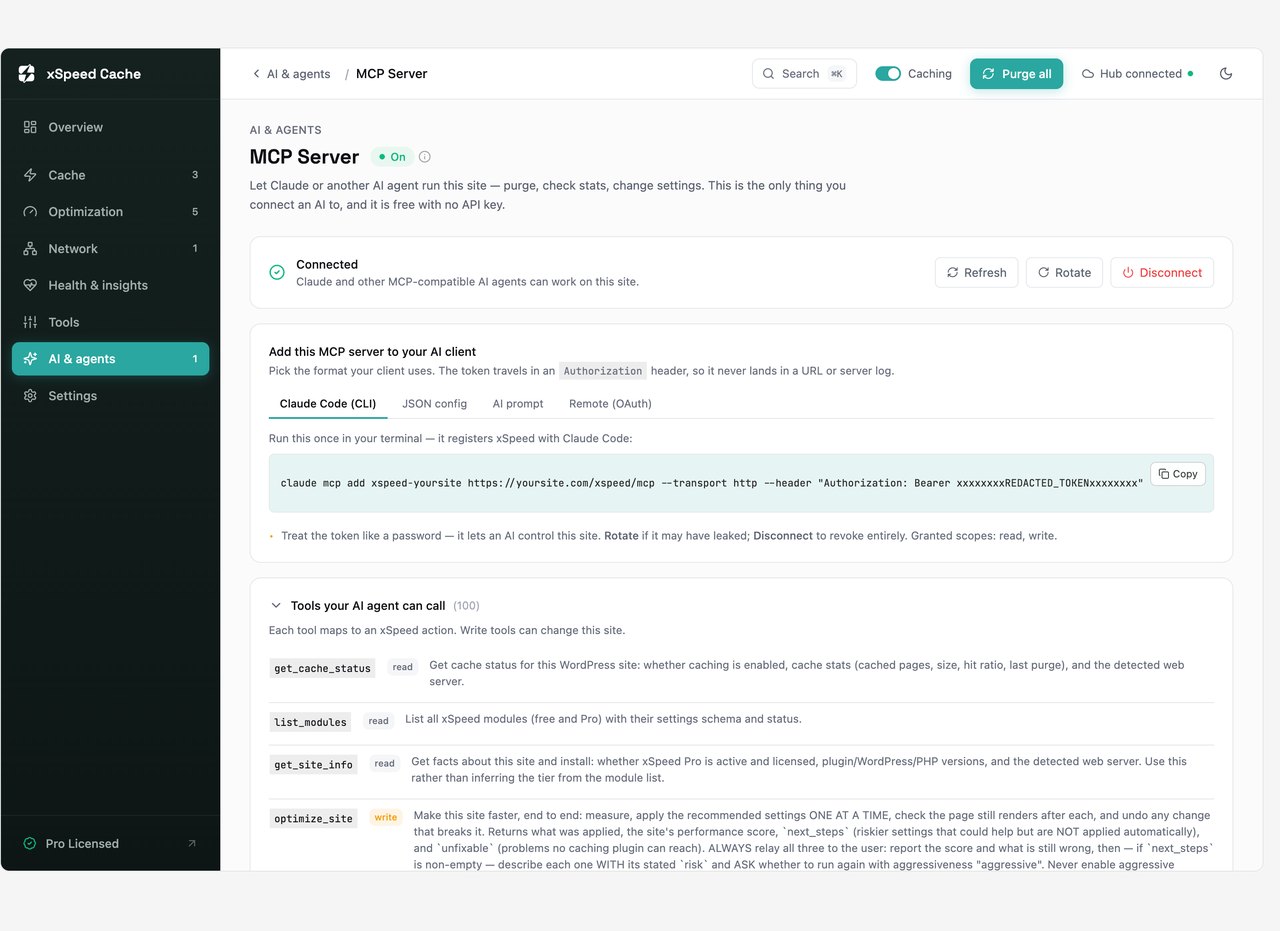
Two parts of this implementation beat my expectations.
It logs everything. Every call is recorded with a timestamp, whether it was a read or a write, and the error message if it failed. The general activity log goes further and tags every configuration change with its source, so a change made by an agent appears as “(AI assistant)”, one made in the browser as “(via dashboard)” and one from the command line as “(via cli)”. If you are letting software change your production configuration, being able to see exactly what it did is not optional, and most tools in this space do not bother.
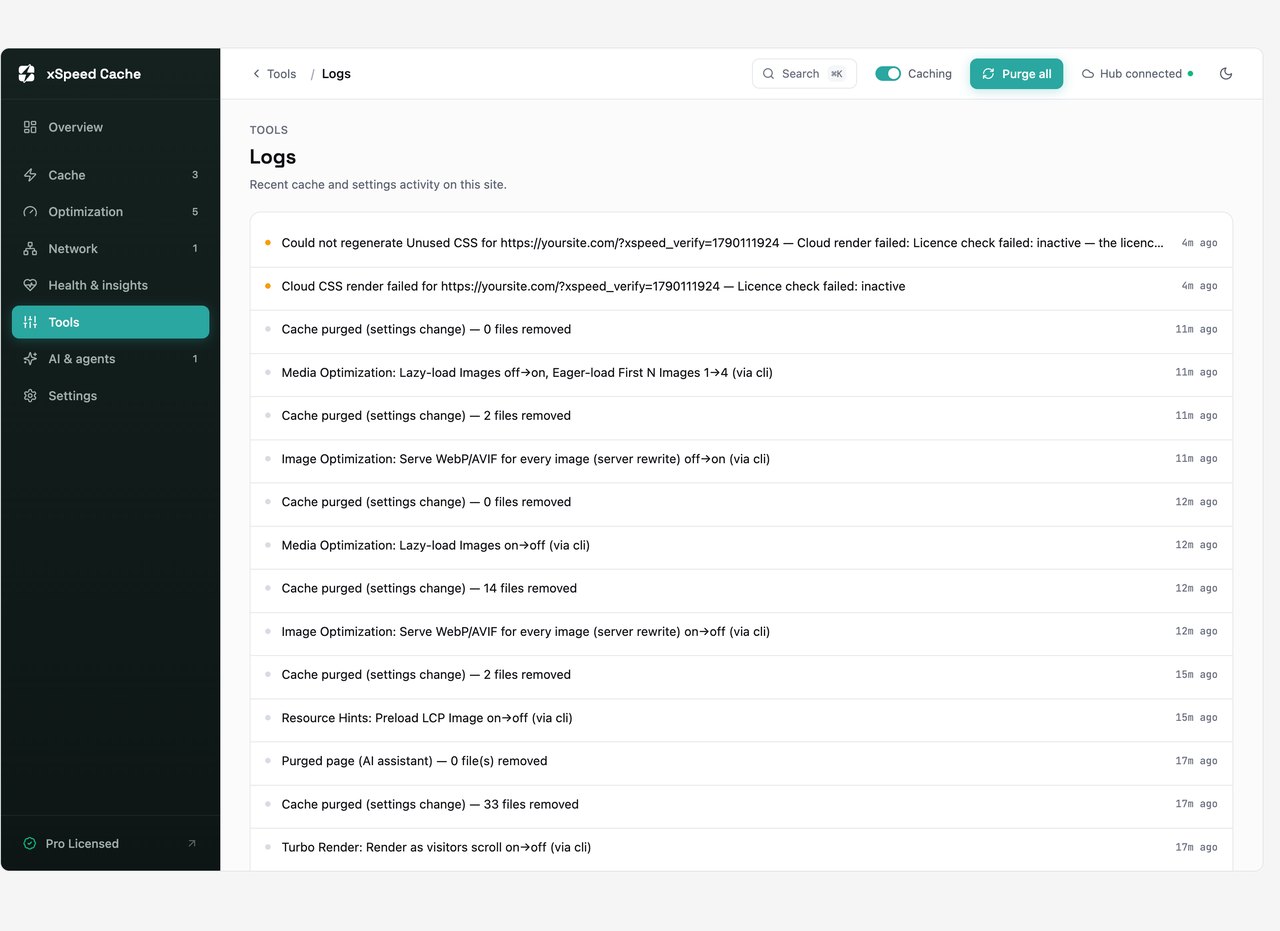
Destructive actions are gated properly. The database cleanup command cannot be run by an agent without a confirmation token that only the scan command issues. I tried. It refused, and the refusal explicitly said that routing through the general command tool is not a way around the confirmation. Somebody thought about what an agent should not be trusted to do unsupervised.
The token is a full read and write credential for your cache layer, and the panel is blunt about that, telling you to treat it like a password with rotate and disconnect buttons beside it. Take that seriously. Anyone holding that token can change your site's configuration.
The detail most likely to surprise you: the MCP server is in the free version. It is not a Pro upsell, and it does not require an AI provider key either, because your assistant brings its own intelligence. The AI provider key is only for the narrative features described earlier.
There is a full WP-CLI surface built in, around fifty commands, which is more than I expected and more than WP Rocket offers without installing a separate package.
The most interesting command is the optimizer. Run it with a dry run flag and it shows you its plan without touching anything.
$ wp xspeed optimize --dry-run
Preview only, 2 changes would be applied.
Plan (2 steps, nothing applied):
  - Combine CSS files [standard]
  - Combine JavaScript files [standard]
  skipped: cache_disabled     Already enabled.
  skipped: delay_js_off       Needs aggressive mode (run is standard).
  skipped: async_css_off      Needs aggressive mode (run is standard).
I like this a lot. It separates changes into standard and aggressive tiers, refuses to apply the risky ones unless you explicitly opt in, tells you why it skipped each item, and after applying changes it verifies the pages still return valid HTML and hands you a list of URLs to check yourself. That is a responsible design for a feature that is otherwise a “break my site” button.
When I ran it for real it applied both changes, confirmed its HTML checks passed, and my own independent check of the rendered pages agreed. It did not break anything.
Every configuration I measured, on the same page, same machine, same session.
| Configuration | Mobile | Desktop | Layout shift | Page weight | Requests |
|---|---|---|---|---|---|
| Everything off | 51 | 80 | 0.035 | 24.98 MB | 204 |
| Page cache only | 53 | not measured | 0.037 | 22.55 MB | 202 |
| Plus minify and defer | 55 | not measured | 0.001 | 24.78 MB | 203 |
| Everything on | 28 | 62 | 0.869 | 2.25 MB | 130 |
| My tuned configuration | 55 | not measured | 0.035 | 2.31 MB | 135 |
In short, Lighthouse scores moved very little, while the things Lighthouse does not weight heavily moved enormously. Page weight fell from 24.98 MB to 2.31 MB, a 91 percent reduction. Requests fell by a third. Time to first byte fell by more than 60 percent on every cacheable page. Those are the numbers your actual visitors and your hosting bill will feel.
The mobile score went from 51 to 55. That is a real improvement but it is not the dramatic transformation the marketing around any cache plugin implies, because on a site this heavy the remaining bottleneck is the page builder and the third party scripts, not the cache layer. No caching plugin fixes a 200 request Elementor page. Anyone promising you 90 plus from a plugin install alone is selling something.
Based on everything above, this is the configuration I would ship on a page builder site.
That configuration gave me the best result in the whole test, and it is the one I would hand a client.
A proper head to head deserves its own article and I will write one. This is the short version, checked against each vendor's own documentation on 23 September 2026.
First, a correction to something you may read elsewhere, including in xSpeed's own marketing. xSpeed is not the first WordPress performance plugin with an MCP server. WP Rocket shipped one in version 3.23 on 9 July 2026, it is included in every licence, and it can both read and change settings. What is true is that xSpeed's agent surface is far larger. WP Rocket exposes its insights, its settings and cache purging. xSpeed exposes essentially the entire plugin, and includes it in the free tier.
FlyingPress has no MCP server and no AI features at all.
| Capability | xSpeed Cache | WP Rocket | FlyingPress |
|---|---|---|---|
| Serves cache without PHP | Yes, nginx config generated for you | Apache only, nginx needs a third party config | nginx snippet, manual |
| WebP conversion | Yes, built in | No, needs Imagify or similar | Yes |
| AVIF conversion | Yes | No | Yes |
| Object cache, Redis | Yes, built in | No, points you to another plugin | Yes |
| Caches 404 pages | Yes | No | No |
| Caches search results | Yes | Needs a helper plugin | No |
| Caches REST responses | Yes | Needs a helper plugin | Not documented |
| Caches RSS feeds | Yes | Needs a helper plugin | Not documented |
| Real user monitoring | Yes | No, its insights are lab tests | Yes |
| WP-CLI | Built in, around 50 commands | Separate package install | Built in |
| MCP server | Yes, free, very broad | Yes, since July 2026 | No |
On raw feature count xSpeed wins comfortably, and it is not close. On polish, WP Rocket wins just as comfortably. WP Rocket has been refined over a decade, it has a support organisation, and its features generally do what they say without you having to benchmark each one. Nothing in WP Rocket cost me 23 Lighthouse points on a default setting.
FlyingPress sits in between, and it is the one I would watch if real user Core Web Vitals data is your priority. One thing to know before buying it: FlyingPress stops working when the licence lapses, while WP Rocket keeps caching and only loses updates and cloud features.
I have written about WP Rocket before in my WP Rocket deal coverage, and if you are still choosing a host rather than a cache plugin, start with my Kinsta and Rocket.net comparison instead, because hosting decides your baseline before any plugin gets involved.
xSpeed is running launch pricing at 50 percent off as I write this, and the launch prices below will not last. I am showing both so you can see what you would renew at.
| Plan | Sites | Yearly, launch | Lifetime, launch | Normal yearly | Normal lifetime |
|---|---|---|---|---|---|
| Personal | 1 | $29 | $79 | $58 | $158 |
| Business | 5 | $49 | $149 | $98 | $298 |
| Agency | 25 | $99 | $249 | $198 | $498 |
| Enterprise | Unlimited | $199 | $399 | $398 | $798 |
For context, WP Rocket is $59.95 a year for one site and has no lifetime option at all. FlyingPress is $59 a year for one site, also with no lifetime option. A lifetime licence at $79 for a plugin in this category is rare.
The free version is not a trial and is not crippled. It includes the page cache, object cache, browser cache, minification, lazy loading, database cleanup and the entire MCP server. Pro adds the advanced cache coverage, critical and unused CSS, image conversion, real user monitoring, the AI layer and white labelling.
My read on the lifetime deal: it is attractive, and a lifetime licence is also a bet on the vendor still maintaining the plugin in three years. WPDeveloper has a long track record with Essential Addons, which makes that bet more reasonable than it would be from an unknown developer. But this plugin is clearly early, and if you buy today you are buying the roadmap as much as the product.
It depends on which of two people you are.
If you run a straightforward WordPress site, a blog, a brochure site, a small shop, and you want a fast cache with a lifetime licence, this is a lot of plugin for $79 once. Turn Turbo Render off, turn the automatic LCP preload off, and the rest of it will serve you well. The free version alone is better than most paid caching plugins were three years ago.
If you are running client sites and you need every feature to behave predictably without you benchmarking each one, buy WP Rocket. It costs more per year and does less, and it will not surprise you. That is worth paying for when it is not your own site that breaks.
The reason I will keep watching this plugin is the agent control. Every bug I found in it is small and fixable: a token limit, an element detection rule, a queue that stops early. None of them are architectural. The MCP implementation, by contrast, is a real piece of engineering that its competitors have either not built or built narrowly, and it is the part that would be hard to copy.
If you want to try it, the free version is on the WordPress plugin directory and you can see the Pro plans on the xSpeed Cache website. Both the free and Pro builds come from WPDeveloper.
Tested on 23 September 2026 against xSpeed Cache 1.3.5 with Pro 1.2.5. Every number here came from my own testing on a live WooCommerce site, and I will update this review as the plugin changes.
3.8 out of 5 ★★★★☆
The page cache is excellent and the free tier is unusually complete. The AI features do not work and Turbo Render actively hurt a real site, so this is a plugin to enable selectively rather than switch on whole.
What works
What does not
Yes, and the free version is substantial rather than a trial. It includes page caching, object caching with Redis or Memcached, browser caching, minification, lazy loading, database cleanup and the full MCP server. Pro adds caching for 404s, search, REST and feeds, critical and unused CSS, WebP and AVIF conversion, real user monitoring, the AI layer and white labelling. Pro starts at $29 a year or $79 once at launch pricing.
There is no single answer, because they optimise for different things. WP Rocket is the most polished and the safest default for client work. FlyingPress is strongest if you care most about real user Core Web Vitals data. xSpeed Cache has the widest feature set for the money and the best AI agent integration, but it is the newest and I found several rough edges. If you want one recommendation with no caveats, WP Rocket is still it.
Yes. In my testing the cart, checkout and account pages were correctly excluded from caching by default, at both the PHP and nginx layers, and the WooCommerce session cookies were in the exclusion list so shoppers with items in their basket are never served a cached page. Product pages and shop archives cached normally and their time to first byte dropped by more than 60 percent.
MCP is the protocol AI assistants use to connect to external tools. xSpeed's MCP server lets you connect an assistant such as Claude directly to your cache layer, so you can ask it to purge the cache, check your hit ratio, change settings or run diagnostics in plain language. The panel exposes 100 callable tools, every call is written to an audit log, and the feature is included in the free version.
Caching is good for SEO when it is configured correctly, because it reduces server response time, which is a direct input into Core Web Vitals. The risk is misconfiguration rather than caching itself. Serving a cached page to a logged in user, caching a shopping cart, or deferring content in a way that causes layout shift will all hurt you. That last one is exactly what I measured with one of xSpeed's features enabled.
One feature will. Turbo Render applies the CSS content-visibility property to page builder sections, and on my Elementor test site it pushed cumulative layout shift from 0.035 to 0.869 and cost 23 Lighthouse points. Its default target list includes Elementor, Bricks, Divi and Oxygen section classes. Turn it off. The rest of the plugin, including combining CSS and JavaScript, ran on my Elementor site with no console errors and no broken layout.
Yes. xSpeed includes a migration tool that reads and imports existing settings from WP Rocket, W3 Total Cache, WP Super Cache and LiteSpeed Cache. FlyingPress is not currently supported. As with any cache plugin change, deactivate the old plugin first rather than running both, and clear everything afterwards.