Kadence Theme Review 2026: Setup Tutorial, Free vs Pro and Speed Test

Tutorials & Insights
I ran BloggerTutor on the Kadence theme for years before moving the site to Blocksy, and I still build client sites with Kadence Blocks every month. This review is not a rewrite of the feature page. In November 2026 I rebuilt a real client homepage and a WooCommerce product page on Kadence 1.6.0 with Kadence Pro, then went through every panel of the theme and screenshotted it, so you can see exactly where each setting lives before you install anything.
The post works in two ways. Read it top to bottom as a setup tutorial, in the order I build a site, or jump to the free vs Pro table, the pricing and my verdict if you only want to know whether Kadence is worth it in 2026.
Kadence started in Missoula, Montana, was bought by StellarWP in 2021 and now sits under Liquid Web and Nexcess, which is why the licence screen inside the theme now points to the Liquid Web Software Manager. The theme itself is free on WordPress.org. Kadence Pro is a separate add-on plugin that switches on extra modules inside the same theme.
|
Item |
Details |
|---|---|
|
Latest version |
Kadence 1.6.0 (5 November 2026), Kadence Pro 1.3.0 |
|
Active installs |
500,000+ on WordPress.org, 6.18 million downloads |
|
User rating |
98 out of 100 from 458 ratings (434 of them five stars) |
|
Requires |
WordPress 6.6 or newer, PHP 7.4 or newer |
|
Free version |
Yes, full theme with header and footer builders |
|
Paid version |
Kadence bundle from $350 a year for one site |
|
Starter templates |
93 templates, 52 free and 41 premium |
|
Owner |
Liquid Web and Nexcess (StellarWP family) |
|
Best for |
Blogs, business sites and stores built with Kadence Blocks |
Source for the numbers: the Kadence theme page on WordPress.org, the theme changelog and the starter template library inside my test site, all checked on 13 November 2026.
When I first wrote this post in 2020, Kadence Pro was a beta and the big news was a membership price increase. Almost none of that history matters to you today, so here is the short version of how we got here.
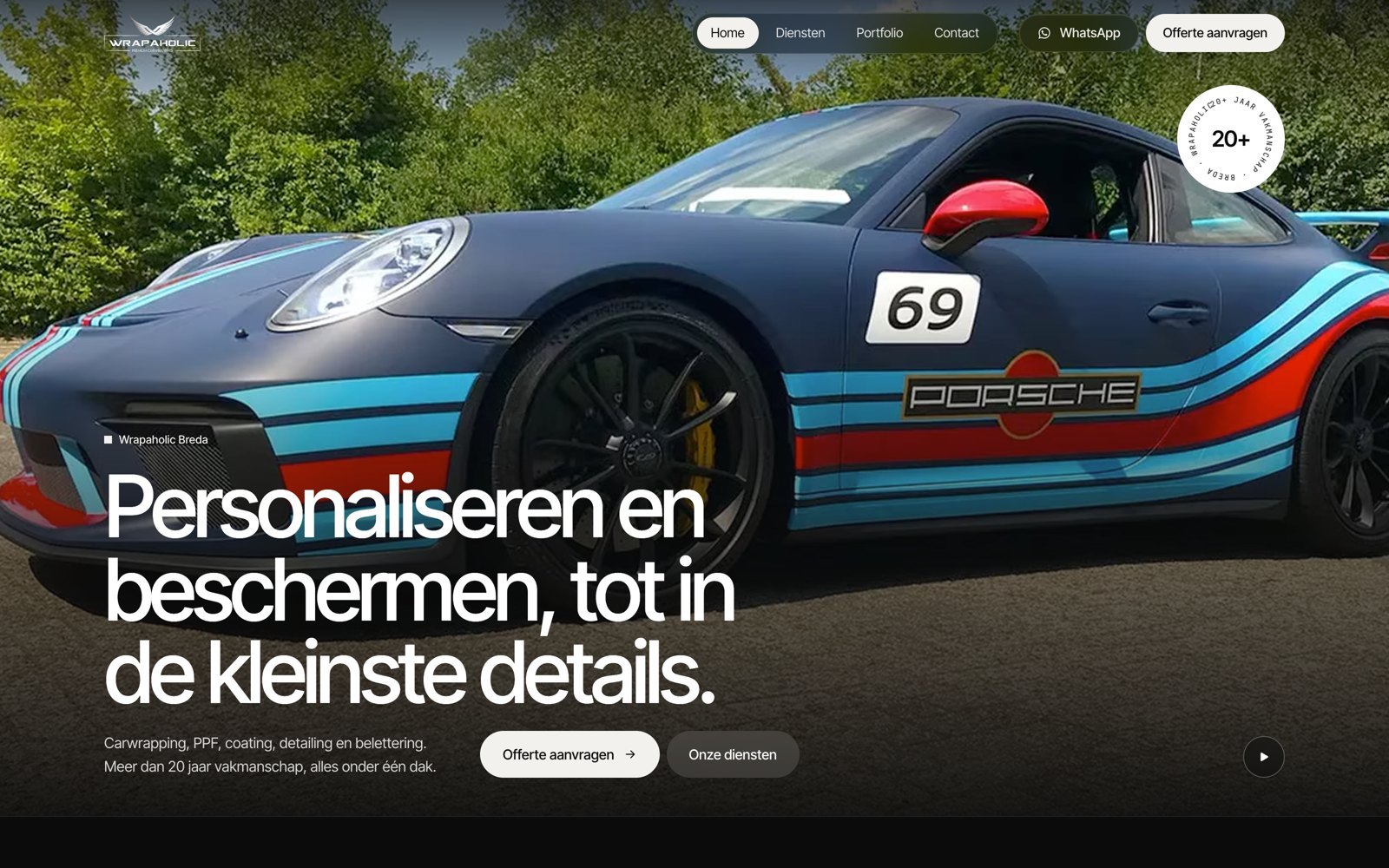
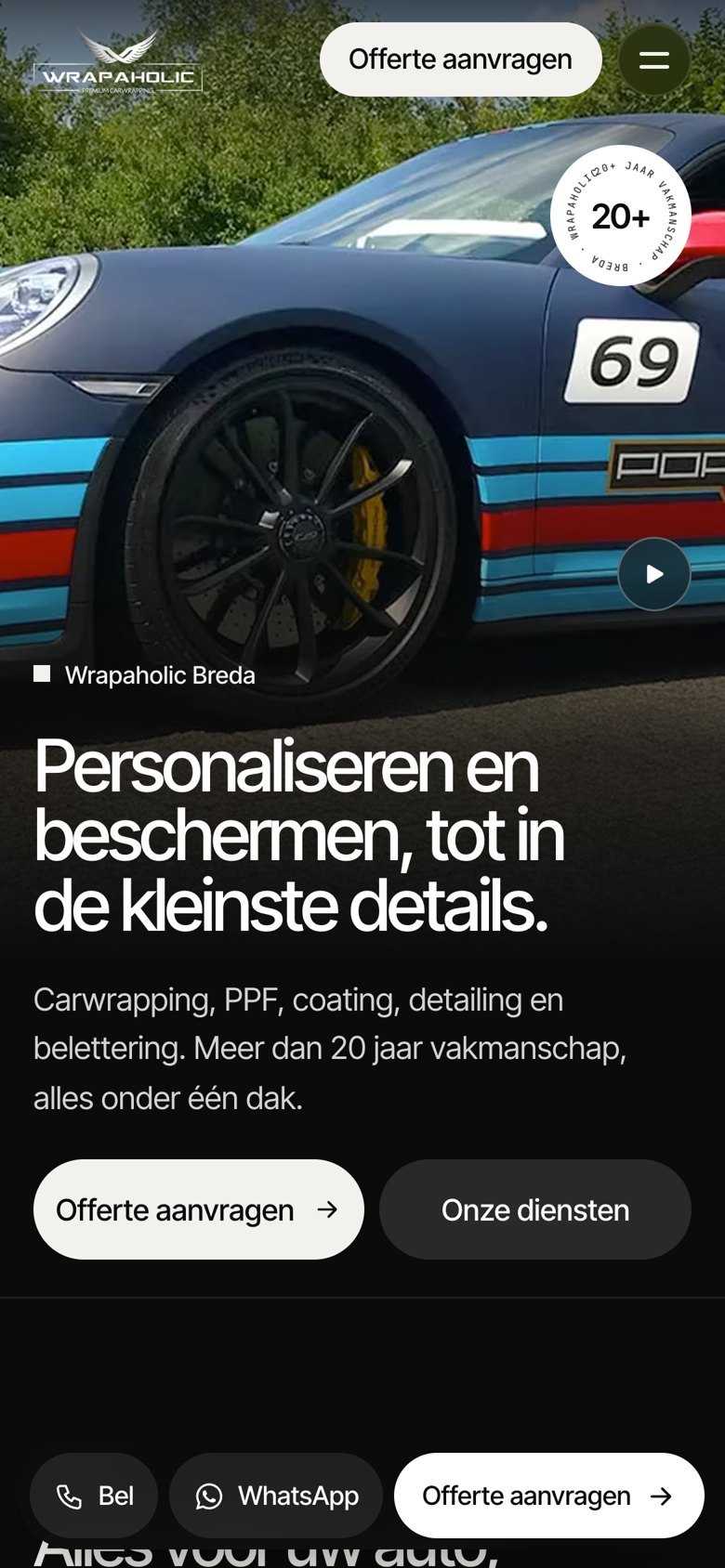
Feature lists do not tell you how a theme feels when a client design has to match pixel for pixel. So I took a real project, a car wrapping and paint protection shop in Breda, and rebuilt its homepage and a WooCommerce product page on a clean WordPress 7.1.4 install with Kadence 1.6.0, Kadence Pro 1.3.0, Kadence Blocks Pro 2.9.1 and Kadence Shop Kit 3.0.10. I used only Kadence settings and blocks first, and added CSS only where the design needed something Kadence has no control for.
I rebuilt the same site on five other builders at the same time, Elementor, GenerateBlocks, Greenshift, Spectra and Unblock, each on its own theme, and measured all six the same way. The full comparison lives on my block editor site in the 2026 page builder benchmark. In this post I only pull out what matters for the Kadence theme.
The client site is Dutch, so the front end in my screenshots reads “Diensten” and “Offerte aanvragen”. Every Kadence setting in the admin is in English. Nothing in this tutorial depends on the language.
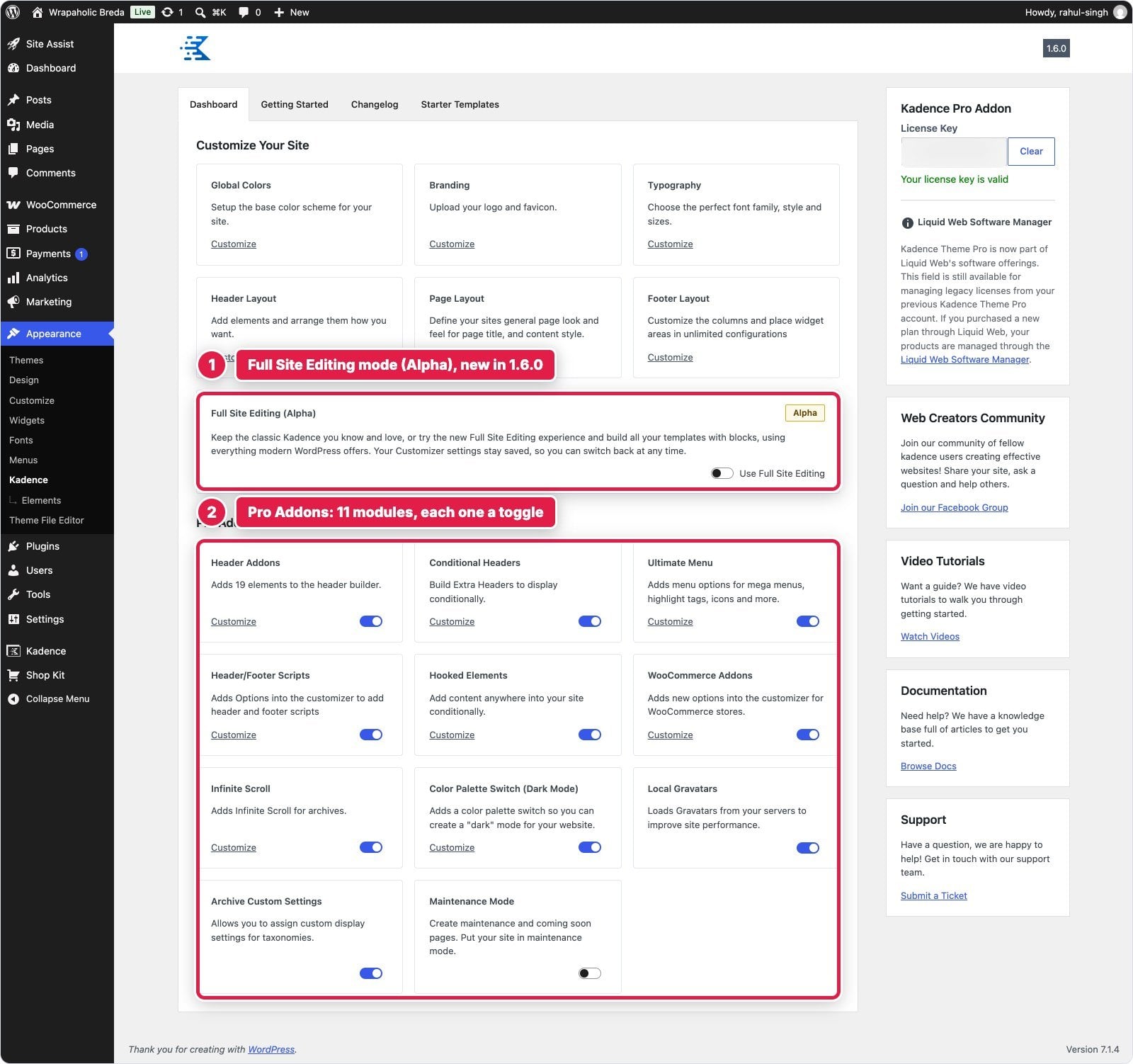
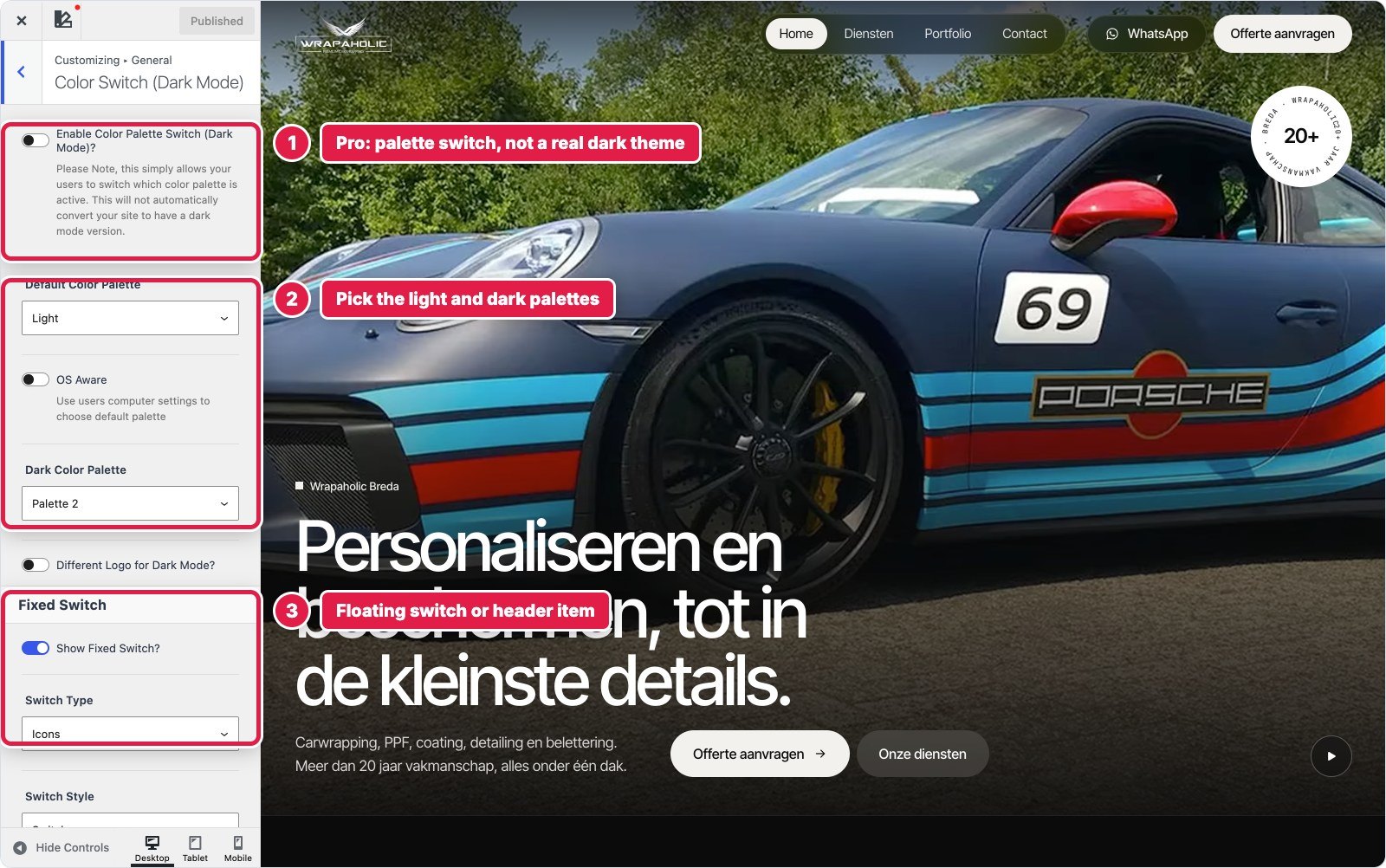
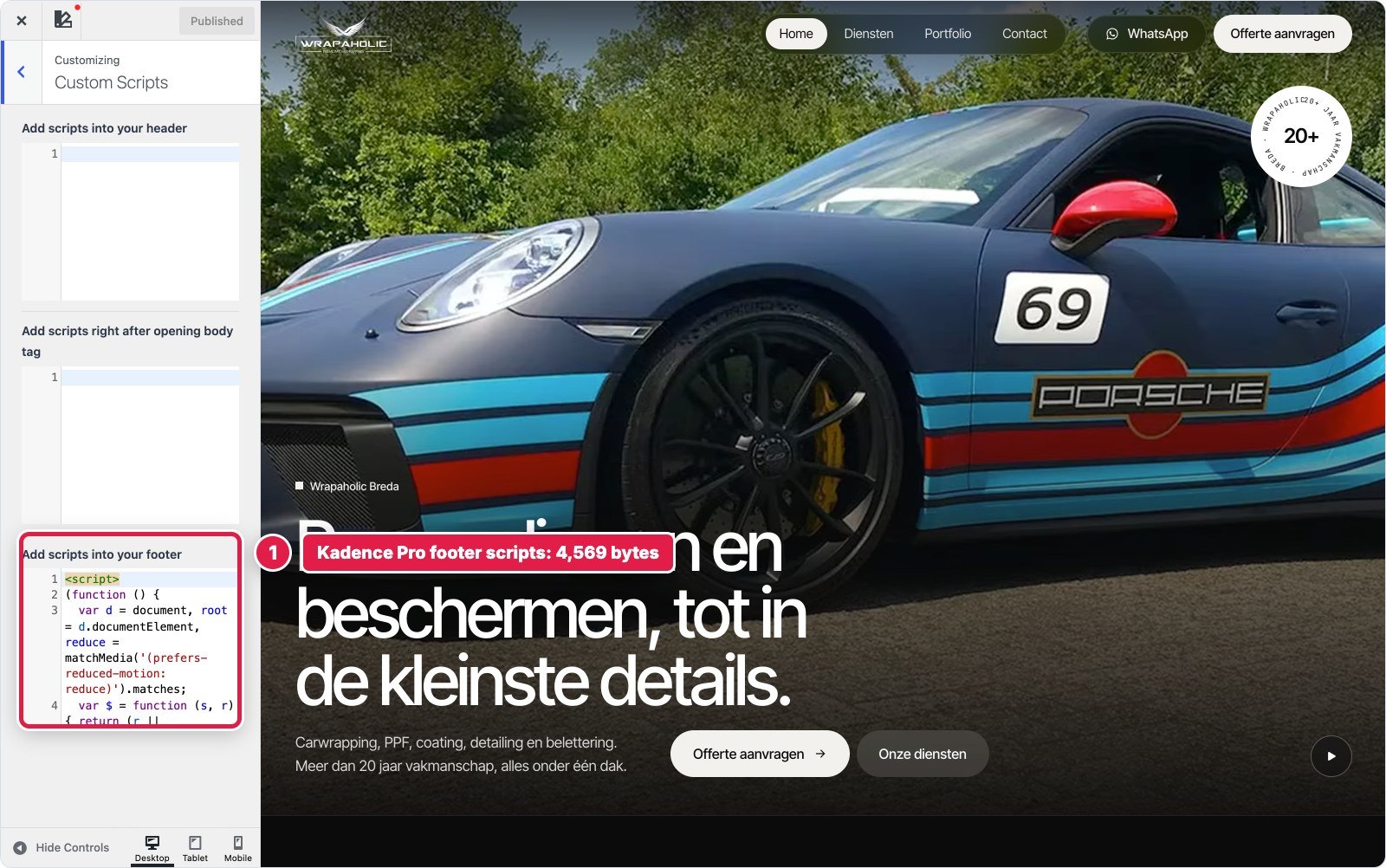
Pro has 11 modules: Header Addons (19 extra header elements), Conditional Headers, Ultimate Menu (mega menus, icons and labels), Header and Footer Scripts, Hooked Elements, WooCommerce Addons, Infinite Scroll, the dark mode palette switch, Local Gravatars, Archive Custom Settings and Maintenance Mode. I like that they are toggles. On a brochure site I usually run only Elements, Header Addons and Scripts.
Kadence Starter Templates is a free companion plugin. After you install it, the library sits under Site Assist, Starter Templates. When I counted it for this review it had 93 full site templates, 41 of them marked Premium, which means a paid Kadence plan. The other 52 are free.
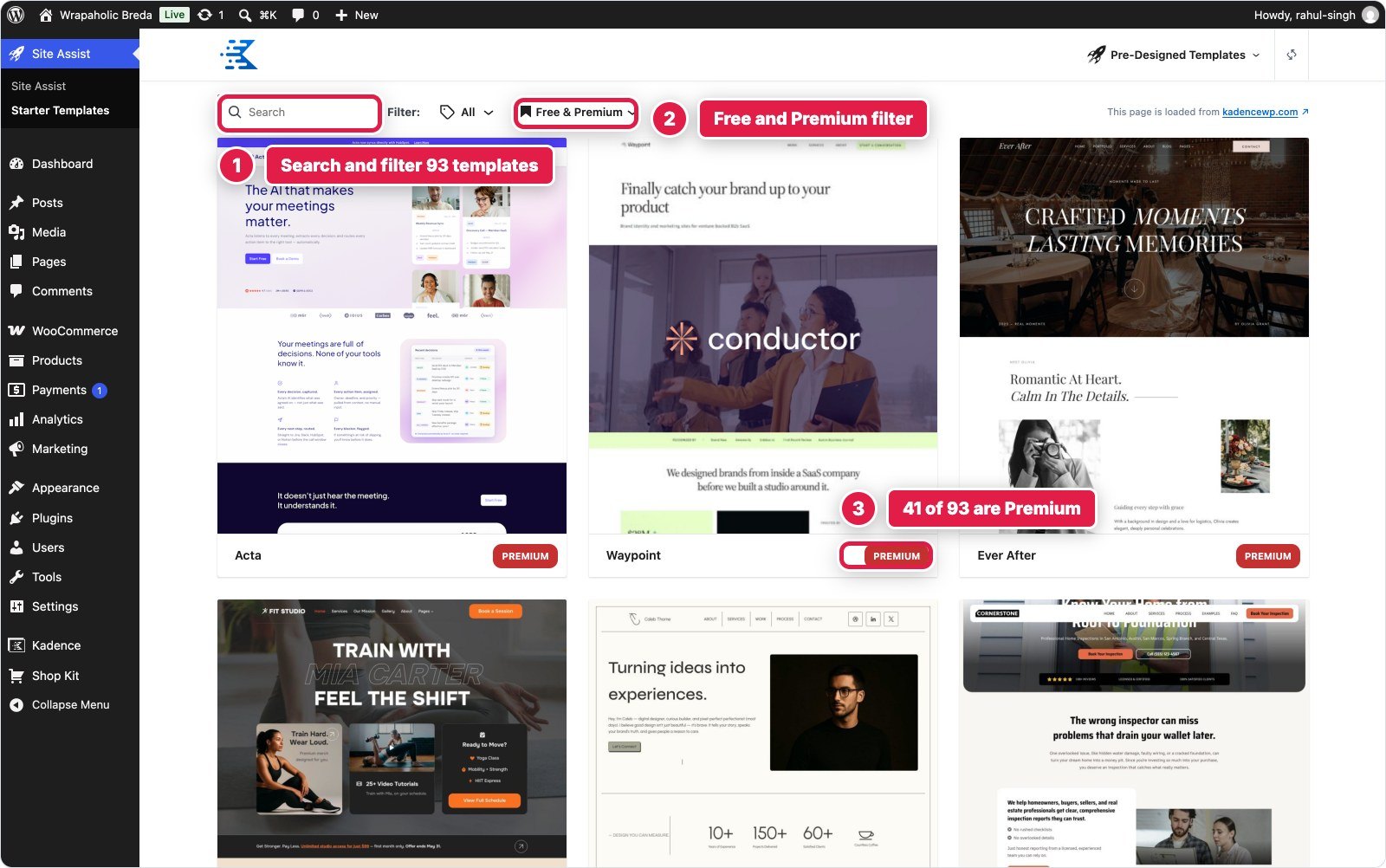
Imported templates pull in Kadence Blocks and sometimes extra plugins. That is fine, just delete the demo pages and images you will not use. In my Kadence vs Blocksy test the starter template is what won Kadence the business site round, so on a new project it is genuinely worth a look.
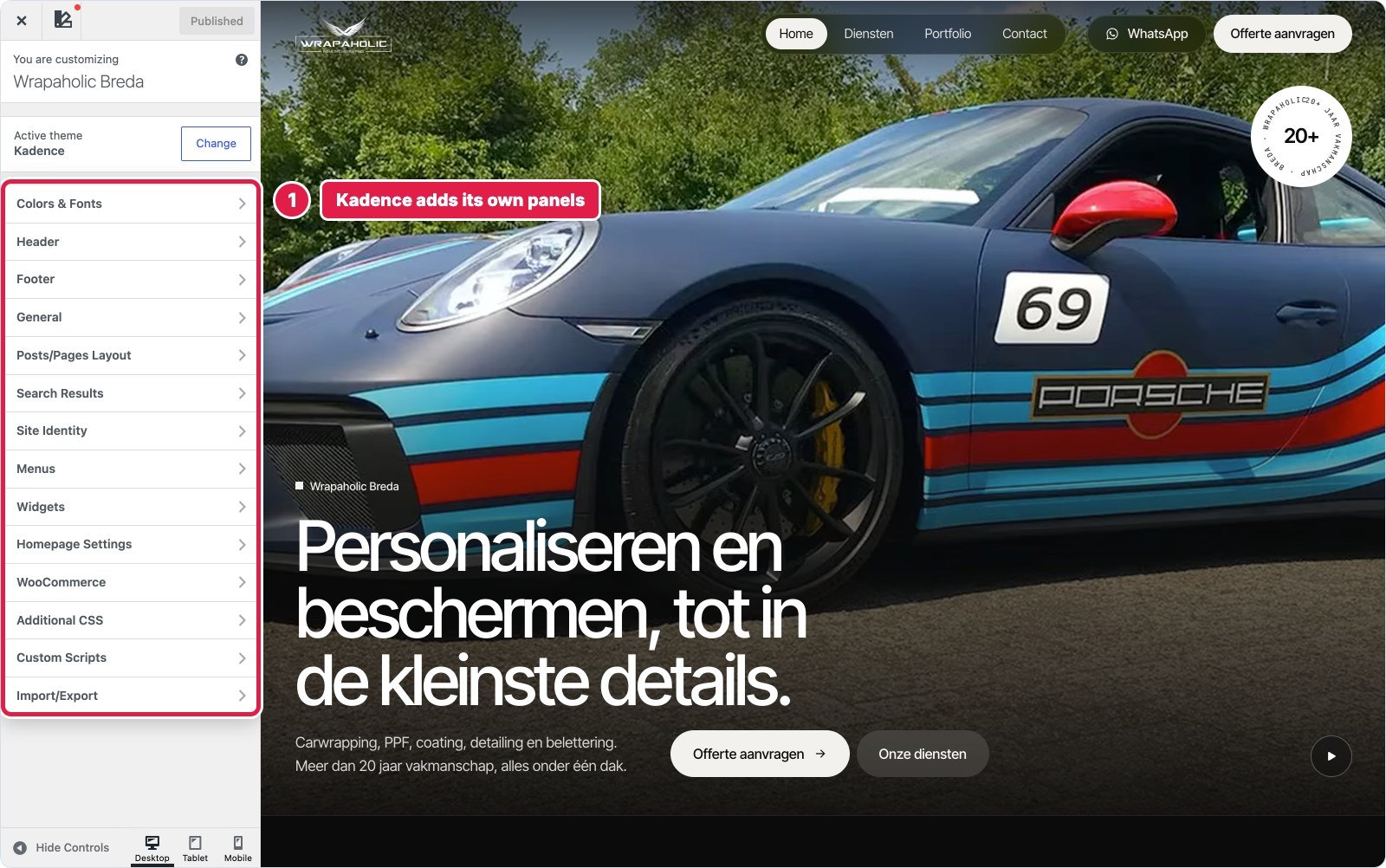
Open Appearance, Customize. Kadence adds its own panels to the Customizer, and everything in this tutorial lives in one of them. Do the global design first, because every block and every later setting reads from it.
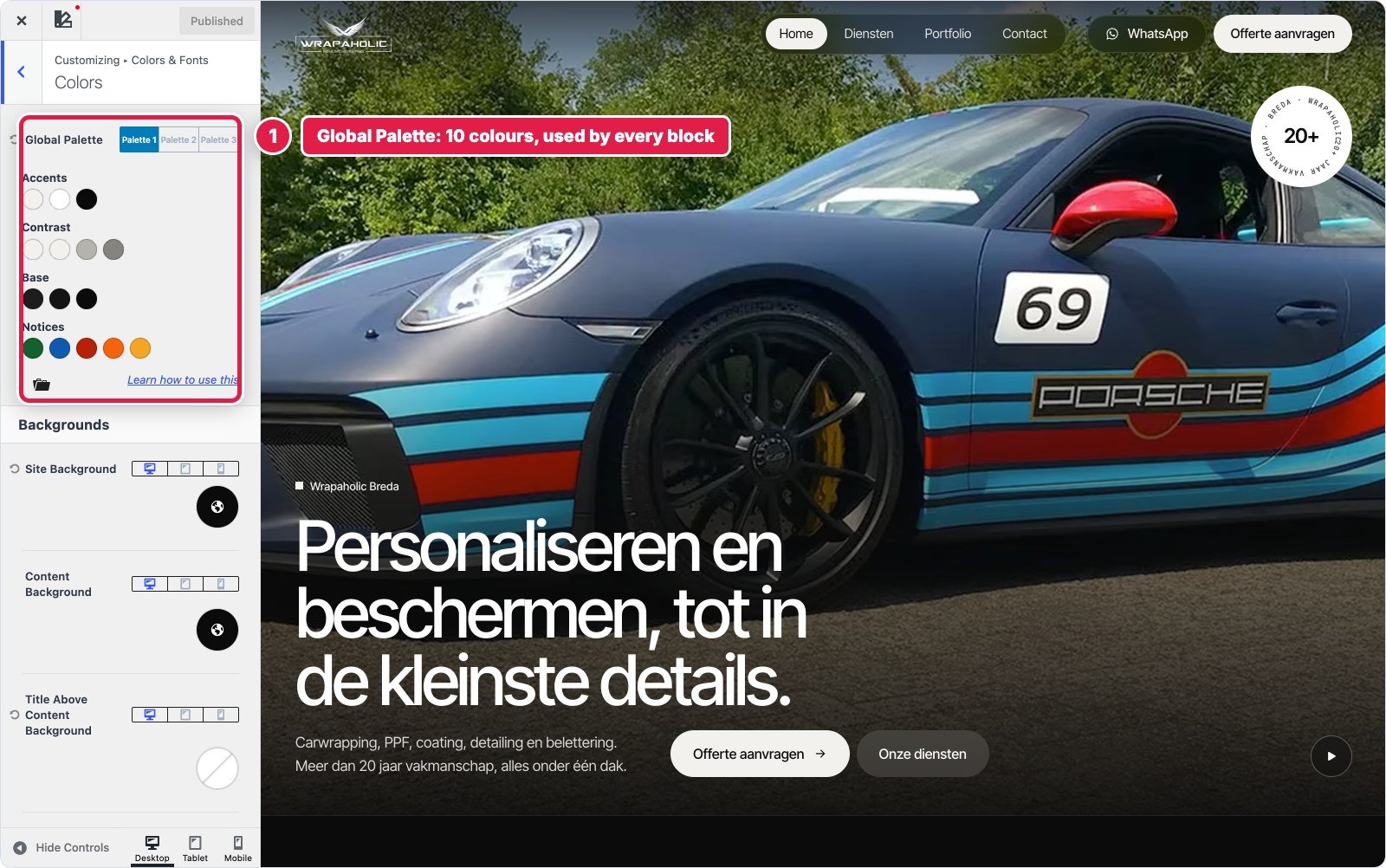
Go to Colors and Fonts, Colors. The Global Palette has accent, contrast, base and notice colours, and three palettes you can switch between. Kadence Blocks and the theme both use these slots, so changing one colour here updates every heading, button and section that uses it. For the client site I redefined the palette once and never typed a hex code in a block again.
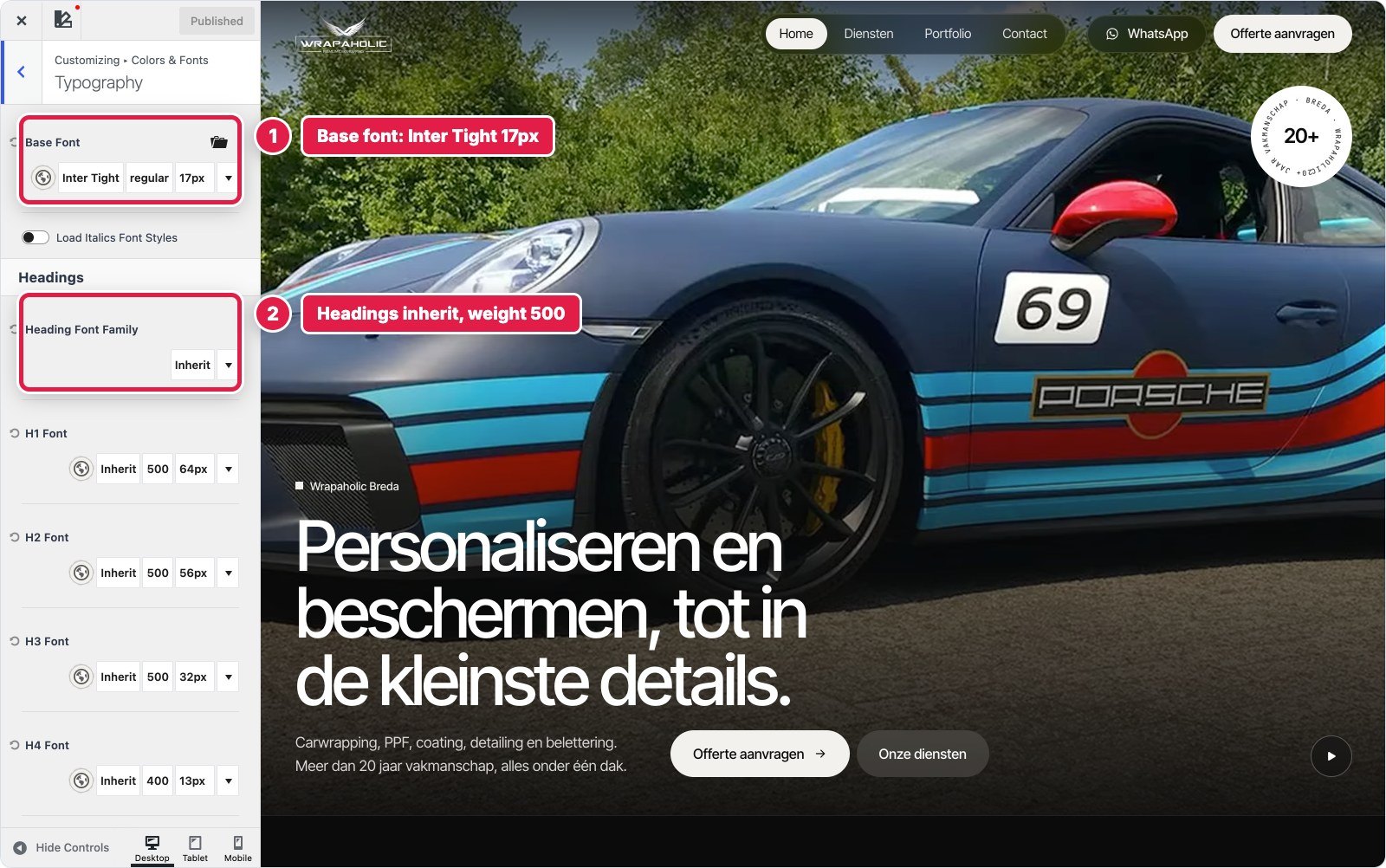
In Colors and Fonts, Typography set the base font, then the heading font. Headings can inherit the base font and only change the weight, which is what I did. Each heading level has its own size, weight and line height per device, and since 1.4.0 sizes can be fluid.
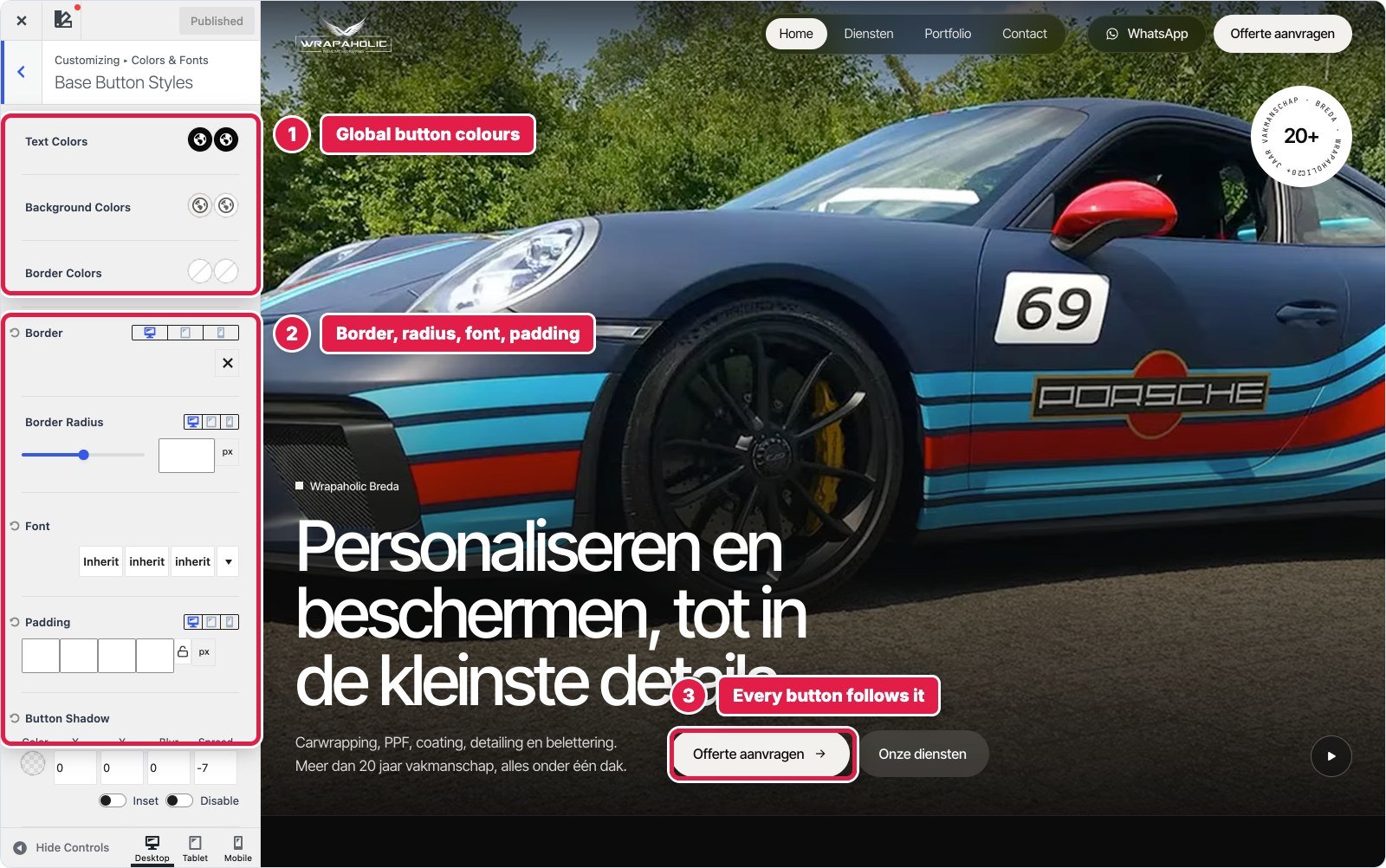
Base Button Styles sets colours, border, radius, font, padding and shadow for every button on the site, and 1.4.0 added separate Secondary and Outline styles. Set this once and buttons inside Kadence Blocks follow it too.
The header builder is the main reason people pick Kadence, and it is all in the free theme. Open Header in the Customizer and a drag and drop builder opens under the live preview, with three rows (top, main and bottom), each split into left, centre and right areas.
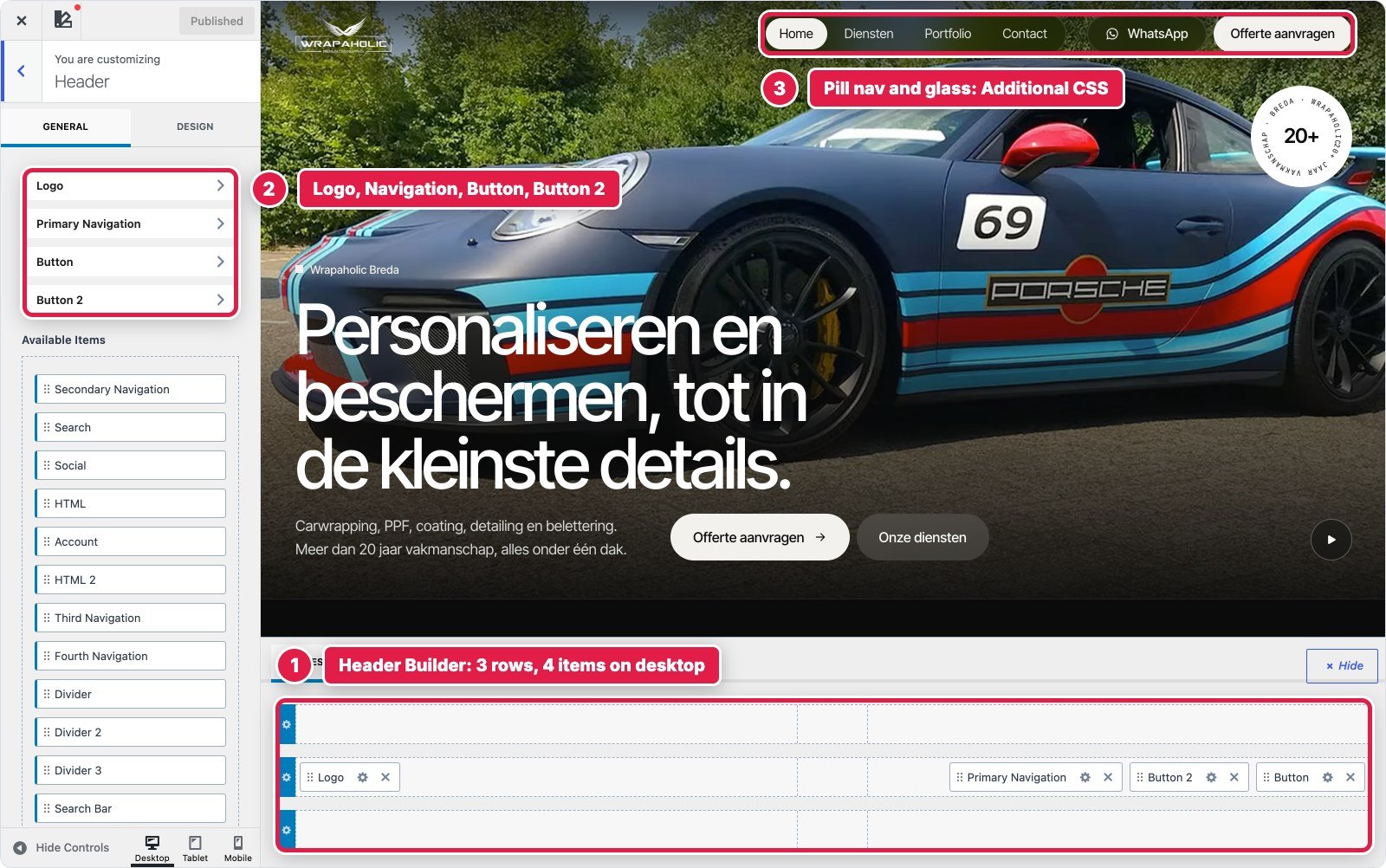
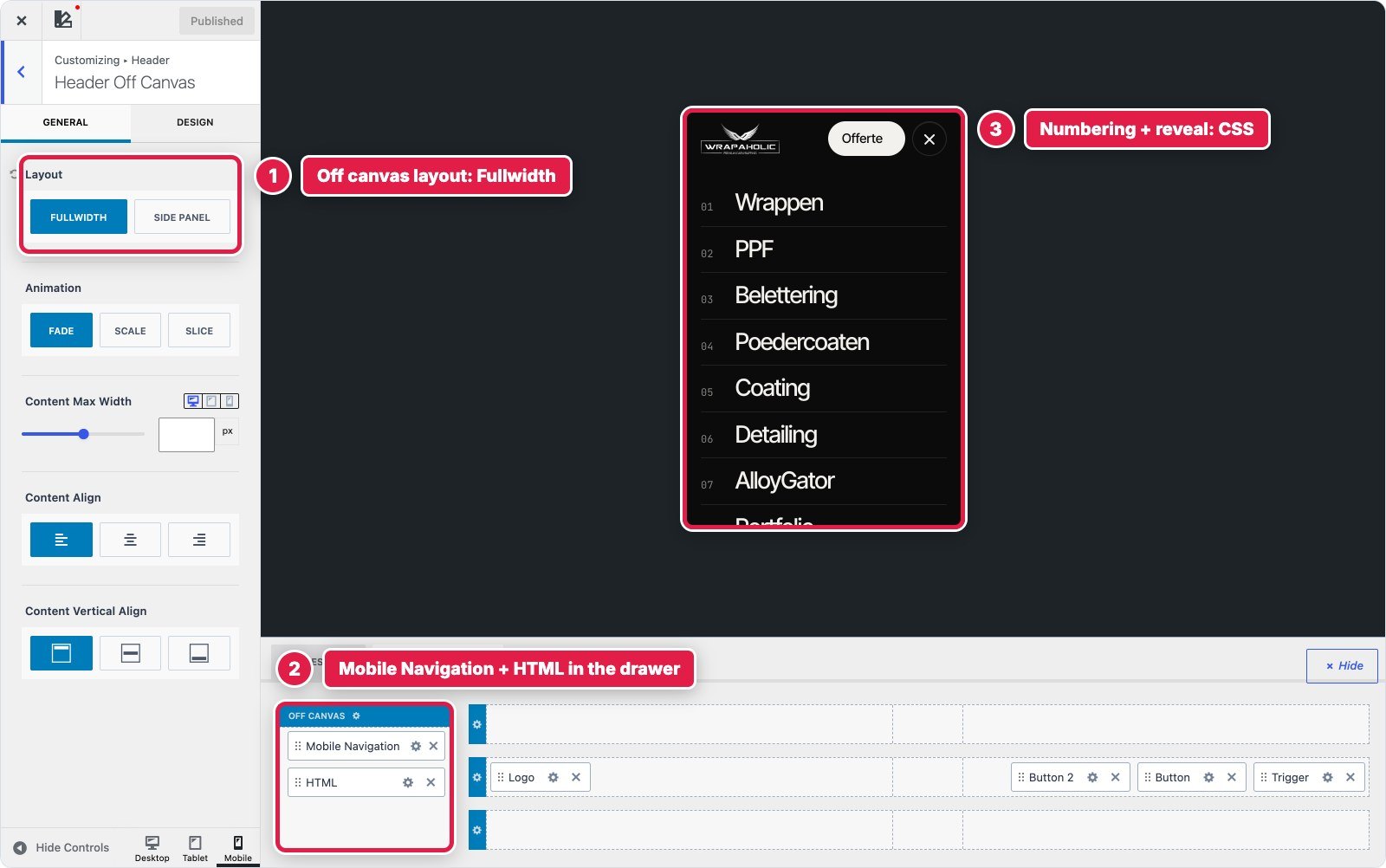
On the client site the free builder covered the structure completely. The pill shaped menu and the frosted glass background were the only parts I had to finish with Additional CSS, because no theme has a control for those.
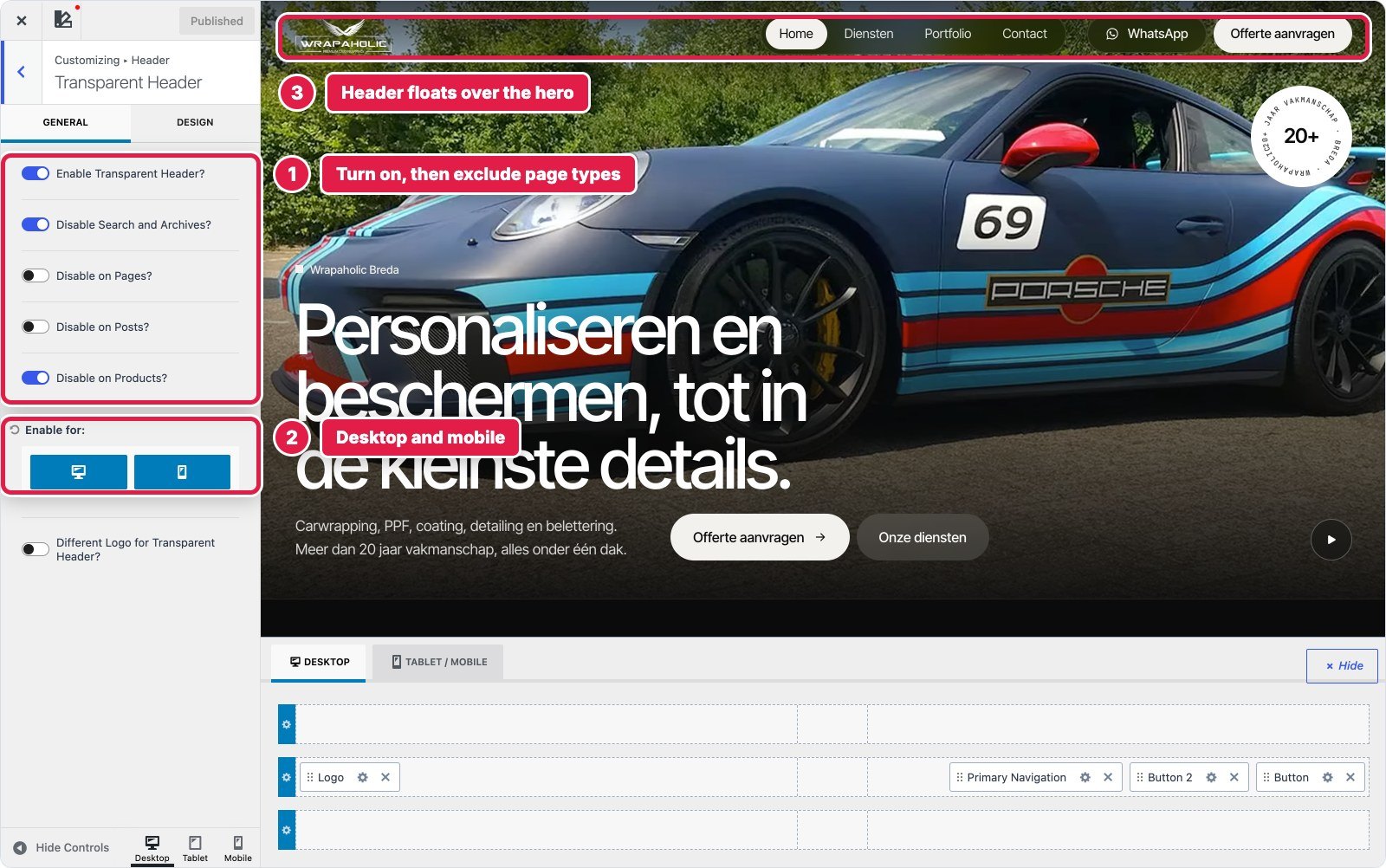
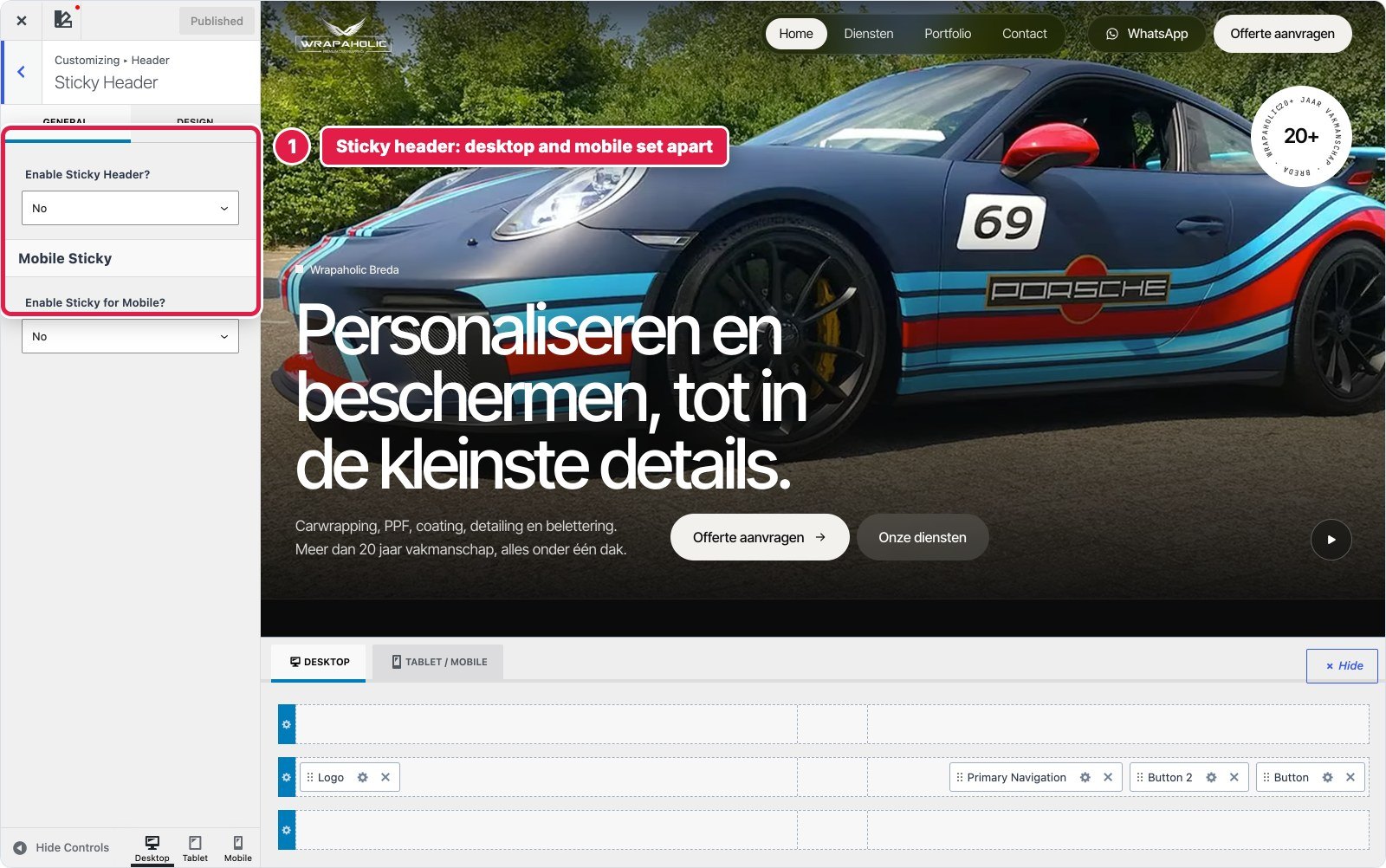
Both are free. Transparent Header lets the header float over the first section on pages, with switches to turn it off for archives, posts or products. Sticky Header keeps it pinned on scroll, with desktop and mobile set separately. You can also override the transparent header on a single page, I show that in step 6.
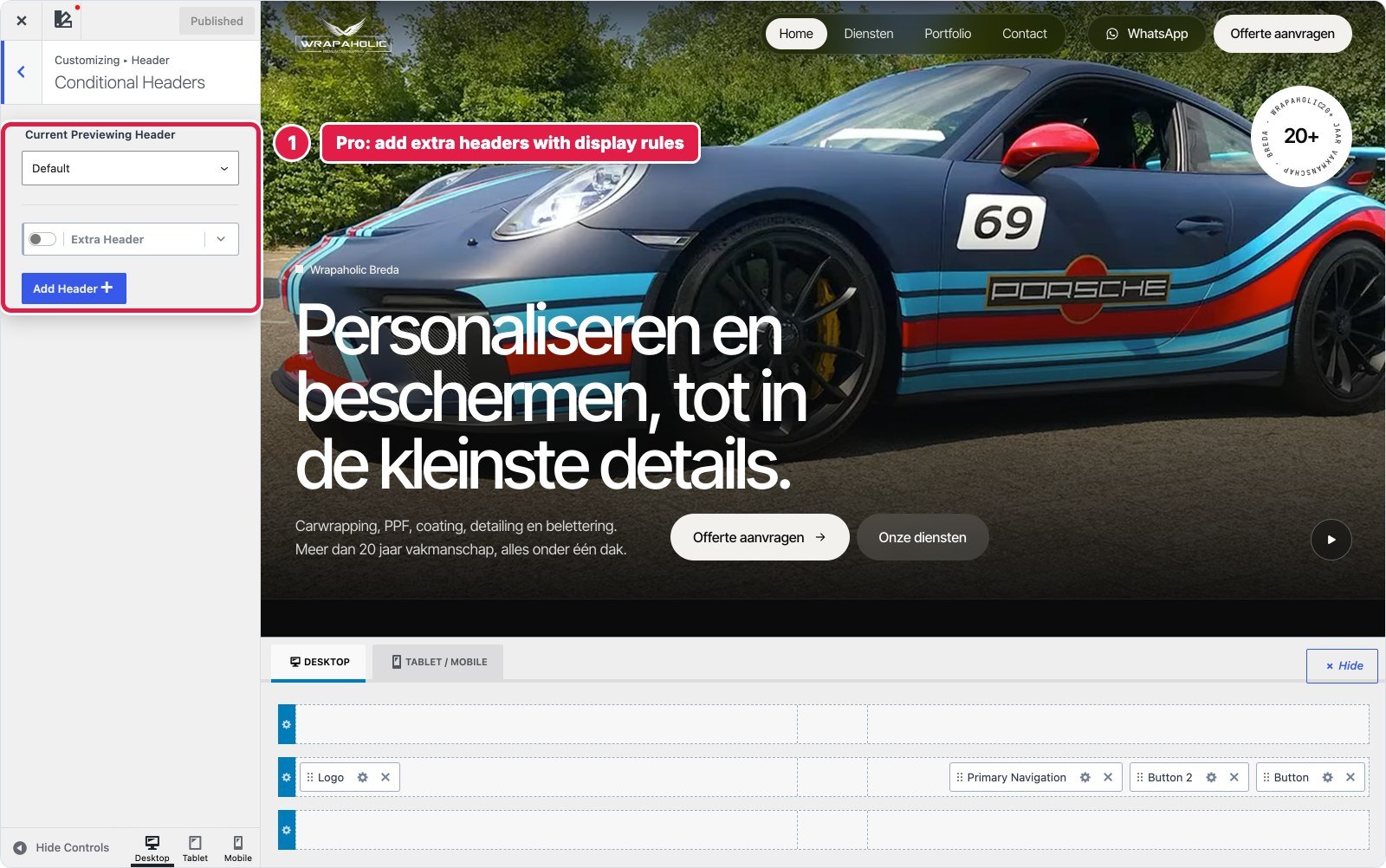
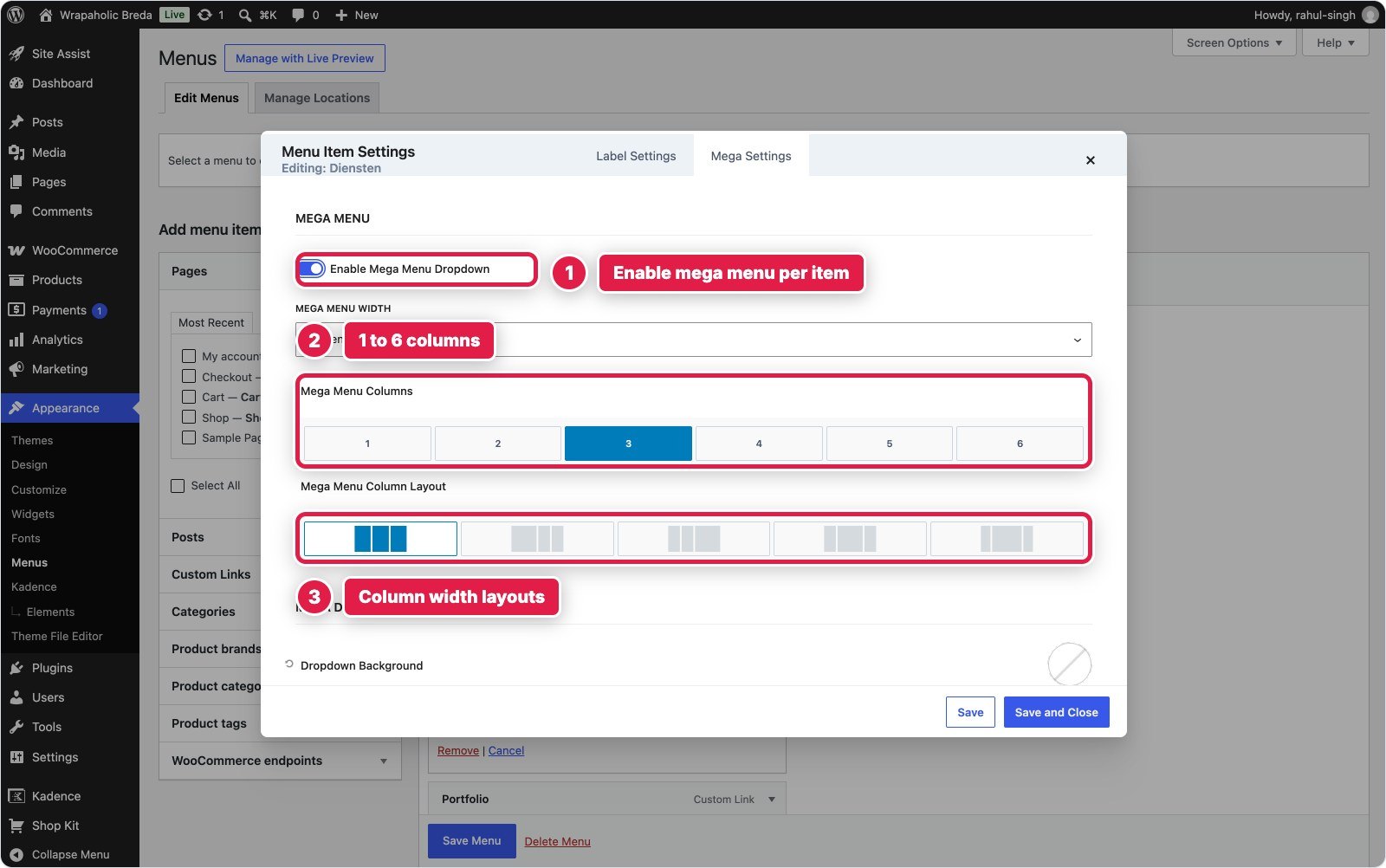
Conditional Headers lets you add extra headers and show each one on chosen pages, for example a simpler header on landing pages. The Ultimate Menu module adds a settings button to every menu item under Appearance, Menus, with icons, highlight labels and a full mega menu with 1 to 6 columns.
The footer builder works like the header builder: three rows, each split into columns, and items such as footer navigation, social icons, six widget areas and the copyright line. For simple footers it is quick.
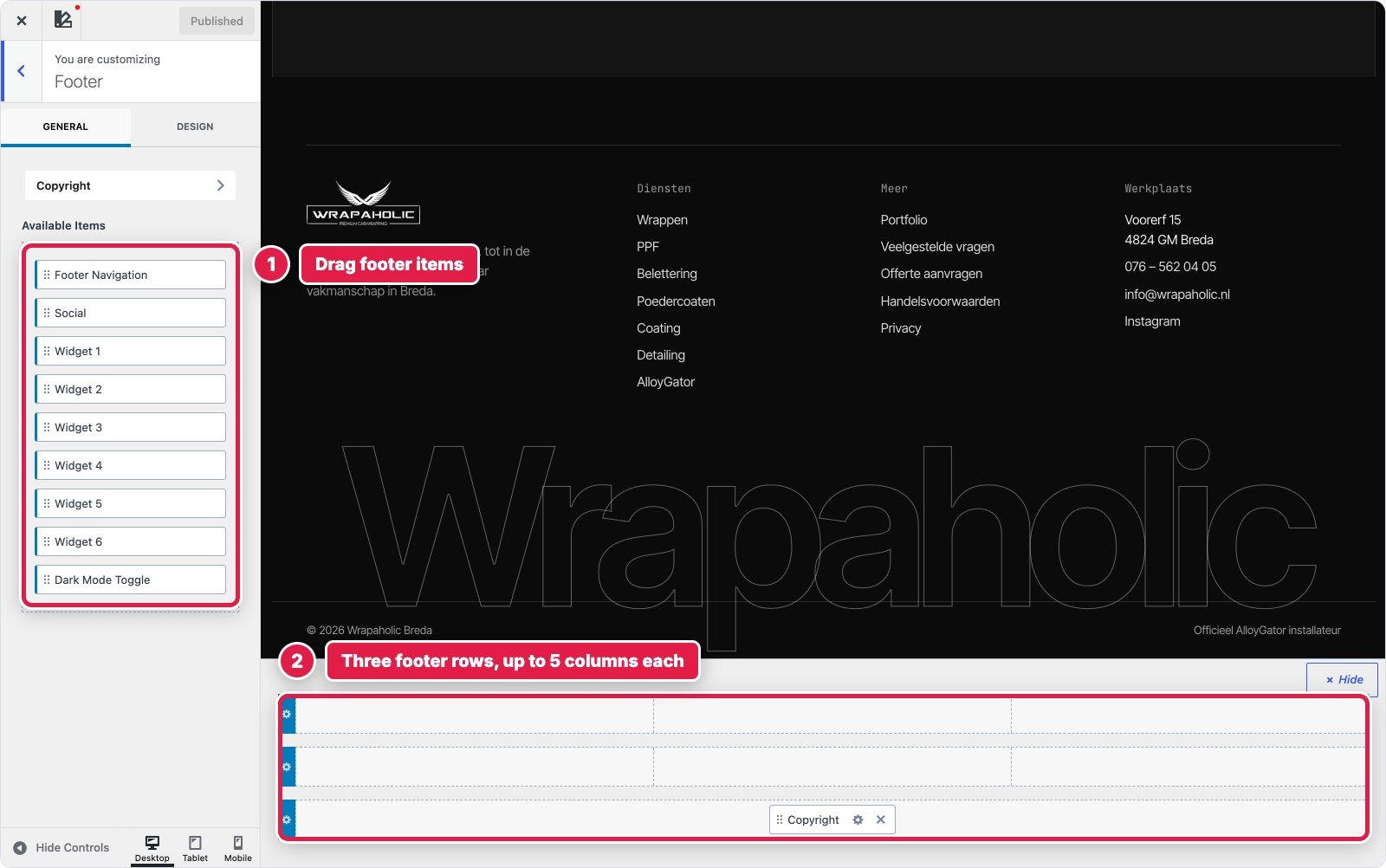
For the client footer, with a giant outlined wordmark behind the columns, I built the footer with Kadence Blocks instead and placed it with a Pro Element set to Replace Footer. That is the more flexible route, and I explain Elements in step 8.
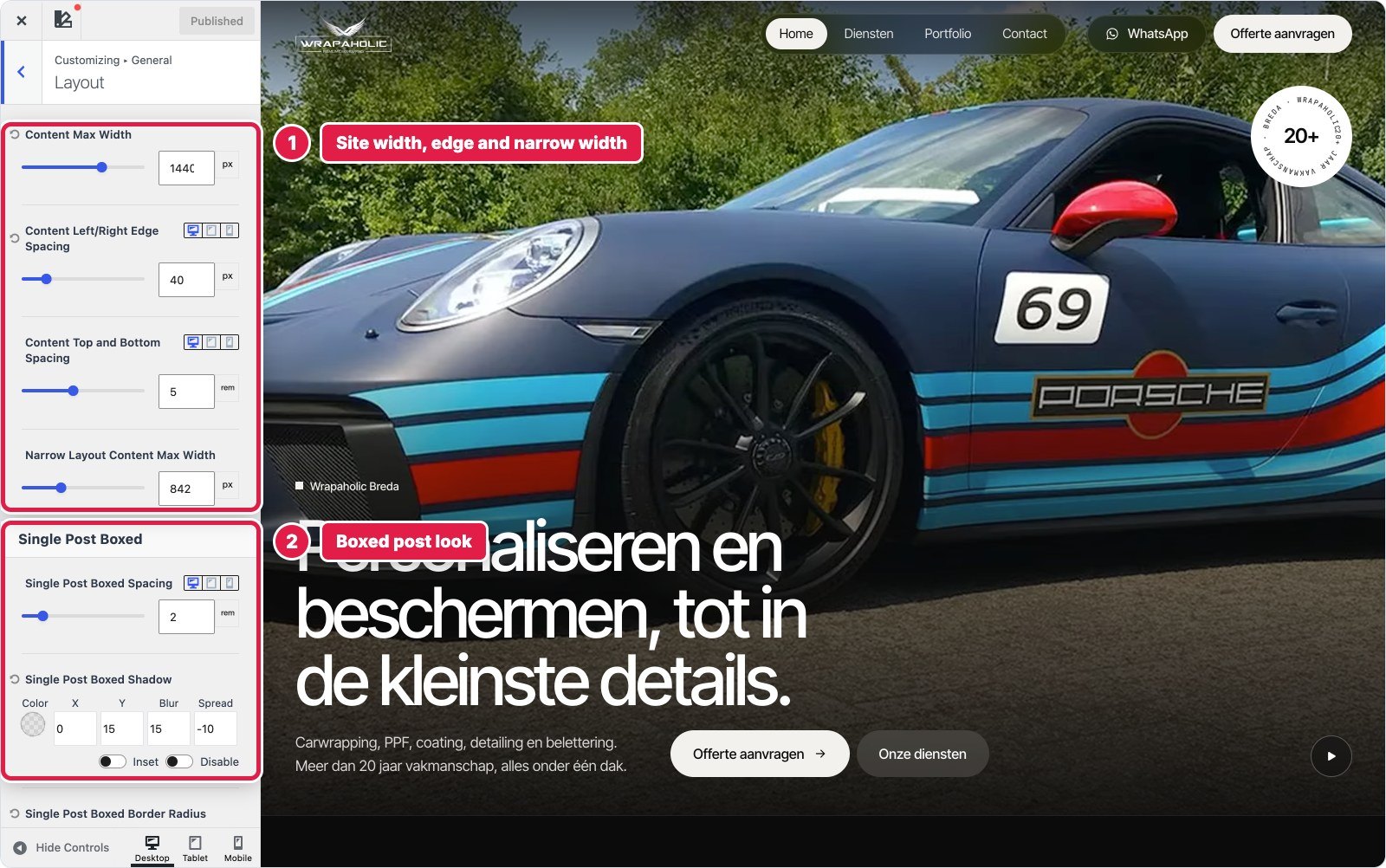
General, Layout holds the site wide numbers: content max width, edge spacing, the narrow width used by the Narrow layout, and the boxed look for posts.
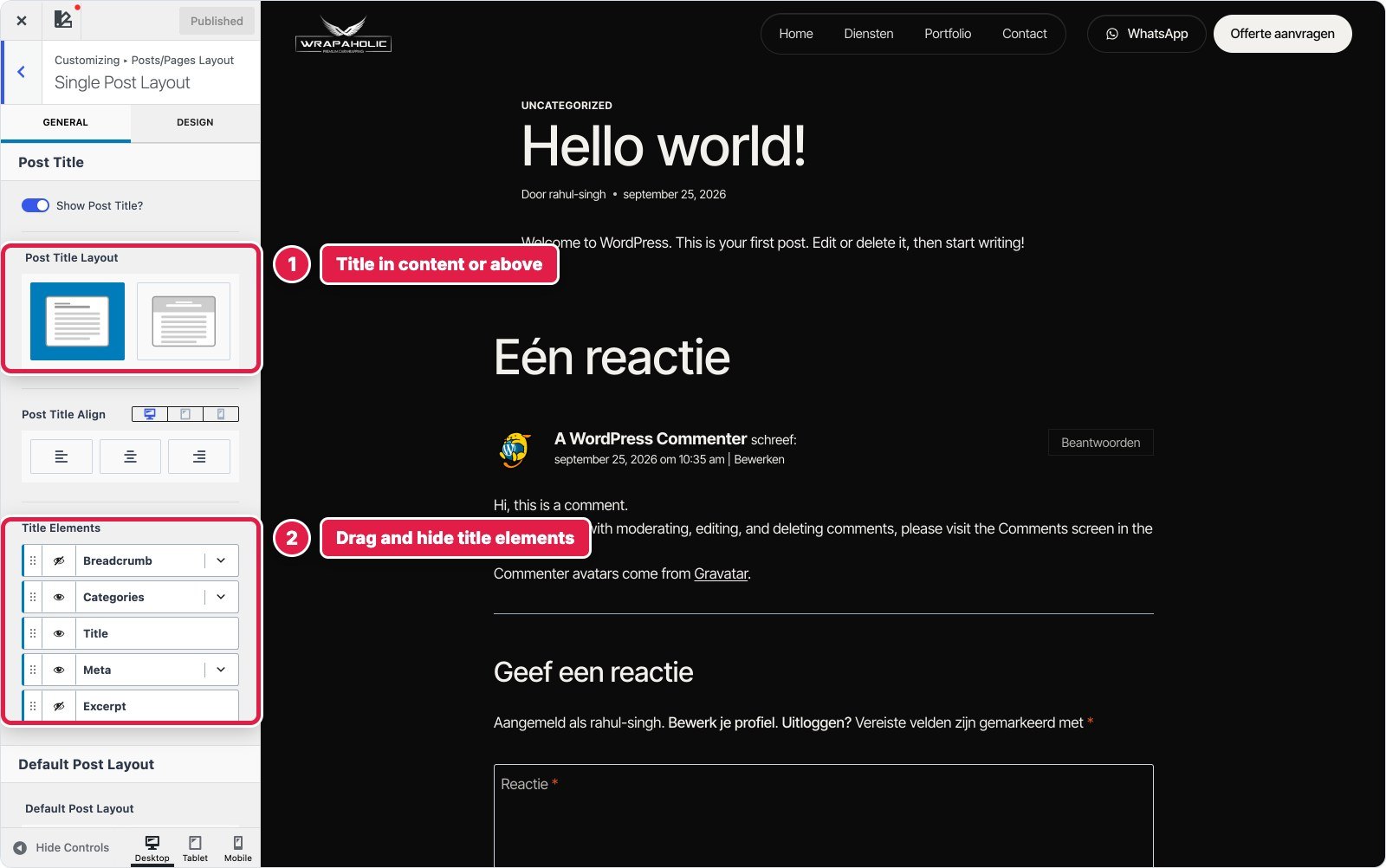
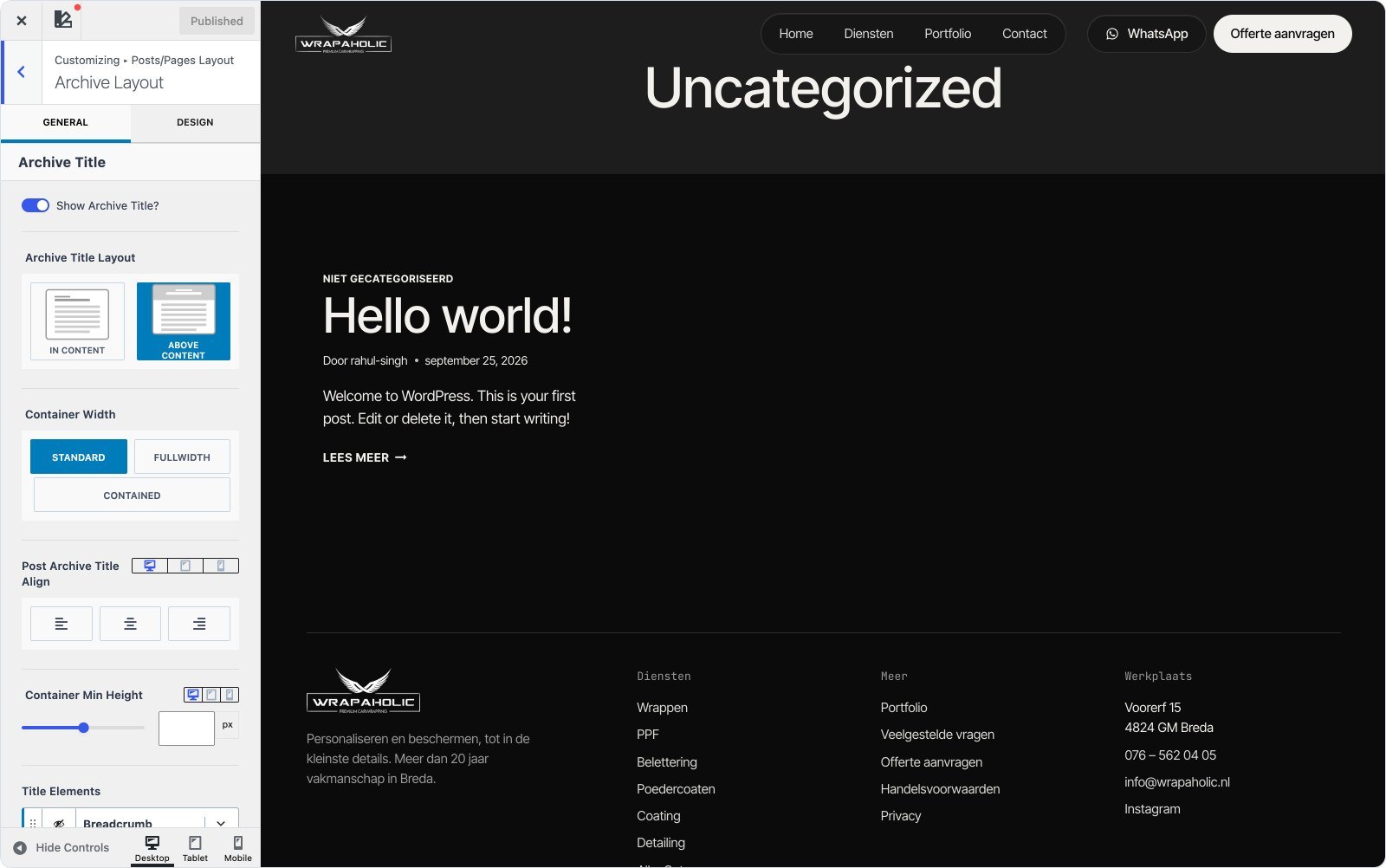
Then set defaults per content type in Posts/Pages Layout: Page Layout, Single Post Layout and Archive Layout. Each one lets you choose normal, narrow, full width or a left or right sidebar, boxed or unboxed content, and where the title goes. For posts you can drag the title elements (breadcrumb, categories, title, meta, excerpt) into any order and hide the ones you do not want.
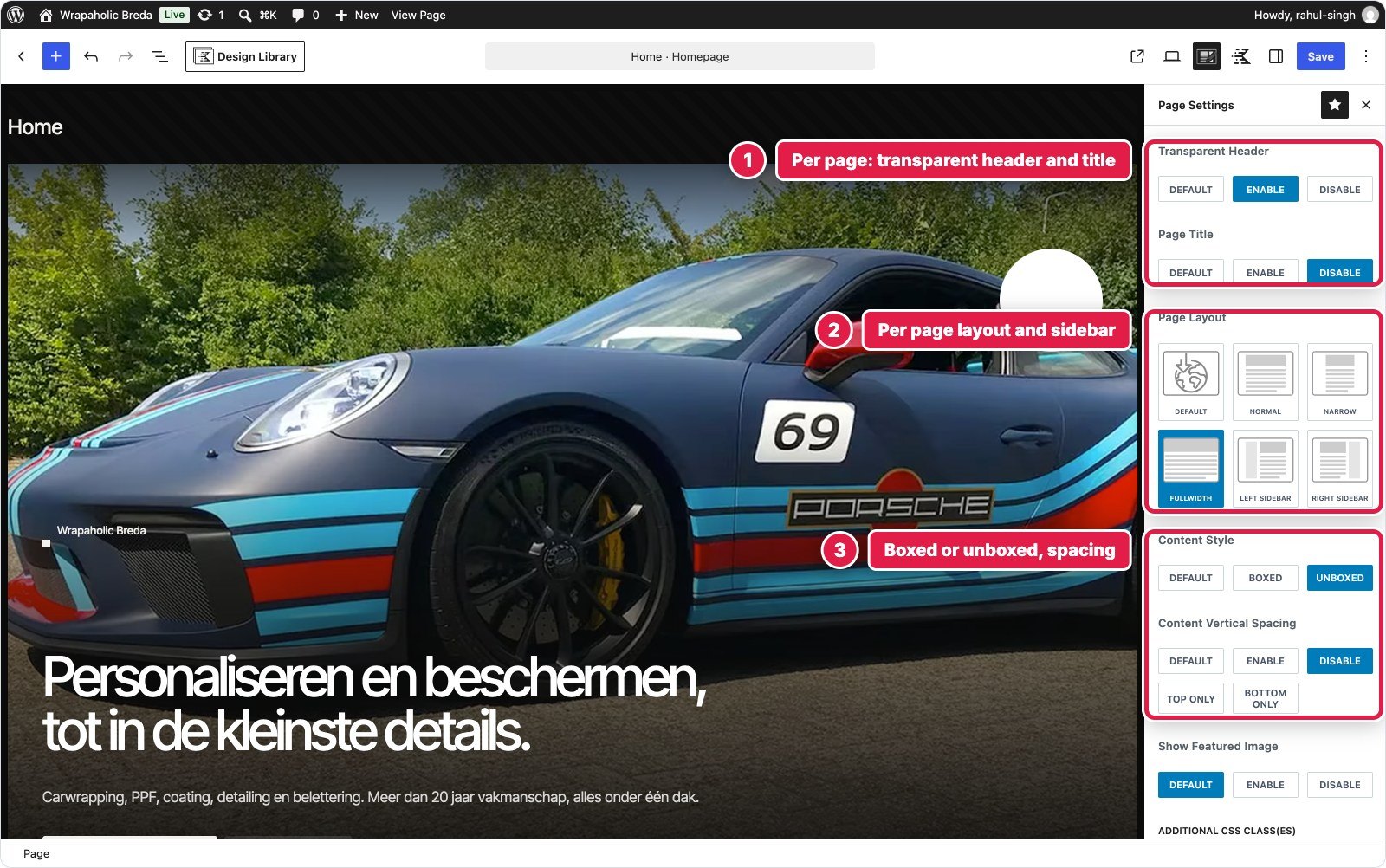
Every page and post gets a Page Settings panel in the block editor (the Kadence icon in the top bar). This is where I switch on the transparent header for the homepage, hide the title, go full width and remove the vertical padding, without touching the site wide defaults. It also has Disable Header and Disable Footer for landing pages.
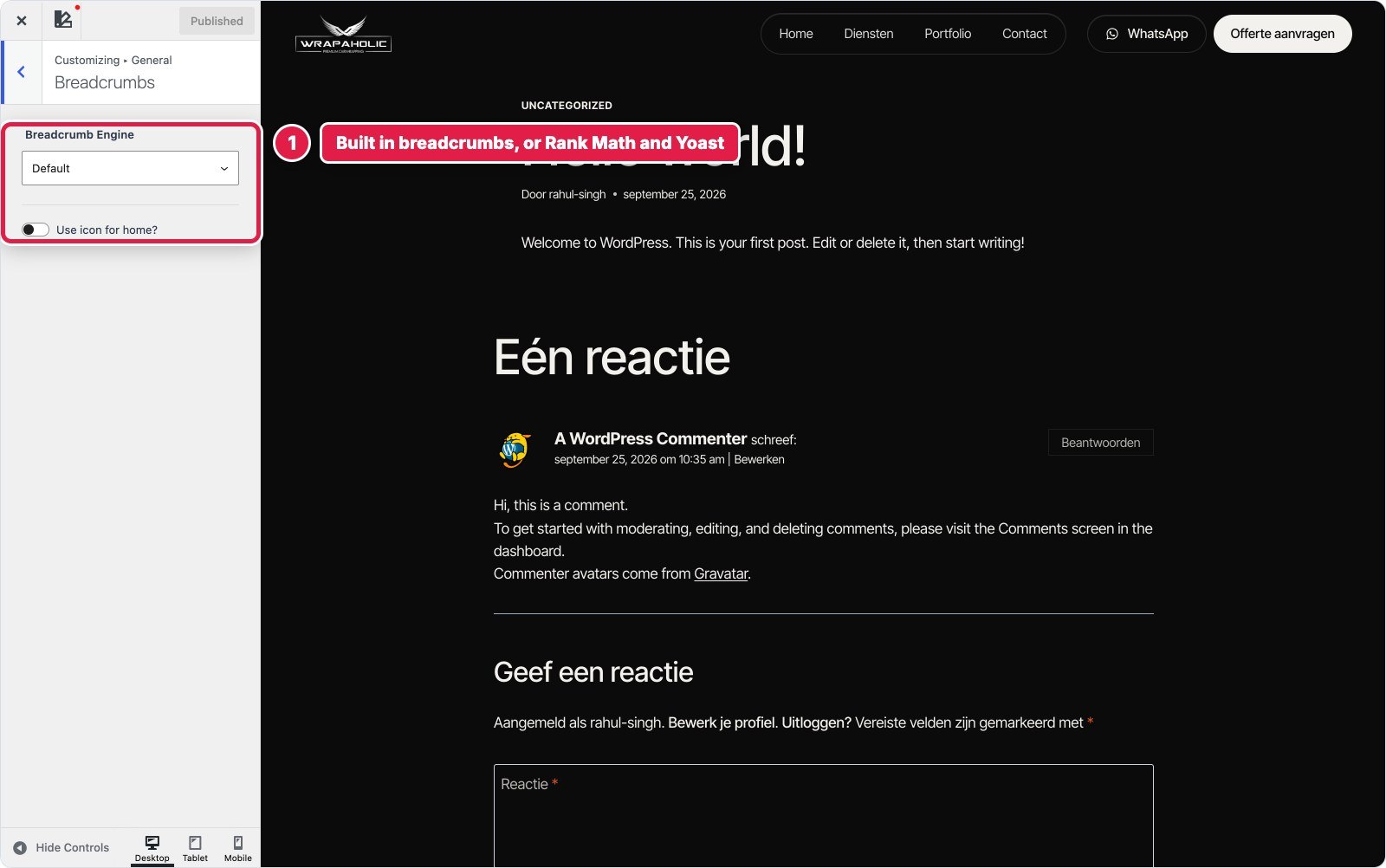
Under General you will also find breadcrumbs (Kadence can use its own, or the ones from Rank Math or Yoast), sidebar width with an optional sticky sidebar, the scroll to top button, comments and the 404 page layout.
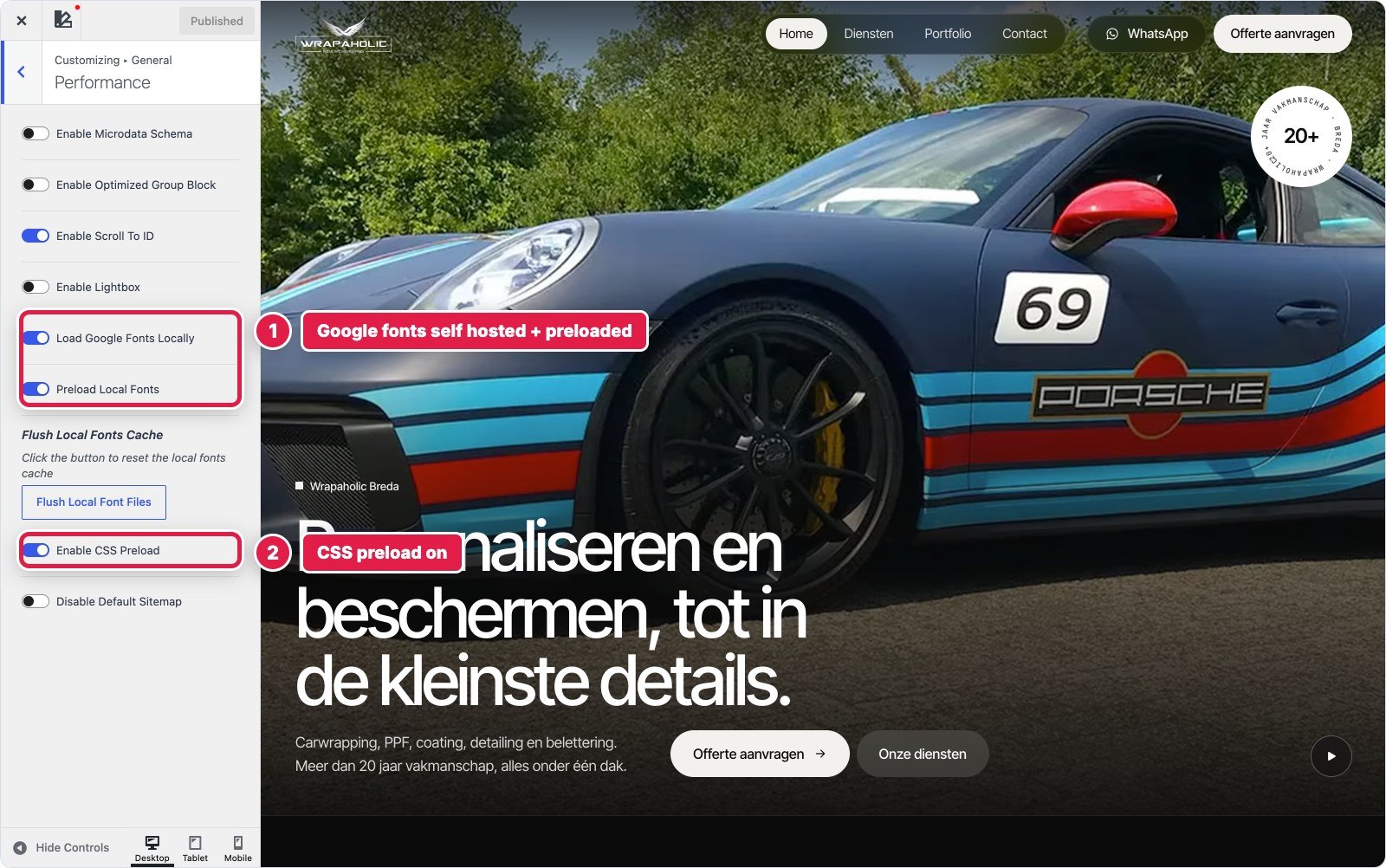
Open General, Performance. These are the switches I turn on for every Kadence site:
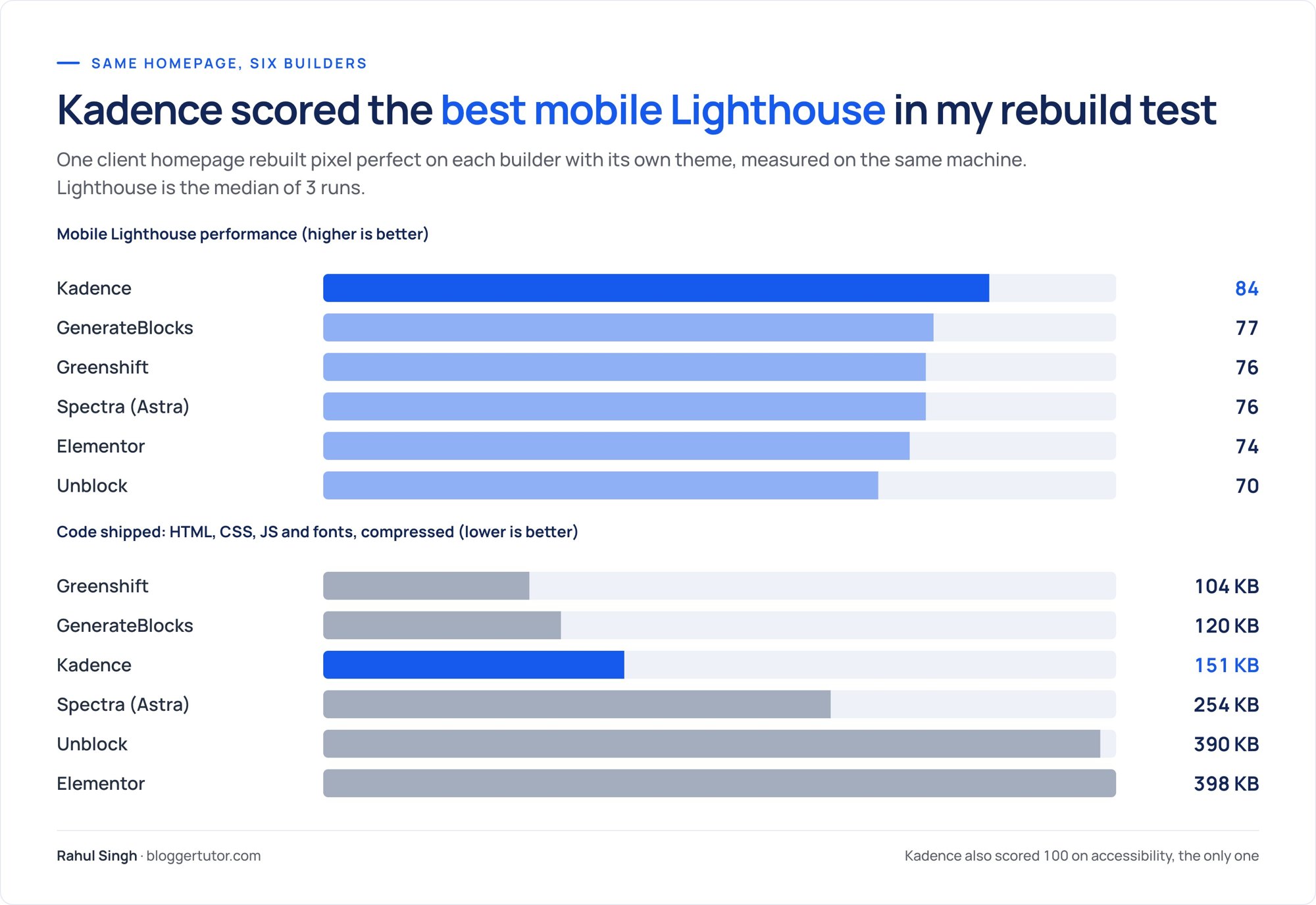
With those on, here is how the Kadence rebuild measured against the same homepage on the other five builders. Each site ran on the same machine and Lighthouse is the median of three runs.
|
Metric (homepage) |
Kadence result |
|---|---|
|
Lighthouse mobile / desktop |
84 / 99 (best of six builders) |
|
Lighthouse accessibility |
100 (the only one of six) |
|
Code shipped (HTML, CSS, JS, fonts, compressed) |
151 KB, third smallest of six |
|
Requests |
22, all from my own domain |
|
JavaScript transferred |
16 KB |
|
DOM nodes |
658 |
|
Accessibility violations (axe) |
0 on desktop and mobile |
Two honest notes. First, Greenshift and GenerateBlocks shipped less code, mostly because Kadence Blocks prints more inline block CSS. Second, Kadence keeps a lot of its styling in the theme, which helped in another test: when I deactivated Kadence Blocks, 91 percent of the page text was still visible and styled, the best result of the six. Your content does not fall apart if you ever drop the blocks plugin.
Elements are the most useful thing in Kadence Pro. An Element is a block editor layout that you hook into a place in the theme, such as above the header, after the content, or replacing the footer, and then show by rules: whole site, certain pages, post types, logged in users, devices, and even an expiry date for sale banners.
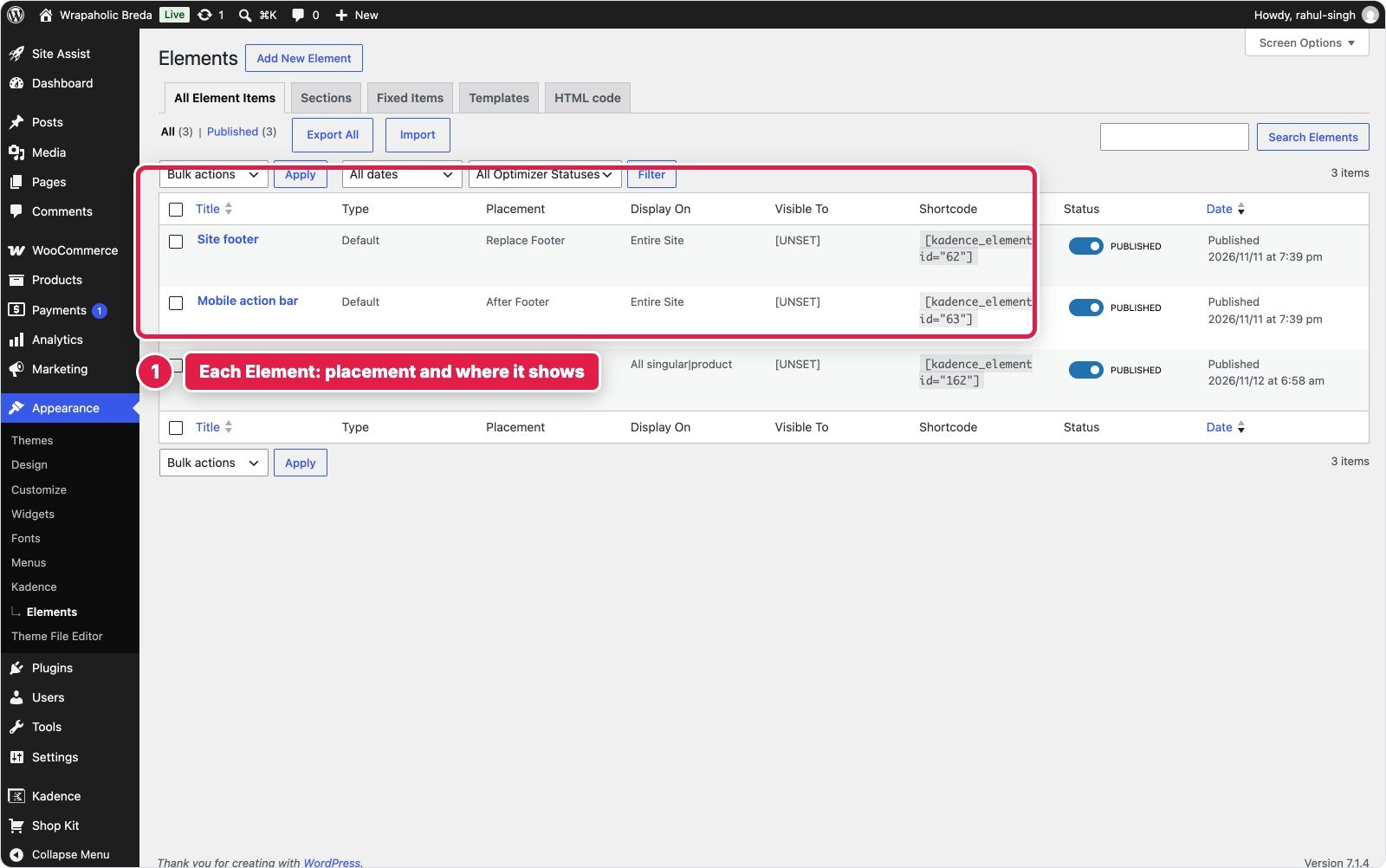
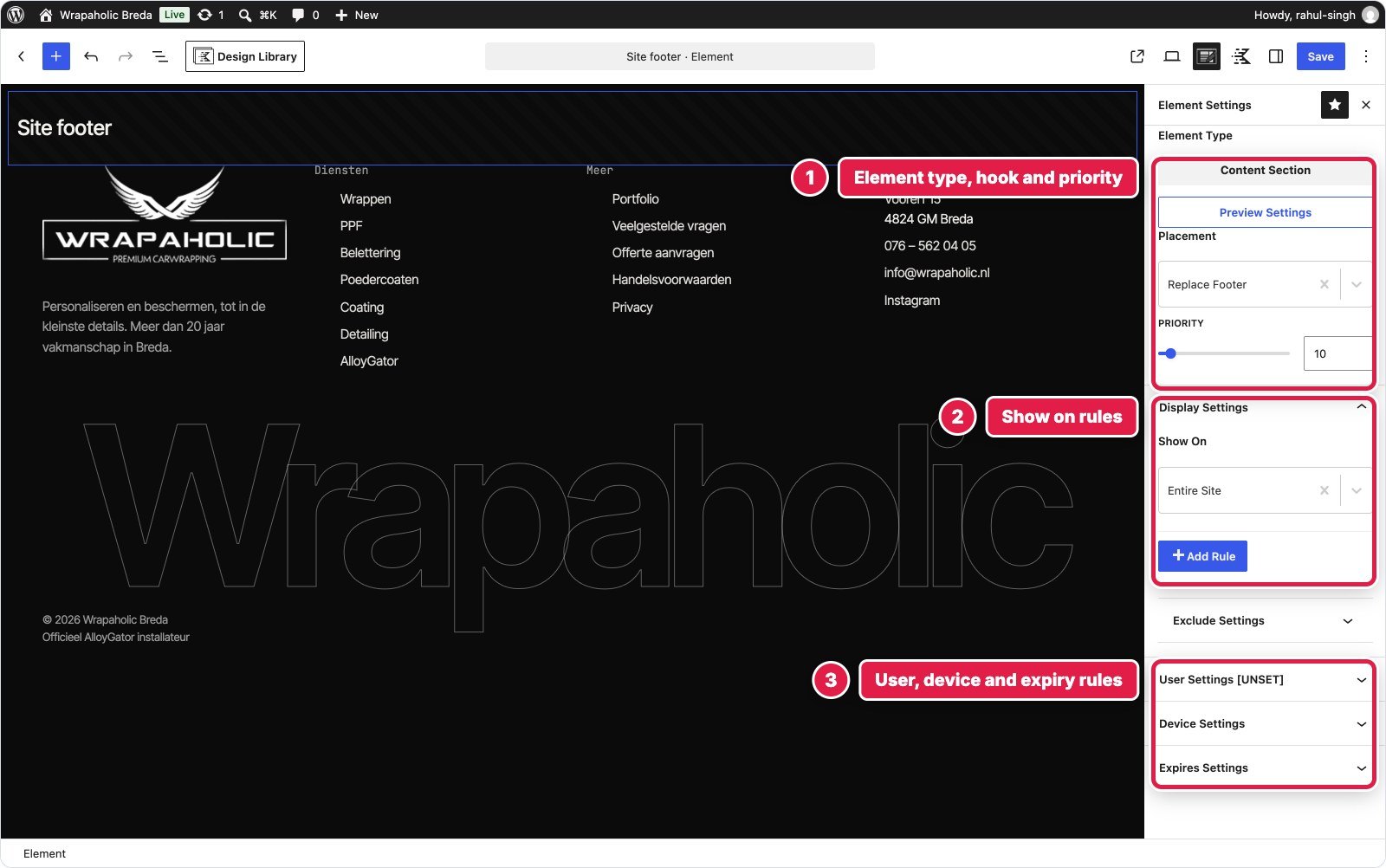
On the client site the footer and the sticky mobile action bar (call, WhatsApp and quote buttons) are both Elements. That is the practical difference between free and Pro for me: free gives you the builders, Pro lets you put any block layout anywhere.
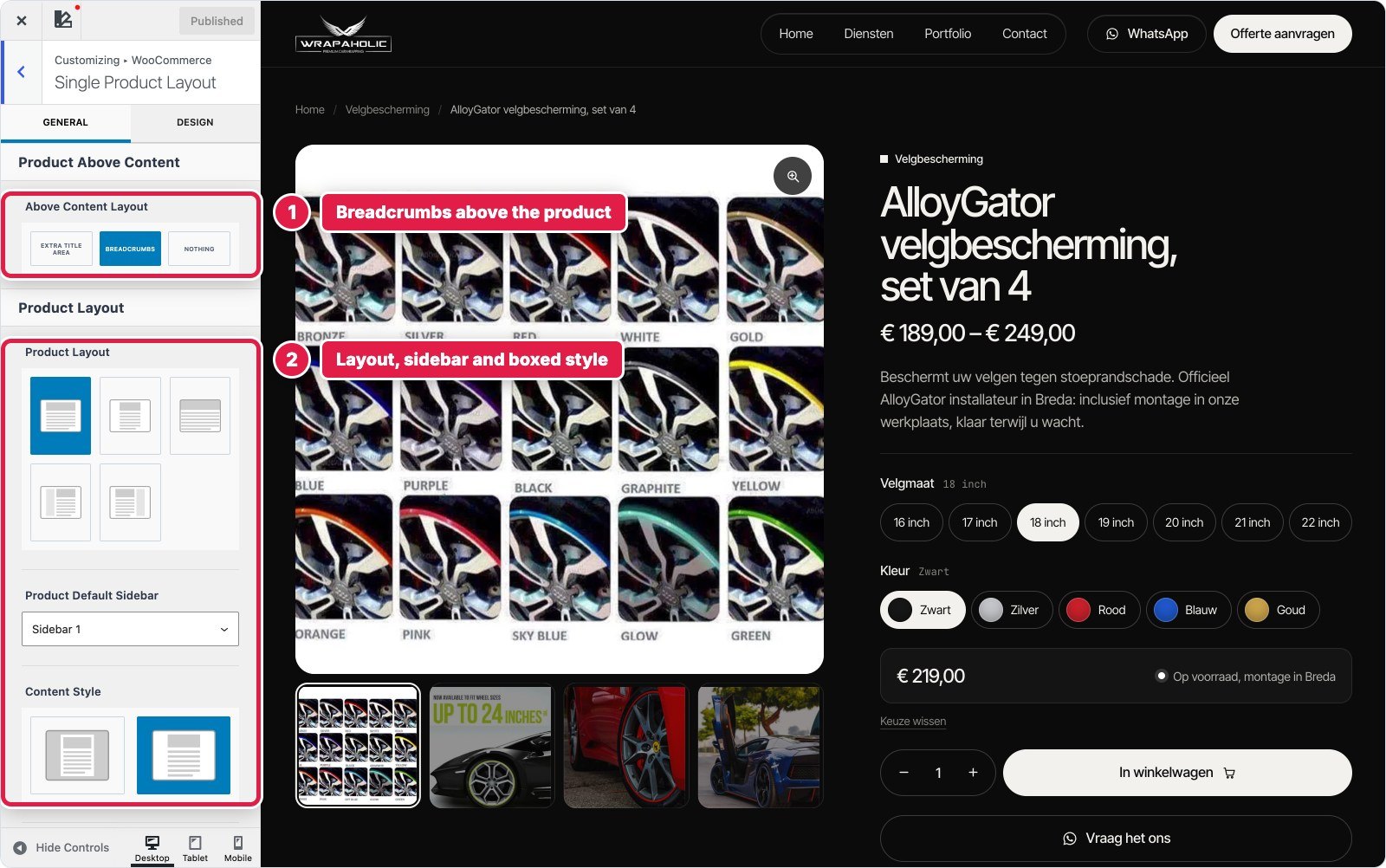
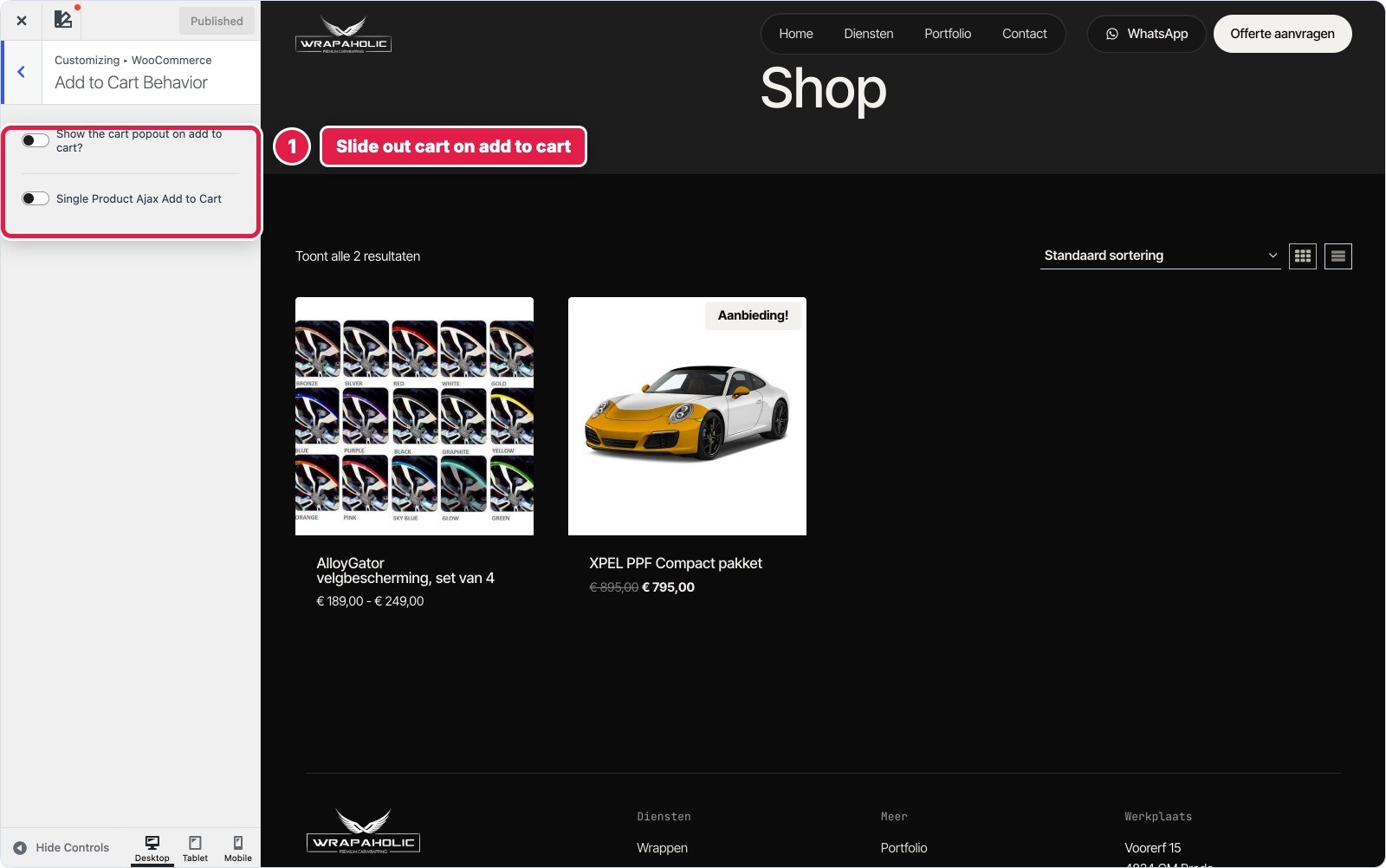
The free theme already handles stores well. In Customize, WooCommerce you get the single product layout (breadcrumbs, sidebar, boxed style, which product elements show and in what order), the product catalog grid, an off canvas filter sidebar, the My Account layout and Add to Cart behaviour, including the slide out cart.
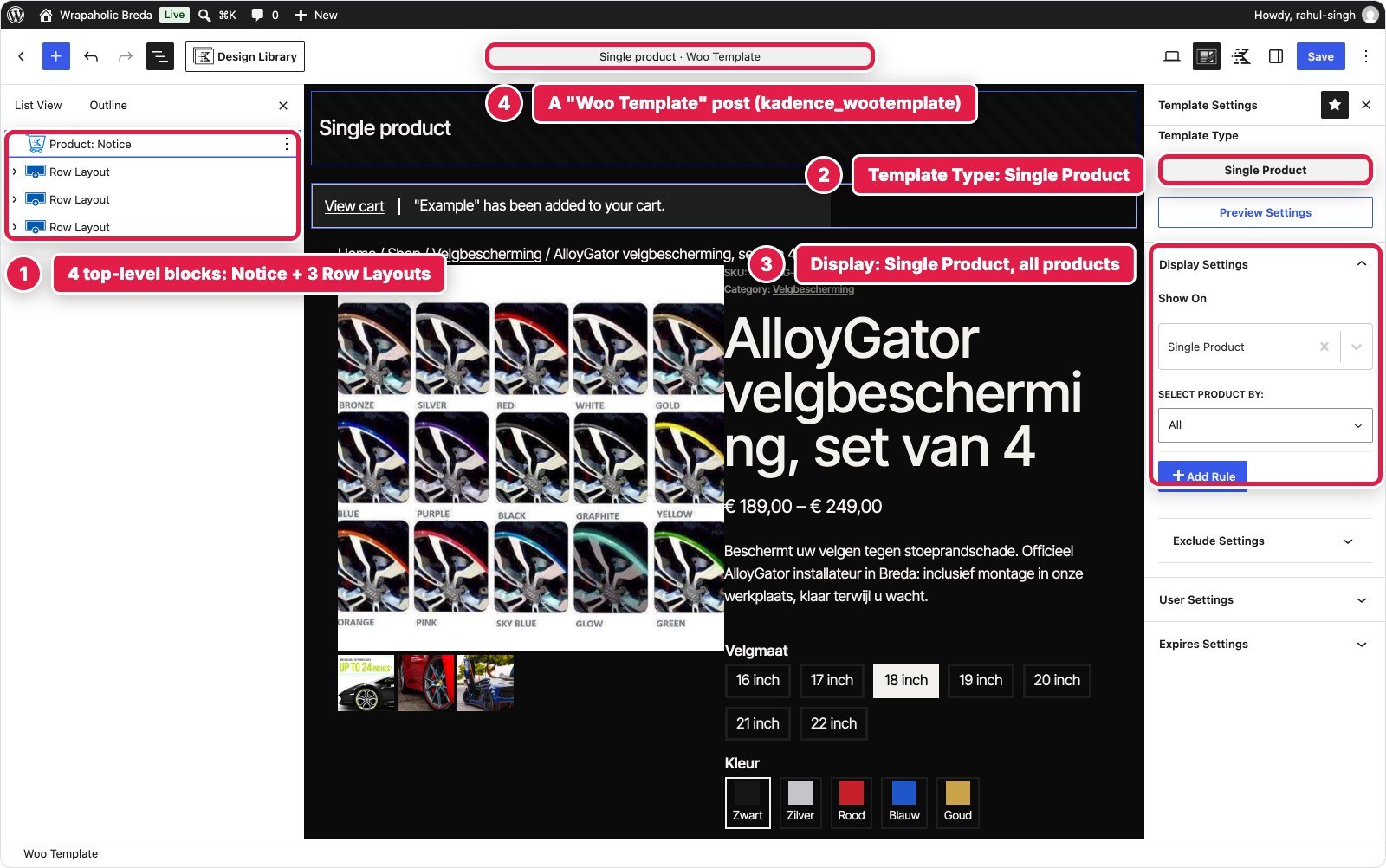
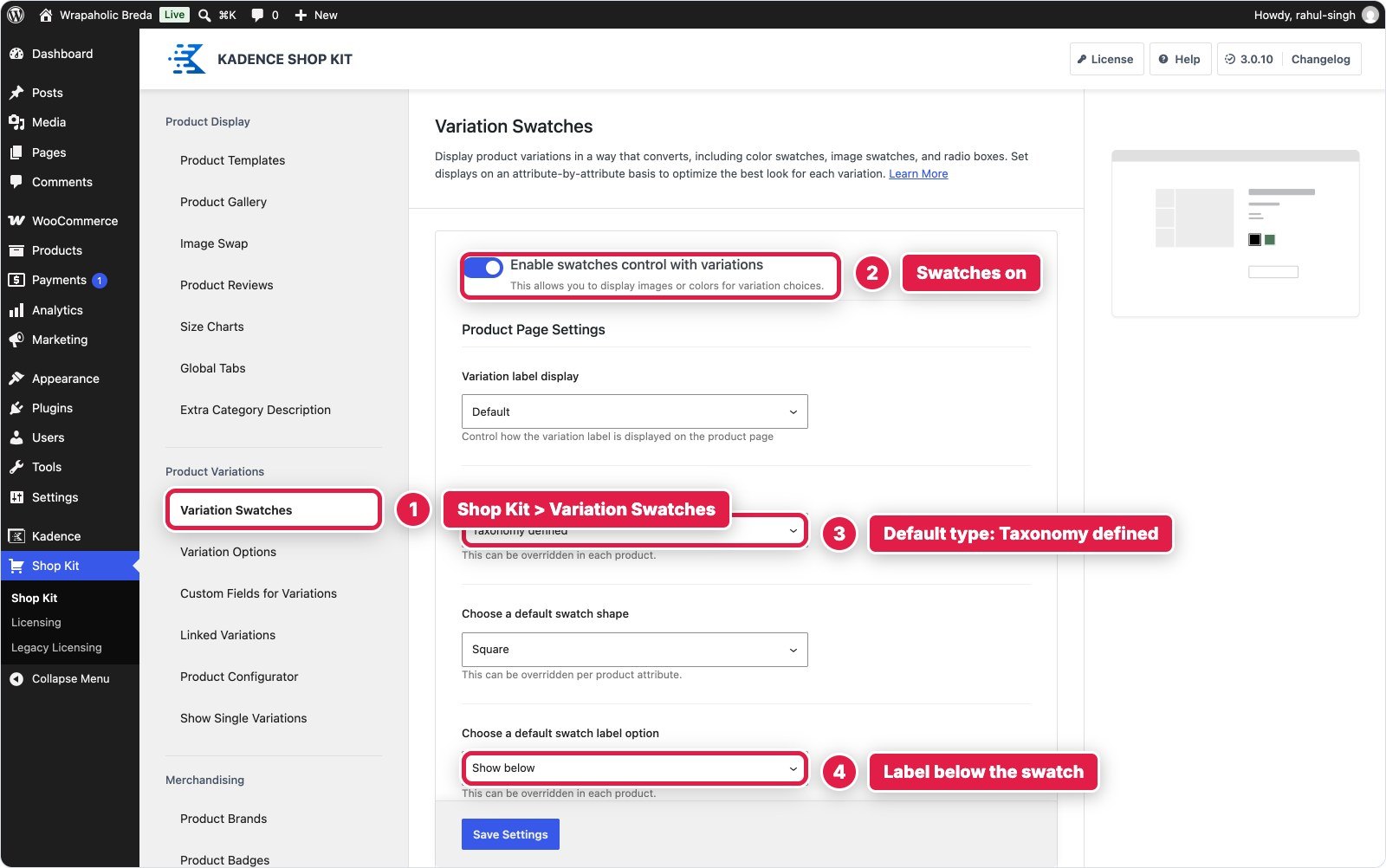
For the product page in my test I used Kadence Shop Kit, Kadence's own WooCommerce add-on. It gave me a real product template built with blocks, and colour and size swatches on WooCommerce's own variation form, so the price and stock still update the normal way.
The result: the variable product page shipped 288 KB, scored 81 mobile and 99 desktop, and moved only 0.03 in layout shift on a phone. That was the best product page of the six builders I tested, one point ahead of Greenshift, while three of the others scored close to 0.5 CLS on a phone because their product gallery jumped while it loaded.
Three smaller tools that are easy to miss:
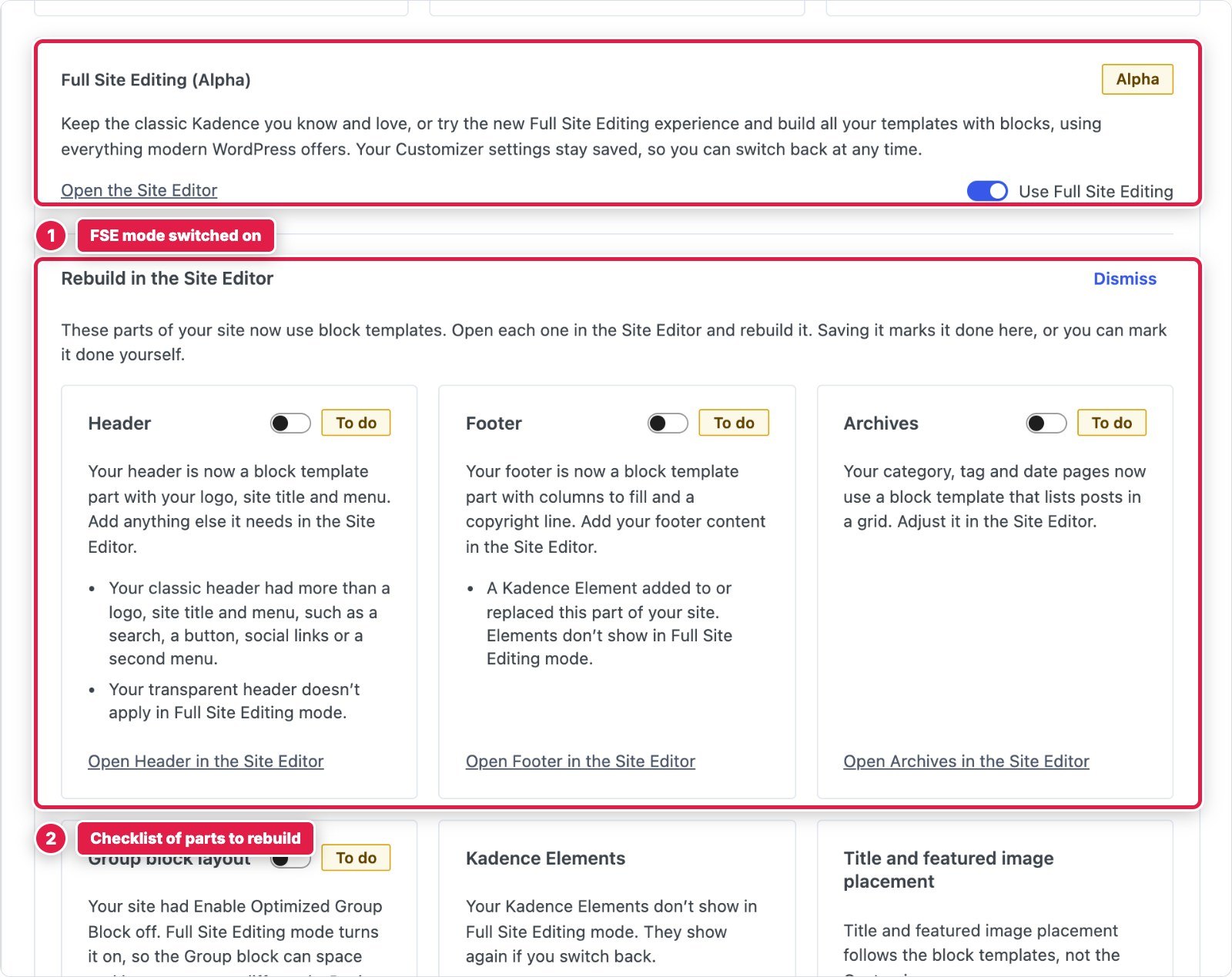
This is the biggest change to the theme in years. Kadence has always been a classic theme that you design in the Customizer. Version 1.6.0 adds a switch on the Kadence dashboard that turns the header, footer and archive layouts into block templates, which you then edit in the WordPress Site Editor, with your Kadence palette, fonts and buttons moved into Global Styles. Your Customizer settings are kept, so you can switch back.
I switched it on for the test site to see what really happens. Kadence is upfront about the limits before you confirm:
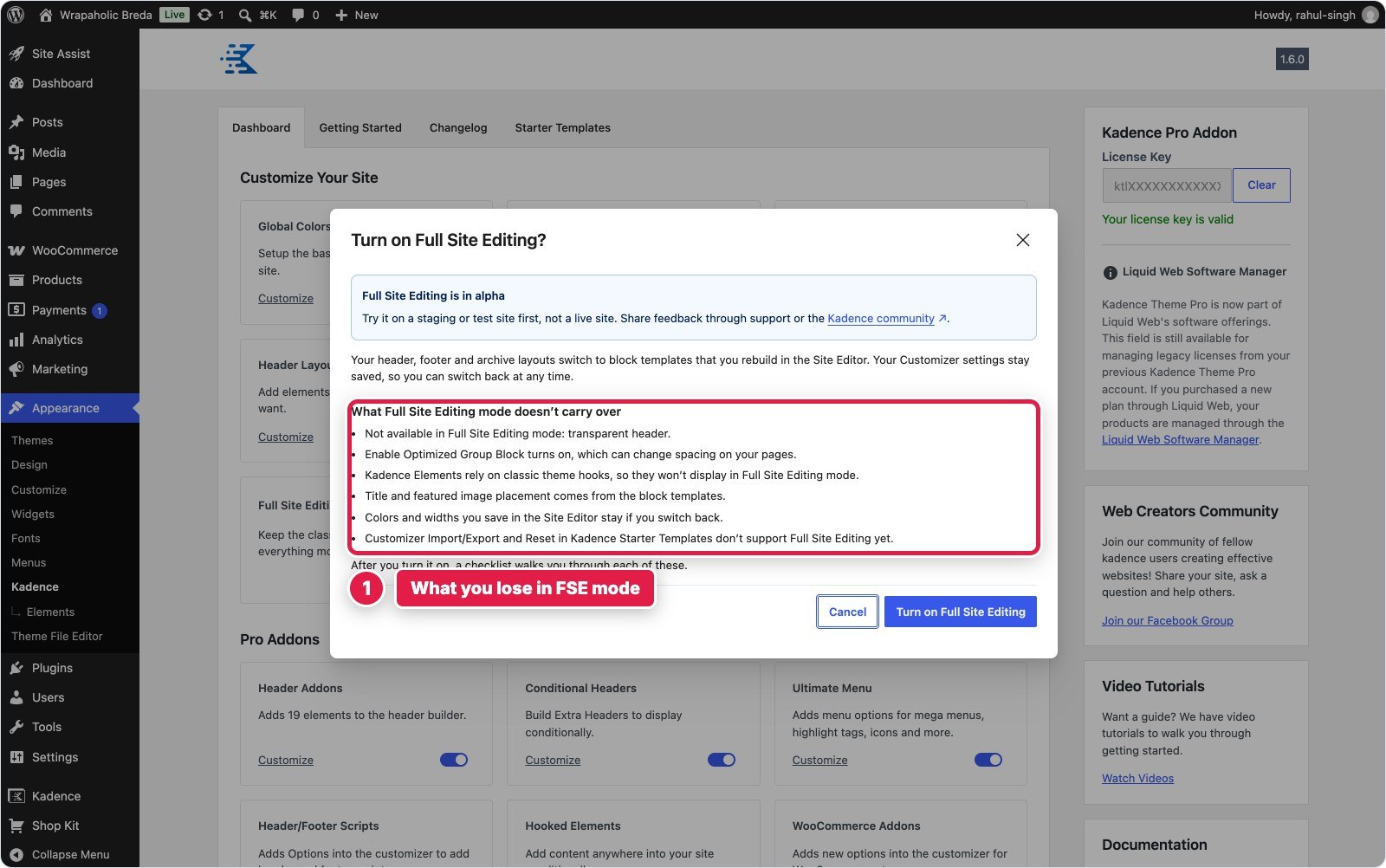
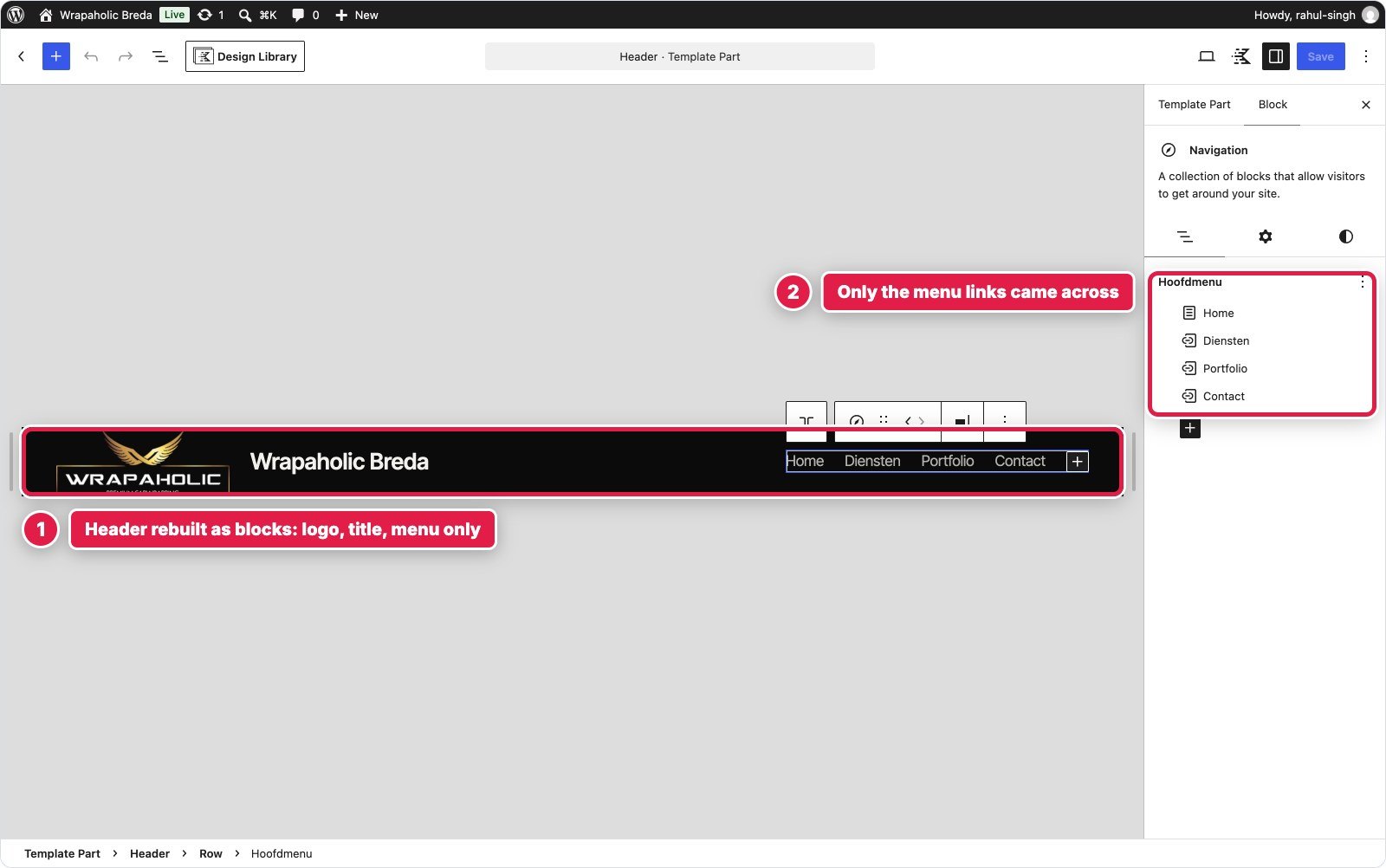
After the switch, a checklist walks you through each part to rebuild. The header I got was a basic block template with the logo, site title and menu only. Both header buttons, the transparent header and the footer Element were gone, so the site looked broken until I rebuilt them.
Leave it off on any live site. It is a sensible direction and the checklist is well done, but today you lose Elements and the transparent header, which are two of the best reasons to use Kadence. Try it on a staging copy if you are curious, and switch it back off before you go live. I will retest when it leaves alpha.
|
Feature |
Free theme |
With Kadence Pro |
|---|---|---|
|
Header and footer builder |
Yes, drag and drop |
Plus 19 extra header elements |
|
Transparent and sticky header |
Yes |
Yes |
|
Conditional headers per page |
No |
Yes |
|
Mega menu, menu icons and labels |
No |
Yes (Ultimate Menu) |
|
Global palette, fonts and button styles |
Yes |
Yes |
|
Layouts per post type and per page |
Yes |
Yes |
|
Breadcrumbs and scroll to top |
Yes |
Yes |
|
Local Google fonts and CSS preload |
Yes |
Yes |
|
Hooked Elements with display rules |
No |
Yes |
|
Header and footer scripts |
No |
Yes |
|
WooCommerce Customizer settings |
Yes, including slide out cart |
Plus WooCommerce add-ons and Shop Kit |
|
Infinite scroll for archives |
No |
Yes |
|
Dark mode palette switch |
No |
Yes |
|
Maintenance and coming soon mode |
No |
Yes |
|
Starter templates |
52 free templates |
All 93 templates |
|
Full Site Editing mode (alpha) |
Yes |
Yes |
If your site is a blog or a simple business site, the free theme plus the free Kadence Blocks plugin is enough. I would only pay once you need Elements, a mega menu, conditional headers or Shop Kit for a real store.
Kadence no longer sells the Pro add-on on its own, and there is no lifetime deal. The Kadence pricing page sells one bundle, priced only by the number of sites. Every plan includes Kadence (premium starter templates, Pro blocks, custom fonts and mega menus), plus LearnDash, Give and The Events Calendar, and the same page lists Shop Kit for WooCommerce, security, backups and memberships among the Kadence tools:
|
Plan |
Price per year |
Price per site |
|---|---|---|
|
$350 |
$350 |
|
|
$599 |
$59.90 |
|
|
$799 |
$31.96 |
|
|
$899 |
$17.98 |
|
|
$999 |
$9.99 |
One thing to watch: the Kadence theme page still shows older Pro ($299) and Elite ($499) plan cards, while the pricing page only sells the bundle above. Go by the pricing page and the checkout. For a single blog, $350 a year for the theme extras alone is hard to justify. For an agency running 10 or more client sites, $59.90 a site is fair, especially if you would otherwise buy LearnDash or an events plugin anyway.
Kadence usually runs a Black Friday sale. I track it in my Kadence Black Friday deal tracker.
I have compared Kadence head to head with each of its main rivals, so here is the one line answer for each:
I build most business sites on Blocksy with Kadence Blocks on top, and for WooCommerce stores I go with Blocksy without thinking twice. I pick the Kadence theme when the whole site is built with Kadence Blocks and I want Elements, conditional headers and one design system across theme and blocks. That combination was the fastest in my rebuild test, so it is a strong choice, not a compromise.
After rebuilding a full client site on it, here is what stood out, good and bad.
Kadence Theme
4.5/5
The best free theme for anyone who builds with Kadence Blocks, and the fastest stack in my rebuild test. Pro is excellent for Elements, conditional headers and Shop Kit, but the $350 a year bundle only pays off across several sites.
What works
What does not
Six years after I first wrote about it, Kadence is still the free theme I recommend most often to people who build with blocks. Start with the free theme and the free Kadence Blocks plugin, follow the steps above in order, and you will have a fast, good looking site without paying anything. Buy the bundle when you need Elements, a mega menu, conditional headers or a proper WooCommerce product template, ideally when you can spread the cost over several sites.
If you are choosing between themes right now, read my Kadence vs Blocksy test before you decide, because for stores and most business sites Blocksy is still my first pick.
Yes. The Kadence theme is free on WordPress.org and includes the header and footer builders, global colours and fonts, layout settings and WooCommerce settings. Kadence Pro is a paid add-on that switches on extra modules.
Kadence Pro is now only sold inside the Kadence bundle, from $350 a year for one site up to $999 a year for 100 sites. Every plan also includes LearnDash, Give and The Events Calendar. There is no lifetime licence and no theme only plan.
Pro adds hooked Elements with display rules, conditional headers, a mega menu, 19 extra header elements, header and footer scripts, WooCommerce add-ons, infinite scroll, a dark mode palette switch, maintenance mode and all 93 starter templates. The free theme already has the builders and global styles.
No, Kadence is a classic theme designed in the Customizer and built for the block editor. Version 1.6.0 added an optional Full Site Editing mode that turns the header, footer and archives into block templates, but it is an alpha and is off by default.
Yes. In my November 2026 test, a client homepage rebuilt on Kadence with Kadence Blocks scored 84 on mobile and 99 on desktop in Lighthouse, the best of six builders, with 151 KB of code shipped and a perfect accessibility score.
Yes. The free theme has product, catalog, cart and account layout settings, and Kadence Shop Kit adds block product templates and swatches. My Kadence product page was the best of six builders I tested. For stores I still lean to Blocksy, which won the store round in my Kadence vs Blocksy test.
No, the theme works with the normal WordPress blocks or any page builder. Kadence Blocks is free and shares the theme palette and fonts, so most Kadence sites use both.
Use Kadence if your whole site is built with Kadence Blocks and you want Elements and one design system. Use Blocksy for WooCommerce stores and most business sites, which is what I do for my own projects.